Guida Utente e Best Practice di Avatour
1. Per tutti gli utenti di Avatour
Se non conosci ancora Avatour, le seguenti risorse offrono un'utile introduzione alla piattaforma e alle sue funzionalità:
- Video "Come funziona Avatour"
Una breve panoramica delle principali funzionalità di Avatour e di come la piattaforma consenta una collaborazione remota immersiva. - Domande frequenti
Risposte alle domande più frequenti. - Glossario
Definizioni dei termini chiave e dei concetti di Avatour utilizzati di frequente. - Sito web
Dai un'occhiata in particolare alle Funzionalità di Avatour insieme alle sezioni dedicate ai Casi d'uso e ai Settori per scoprire come Avatour può supportare le tue esigenze specifiche.
2. Tipi di utenti di Avatour
2.1 Partecipanti alla riunione (non è richiesto alcun account)
Gli utenti possono partecipare alla riunione senza registrarsi per creare un account Avatour. Eccezione: se l’organizzatore ha selezionato l’impostazione della riunione “Autenticazione richiesta” (vedi anche 4.2.1 Impostazioni per spazi di lavoro e riunioni) — ad esempio, per consentire solo ai dipendenti interni di partecipare tramite Single Sign-On (SSO) — l’invito del calendario indicherà che i partecipanti devono effettuare l’accesso per autenticarsi.
Gli utenti accedono alla riunione come segue:
- Ricevono un link alla riunione dall’organizzatore.
- Inseriscono una password per la riunione, se l’organizzatore ne ha abilitata una.
- I partecipanti possono partecipare senza un account Avatour, a meno che la riunione non sia soggetta a restrizioni e richieda l’accesso per l’autenticazione.
2.1.1 Partecipante
- Può partecipare e interagire pienamente (webcam, microfono, chat e funzionalità “Presenta”).
- Massimo di 20 partecipanti interattivi per riunione.
2.1.2 Spettatore
- Può visualizzare la riunione e partecipare solo tramite chat.
- Non può condividere video, utilizzare il microfono, effettuare presentazioni, riprodurre/mettere in pausa risorse o acquisire istantanee.
- Massimo 10 spettatori per riunione.
- Insieme ai partecipanti, una riunione può ospitare fino a 30 partecipanti.
2.2 Utenti registrati
Gli utenti registrati dispongono di un account Avatour. Gli account vengono creati in uno dei seguenti modi:
- Invitati dall’amministratore: durante la procedura di onboarding, Avatour configura un tenant dedicato per l’organizzazione e crea uno o più account amministratore. Gli amministratori possono quindi invitare utenti all’interno dell’organizzazione e assegnarli a gruppi, che definiscono il loro ruolo sulla piattaforma (Ospite, Host o Amministratore). Gli utenti invitati ricevono un link di registrazione per completare la configurazione dell’account e impostare una password.
- Invitati dall’host: Gli Host possono aggiungere utenti come collaboratori con ruolo di Editor a uno spazio di lavoro. Ciò comporta l’utilizzo di una licenza Host e garantisce all’utente un accesso a livello di Host.
- Provisioning automatico tramite SSO (solo livelli Enterprise/Business): Gli account possono essere creati automaticamente dall’IdP. Per impostazione predefinita, gli account forniti tramite SSO vengono aggiunti al gruppo Ospiti, a meno che ciò non venga sovrascritto tramite le mappature dei gruppi SAML. Gli amministratori possono comunque invitare utenti e assegnare l’appartenenza a un gruppo direttamente anche quando l’SSO è abilitato.
Riepilogo:
Gli utenti registrati e la loro appartenenza ai gruppi possono essere gestiti in diversi modi:
- Gestione da parte degli amministratori: un amministratore nella console di Avatour può creare utenti e assegnarli a gruppi, che definiscono il loro ruolo sulla piattaforma (Ospite, Host o Amministratore).
- Provisioning SSO: per i clienti dei livelli Enterprise o Business con SSO abilitato, l’IdP può effettuare automaticamente il provisioning degli account e assegnare l’appartenenza ai gruppi, che definisce il ruolo dell’utente sulla piattaforma.
- Utenti invitati dall’Host: gli Host possono invitare altri utenti come collaboratori con ruolo di Editor in specifici spazi di lavoro. L’assegnazione del ruolo di collaboratore Editor comporta l’utilizzo di una licenza Host.
Best practice consigliata (clienti Enterprise):
Per le organizzazioni che prevedono un numero elevato di utenti che necessitano di accesso ad Avatour, si raccomanda di integrare il Single Sign-On (SSO) e gestire gli utenti e le appartenenze ai gruppi dall’IdP. Questo approccio semplifica il provisioning degli account, l’assegnazione ai gruppi e la gestione delle licenze, riducendo il carico amministrativo e garantendo un controllo degli accessi coerente.
2.2.1 Utenti ospiti
- Aggiunti al gruppo Ospiti.
- Possono visualizzare le risorse all’interno degli spazi di lavoro in cui sono stati aggiunti come collaboratori con ruolo di Visualizzatore.
- Non possono creare spazi di lavoro, ospitare riunioni o caricare contenuti.
- Gli account ospite forniti tramite SSO si autenticano tramite l’IdP; non è richiesta alcuna password gestita da Avatour.
2.2.2 Utenti con licenza (accesso alla console web)
Utenti host (Gruppo: Host)
- Possono creare/gestire spazi di lavoro, invitare collaboratori in uno spazio di lavoro, ospitare riunioni in diretta, caricare Quick Captures.
- Hanno accesso alla dashboard dell’ospitante e all’app dell’operatore sulle telecamere a 360° supportate.
Utenti amministratori (Gruppo: Admin)
- Dispongono di tutte le funzionalità degli Host, oltre alla gestione completa degli account.
Ulteriori privilegi di amministratore includono:
Gestione degli account
- Creare nuovi utenti e assegnarli a gruppi.
- Reimpostare le password quando gestite da Avatour (non applicabile quando è abilitato l’SSO).
- Promuovere gli utenti ospiti a Host.
- Disattivare gli utenti (gli account amministratore devono prima essere convertiti in Host prima della cancellazione).
- Trasferire le risorse da un utente Host a un altro durante la cancellazione.
Impostazioni
- Configurare le impostazioni di sicurezza a livello di organizzazione per le risorse, gli spazi di lavoro e le riunioni ospitate sulla piattaforma (ad es. se un Host debba essere presente per avviare una riunione, se i volti debbano essere sfocati in tutti i video caricati sulla piattaforma).
- Abilitare o disabilitare le funzionalità AI o la registrazione.
- Applicare il branding aziendale in modo coerente su tutta la piattaforma se è configurato un dominio personalizzato.
Risorse e analisi
- Visualizzare tutte le risorse caricate da qualsiasi utente dell’organizzazione.
- Esaminare l’utilizzo della piattaforma all’interno dell’organizzazione.
2.2.3 Autorizzazioni dei collaboratori dello spazio di lavoro
Le autorizzazioni dello spazio di lavoro definiscono ciò che un utente può fare all’interno di uno specifico spazio di lavoro. Queste sono distinte dall’appartenenza a gruppi a livello di piattaforma (Ospite, Host, Amministratore).
- Collaboratore con ruolo di editore: gli utenti con questa autorizzazione possono:
- Gestire le risorse (caricare, rimuovere, sfocare i volti, generare riepiloghi)
- Gestire le impostazioni delle riunioni (abilitare/disabilitare la registrazione, ammettere o rimuovere partecipanti)
- Pianificare e ospitare riunioni in diretta
- Generare report basati su modelli predefiniti
-
Aggiungere o rimuovere collaboratori dallo spazio di lavoro
-
Collaboratore con ruolo di visualizzatore: gli utenti con questa autorizzazione hanno accesso in sola lettura alle risorse dello spazio di lavoro. Non possono modificare le risorse, gestire le riunioni né gestire i collaboratori, ma possono creare note sulle risorse.
3. Per i partecipanti alle riunioni da remoto e i visitatori dell'area di lavoro
Avatour consente agli utenti di collaborare in due modi principali:
-
Partecipare a una riunione Avatour (collaborazione sincrona):
Potresti ricevere un invito tramite calendario per partecipare a una riunione Avatour. Durante la riunione, i partecipanti possono effettuare una visita in remoto in tempo reale o esaminare insieme le risorse in modo sincrono. -
Visitare uno spazio di lavoro (collaborazione asincrona):
Potresti anche essere invitato come collaboratore di uno spazio di lavoro per esaminare le risorse in modo asincrono (secondo i tuoi tempi).
3.1 Come partecipare a una riunione Avatour e visitare uno spazio di lavoro Avatour
3.1.1 Qualsiasi dispositivo con “schermo piatto” dotato di browser web
Puoi partecipare a una riunione Avatour da qualsiasi computer desktop o portatile, smartphone o tablet utilizzando un browser web.
Partecipare a una riunione Avatour
Nota: per partecipare a una riunione Avatour è necessario concedere l’autorizzazione all’uso del microfono. Si prega di accettare eventuali richieste di autorizzazione da parte del browser.
- Tramite invito del calendario (consigliato):
- In genere riceverai un invito tramite calendario con un link per partecipare direttamente (ad esempio:
https://avatour.live/join?s=xxxxx).
- In genere riceverai un invito tramite calendario con un link per partecipare direttamente (ad esempio:
-
Cliccando sul link, il codice della riunione di 5 caratteri verrà inserito automaticamente e verrai reindirizzato alla riunione.
- Autenticazione richiesta: alcune riunioni sono riservate agli utenti registrati. In questo caso, l’invito indicherà che è necessario effettuare l’accesso per partecipare alla riunione.
- Riunioni protette da password: alcune riunioni potrebbero richiedere una password. In tal caso, l’invito includerà la password che dovrete inserire per partecipare.
-
Tramite codice della riunione:
- Se l’organizzatore condivide separatamente un codice della riunione di 5 caratteri, vai su https://avatour.live/join, inserisci il tuo nome e il codice della riunione, quindi partecipa alla riunione.
- Se la riunione è protetta da password, inserisci la password fornita dall’organizzatore.
- Se la riunione richiede l’autenticazione, dovrai accedere con il tuo account Avatour prima di partecipare.
Suggerimento 1: Se la tua videocamera o il microfono non funzionano, potrebbero essere in uso da parte di un’altra applicazione (ad esempio Microsoft Teams o Zoom). Chiudi tutte le app che potrebbero utilizzare la videocamera o il microfono, quindi esci dalla riunione Avatour e rientra.
Suggerimento 2: Se non riesci ancora a partecipare alla riunione, esegui questo test: https://avatour.live/test.
Il test permette di verificare se il tuo firewall aziendale o la tua rete stanno bloccando l’accesso e fornirà informazioni utili per discutere con il tuo team IT.Suggerimento 3: Non utilizzare le app Avatour per iOS o Android per partecipare alle riunioni. Queste app sono necessarie solo quando si trasmette in streaming una riunione dal vivo da una videocamera Insta360, poiché tali videocamere non possono eseguire direttamente il software Avatour 360° e richiedono uno smartphone come supporto.
Visitare uno spazio di lavoro Avatour (senza partecipare a una riunione Avatour)
È possibile accedere a uno spazio di lavoro nei seguenti modi:
-
Spazio di lavoro pubblico:
Se lo spazio di lavoro è pubblico, è possibile accedere direttamente al link senza bisogno di effettuare il login. -
Spazio di lavoro con accesso limitato:
Se lo spazio di lavoro è con accesso limitato, è necessario essere aggiunti come collaboratori con i permessi di Editor o Visualizzatore.- Una volta aggiunto come collaboratore, riceverai una notifica via e-mail con un link allo spazio di lavoro.
- Clicca sul link contenuto nell’e-mail per aprire lo spazio di lavoro. Se non hai ancora effettuato l’accesso, ti verrà richiesto di effettuare l’accesso o completare la registrazione.
- Una volta effettuato l'accesso, lo spazio di lavoro si aprirà automaticamente.
In alternativa, puoi effettuare l'accesso all'indirizzo https://avatour.live/login e accedere allo spazio di lavoro dal tuo elenco di spazi di lavoro.
3.1.2 Visore VR
Puoi partecipare a una riunione e visitare uno spazio di lavoro da una vasta gamma di visori Meta e Pico compatibili. Per farlo:
- Installa la nostra app Avatour dal tuo negozio di app VR: Come installare l’app Avatour VR
- Avvia la nostra app e inserisci il codice della riunione oppure seleziona uno spazio di lavoro per partecipare a una riunione. Per ulteriori informazioni su come utilizzare la nostra app VR, consulta il nostro articolo della Knowledge Base qui.
3.2 Strumenti di collaborazione per riunioni e spazi di lavoro
Avatour consente la collaborazione in due contesti principali:
- Riunioni (sincrone): collabora in tempo reale con altri partecipanti, ad esempio effettuando sopralluoghi dal vivo o esaminando insieme contenuti registrati.
- Spazi di lavoro (asincroni): esamina e interagisci con i contenuti secondo i tuoi tempi, 24 ore su 24, 7 giorni su 7.
Gli strumenti di collaborazione sono per lo più simili tra riunioni e spazi di lavoro, con alcune differenze dovute al contesto sincrono o asincrono.
3.2.1 Layout dell’interfaccia
L’interfaccia di Avatour è organizzata attorno a tre aree principali:
- Pannello di sinistra – Risorse dell’area di lavoro e strumenti di supporto
- Area centrale – Area di visualizzazione principale per video in diretta, risorse e dashboard dell’area di lavoro
- Pannello di destra – Informazioni contestuali, quali partecipanti, riunioni o chat
La maggior parte delle interazioni viene avviata dal menu in basso.
Facendo clic su un’opzione del menu si apre un pannello laterale sul lato sinistro o destro dello schermo, mentre l’area centrale rimane l’area di visualizzazione principale.
3.2.2 Esempio di vista di una riunione
Ecco un esempio di vista in una riunione su Avatour:
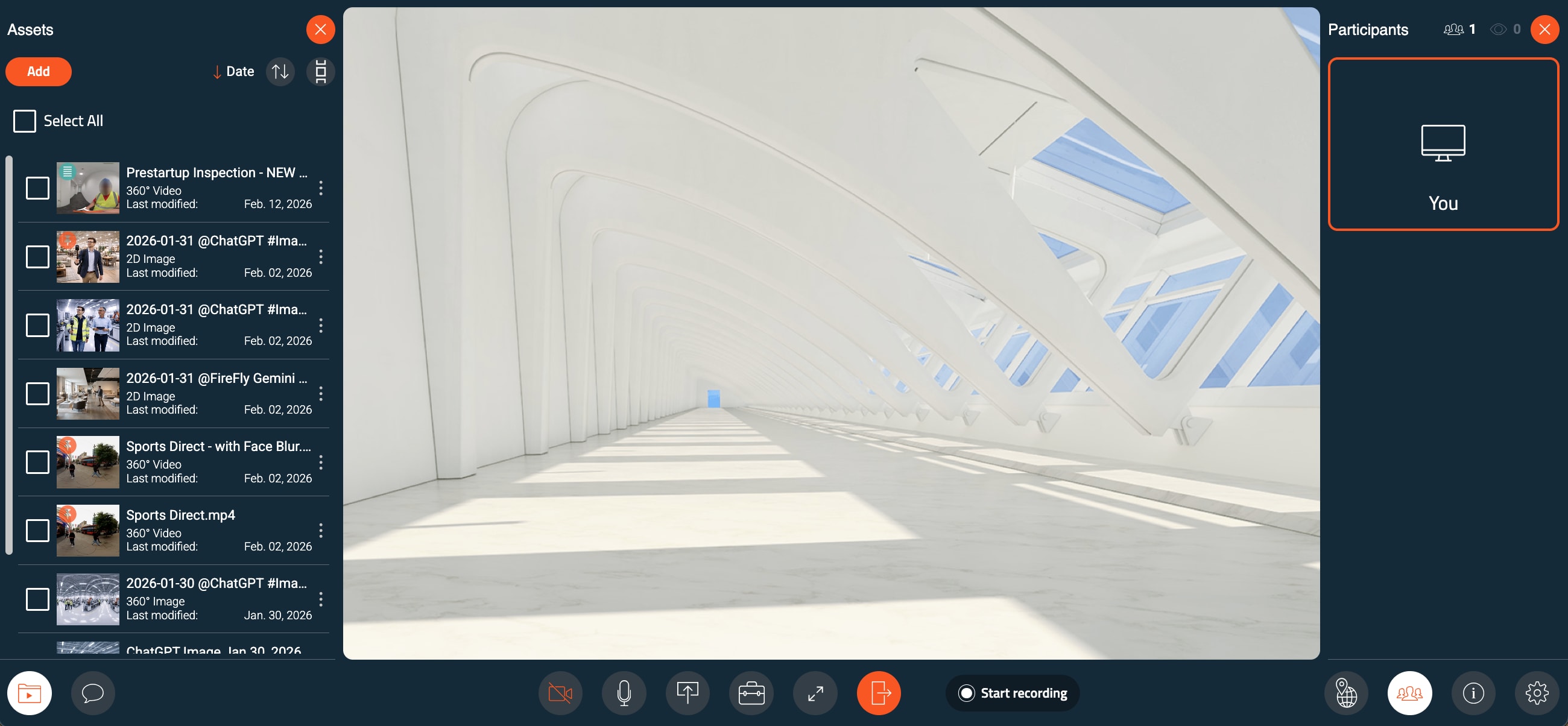
Riunione Avatour con pannello Risorse (a sinistra), area di lavoro (al centro) e pannello Partecipanti (a destra)
3.2.3 Esempio di vista Area di lavoro
Ecco un esempio di vista Area di lavoro:
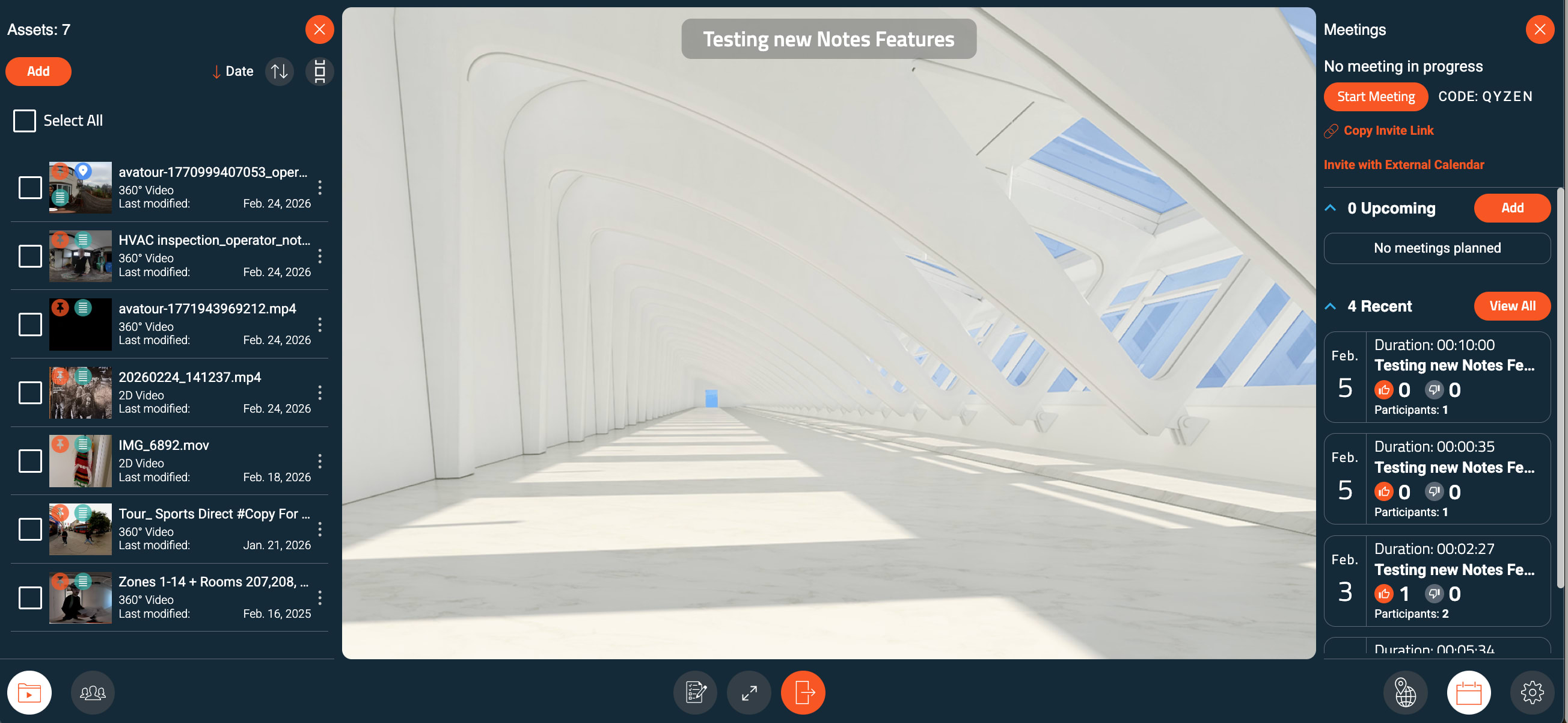
Area di lavoro di Avatour con pannello delle risorse (a sinistra), area di lavoro (al centro) e pannello delle riunioni (a destra)
3.2.4 Panoramica del menu inferiore
Il menu inferiore consente di accedere ai controlli e ai pannelli principali dell’interfaccia:
Menu inferiore di Avatour Meeting

Menu inferiore di Avatour Meeting
- Risorse – Visualizza i file dell’area di lavoro, inclusi video registrati, immagini, istantanee e PDF.
- Chat – Invia messaggi a tutti i partecipanti alla riunione.
- Videocamera – Accendi o spegni la webcam.
- Microfono – Disattiva o riattiva l’audio del tuo microfono.
- Presenta – Presenta un file, il desktop o il feed della webcam (vedi la sezione “Presenta” qui sotto).
- Strumenti per l’organizzatore (solo per gli organizzatori):
- Blocca la visuale – Blocca la visuale per tutti i partecipanti.
- Disattiva audio di tutti – Disattiva l'audio di tutti i partecipanti.
- Attiva schermo intero – Visualizza la scheda della riunione a schermo intero.
- Esci dalla riunione – Esci dalla riunione.
- Avvia registrazione – Usa questo pulsante per avviare e interrompere manualmente la registrazione durante una riunione. In alternativa, le riunioni possono essere registrate automaticamente se l’opzione avvio automatico della registrazione è abilitata nelle impostazioni dell’area di lavoro. In entrambi i casi, le registrazioni vengono salvate tra le risorse dell’area di lavoro.
- Mappa – Apri o chiudi il pannello della mappa per visualizzare il movimento della telecamera per le risorse dotate di tracciato GPS. Cliccando su una posizione si passa direttamente al punto esatto nel video. La mappa si aggiorna in tempo reale durante la riproduzione del video. Sulla mappa vengono visualizzate anche le note.
- Partecipanti – Apri o chiudi il pannello dei partecipanti.
- Informazioni sulla riunione – Visualizza il codice della riunione, il link alla riunione e accedi ai tutorial correlati.
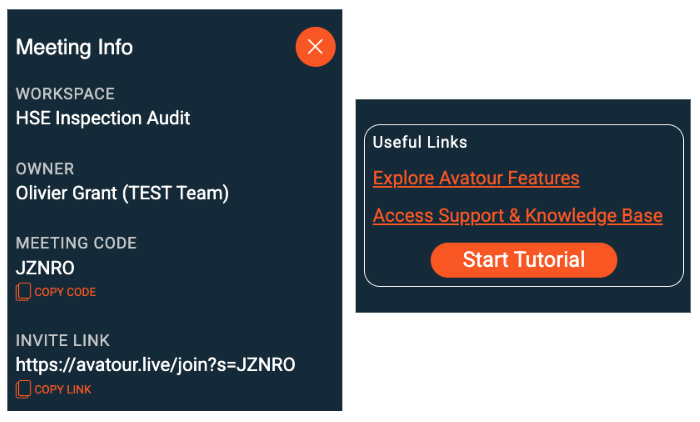
Pannello laterale "Informazioni sulla riunione Avatour"
- Impostazioni – Regola le impostazioni relative a lingua, audio e video. Per le riunioni video a 360° in diretta, utilizza Mostra bitrate per monitorare le statistiche di connettività.
Suggerimento: invia il link della riunione o aggiungilo a un evento del calendario per invitare i partecipanti.
Menu “Presenta”
L’opzione Presenta nel menu in basso della riunione ti consente di condividere contenuti con tutti i partecipanti.
- Fotocamera – Condividi la fotocamera del tuo dispositivo (laptop, smartphone ecc.). Questa funzione può essere utilizzata anche durante una riunione video live a 360° per sovrapporre una vista secondaria per primi piani o dettagli specifici. Quando si condivide la fotocamera di uno smartphone (anteriore o posteriore), i partecipanti alla riunione in remoto possono utilizzare lo zoom dello smartphone e anche accendere e spegnere la torcia.
- Desktop – Condividi lo schermo del tuo desktop con tutti i partecipanti.
- Risorsa – Presenta una risorsa dall’area di lavoro. Selezionando una risorsa si apre la barra degli strumenti Risorsa, che fornisce controlli di riproduzione e strumenti di collaborazione specifici per la risorsa presentata.
Barre degli strumenti “Risorsa” e “Live 360°” nelle riunioni
Quando si presenta una risorsa in una riunione, la Barra degli strumenti “Risorsa” appare sopra l’area di lavoro. Ecco gli strumenti e le voci di menu disponibili quando si presenta una risorsa in una riunione – spiegati da sinistra a destra.
 Menu Avatour durante la presentazione di un asset in una riunione
Quando un video a 360° in diretta viene trasmesso in streaming durante una riunione, questo menu viene visualizzato nella parte inferiore dell’area di visualizzazione.
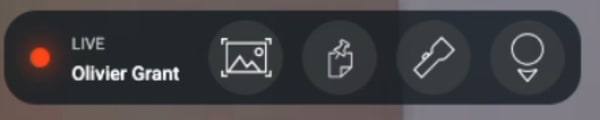 Menu Avatour con video live a 360° durante una riunione
Di seguito è riportata una descrizione di tutti gli elementi visualizzati nei menu sopra riportati.
- Timeline del video / Barra di avanzamento – Mostra l’avanzamento del video con note e argomenti chiave estratti dall’audio. Clicca su una nota o su un argomento per passare a quel momento e aprire la nota. Include i controlli Riproduci / Pausa.
- Istantanea – Cattura un’immagine a 360° o 2D dal contenuto.
- Riflettore – Evidenzia un’area specifica per tutti i partecipanti durante le sessioni in diretta.
- Mostra/Nascondi punto di vista (POV) – Visualizza dove sta guardando ciascun partecipante nel video a 360°.
- Note – Crea note associate a momenti specifici in un contenuto o durante uno streaming video in diretta. (N.B.: durante uno streaming in diretta, verrà automaticamente creato un contenuto = istantanea per catturare la nota). Ogni nota ha un autore e può essere classificata (Osservazione, Problema, Azione, Raccomandazione), monitorata in base allo stato (Aperta → In corso → Risolta), assegnata a un responsabile e condivisa tramite link diretti. Se il contenuto dispone di tracciamento GPS, le note mostrano anche le coordinate GPS. Le note possono anche essere spostate in un’altra posizione (trascinarle per modificarne la posizione) e spostate nella timeline (spostarle in avanti o indietro nella timeline). È inoltre possibile allegare un file a una risposta all’interno di una nota.
 Note di Avatour e filtri delle note
- Note generate da comandi vocali – Si tratta di segnaposto generati automaticamente quando in un video registrato vengono rilevate espressioni come “inserisci una nota”, “prendi nota” o “crea una nota”. Queste note compaiono sulla timeline e devono essere posizionate e finalizzate dall’utente.
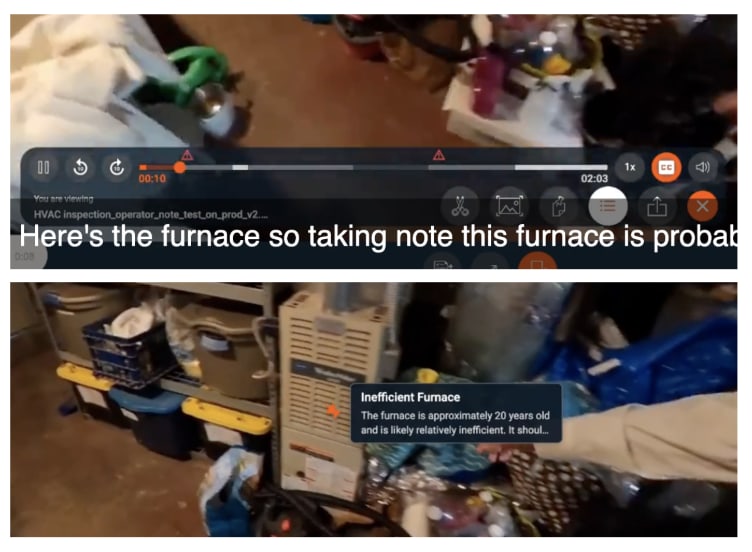 Note di Avatour - Generate tramite comando vocale
-
Note generate dall’IA – Si tratta di segnaposto generati automaticamente quando la registrazione rileva menzioni nella traccia audio del video che sembrano indicare problemi da registrare per un successivo follow-up. Le note generate dall’IA devono prima essere approvate dal proprietario della nota (vedi la dashboard dell’area di lavoro qui sotto). Una volta approvate, sono simili alle note dei comandi vocali in quanto appaiono sulla timeline e devono essere posizionate e finalizzate dall’utente.
-
Pannello delle note e del riepilogo – Apre un pannello laterale che mostra tutte le note, gli argomenti chiave e un riepilogo esecutivo per la risorsa. Cliccando su un elemento si viene reindirizzati a quel momento nel video.
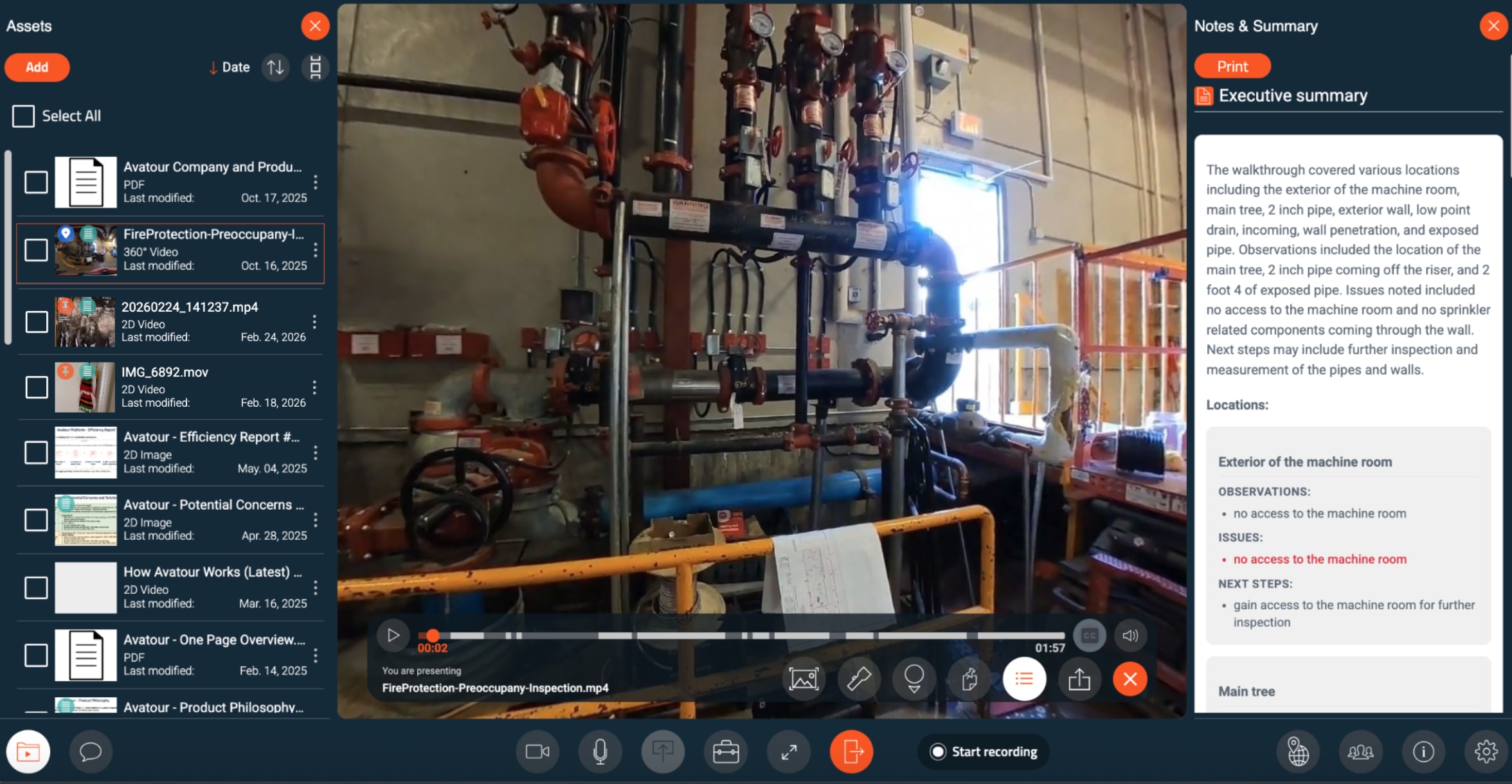 Sintesi di Avatour durante la presentazione di una risorsa in una riunione
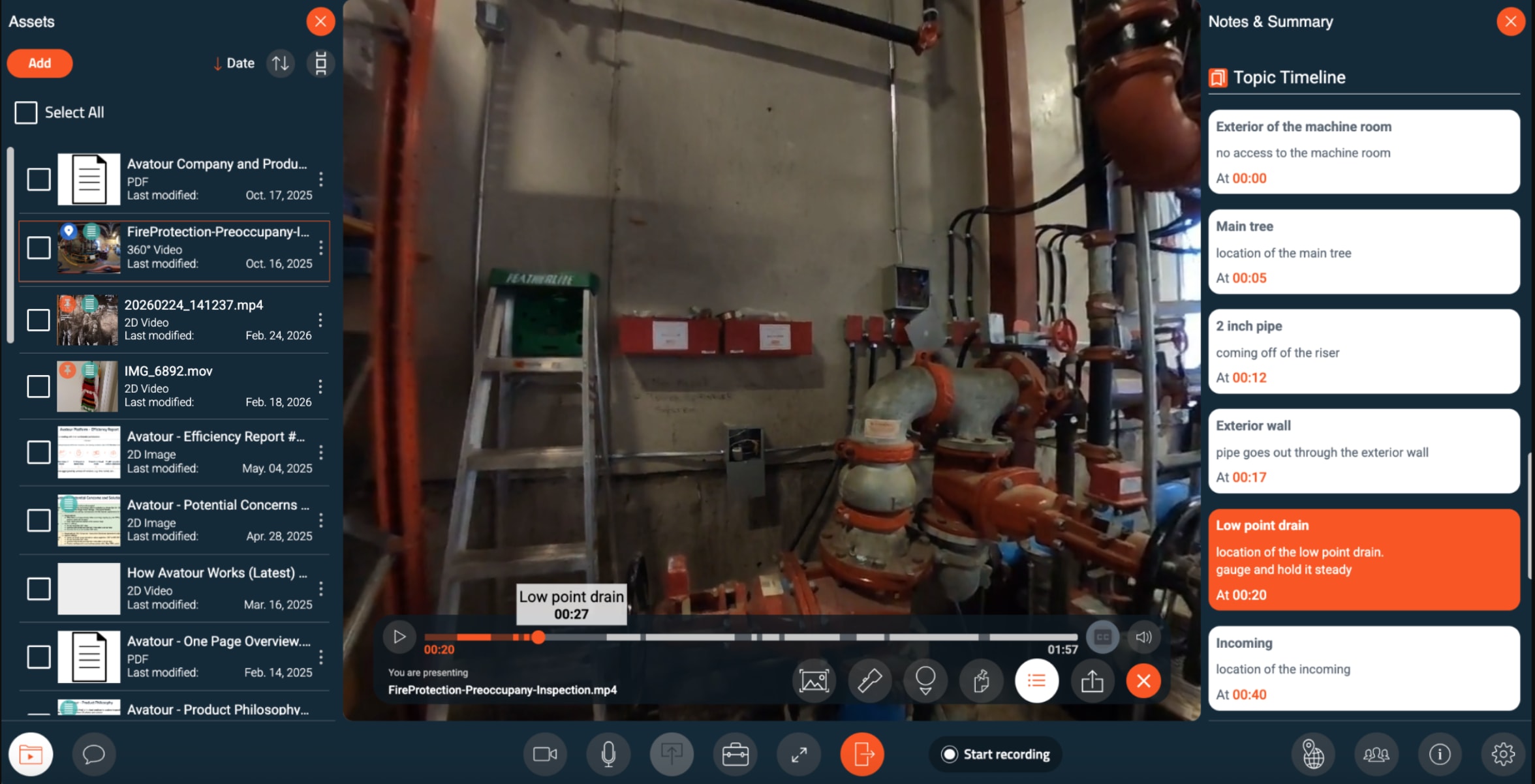 Argomenti di Avatour durante la presentazione di una risorsa in una riunione
Dal pannello laterale è possibile stampare un report sull’asset o scaricarlo come file TXT o CSV. I report possono includere diversi elementi che è possibile selezionare prima dell’esportazione.
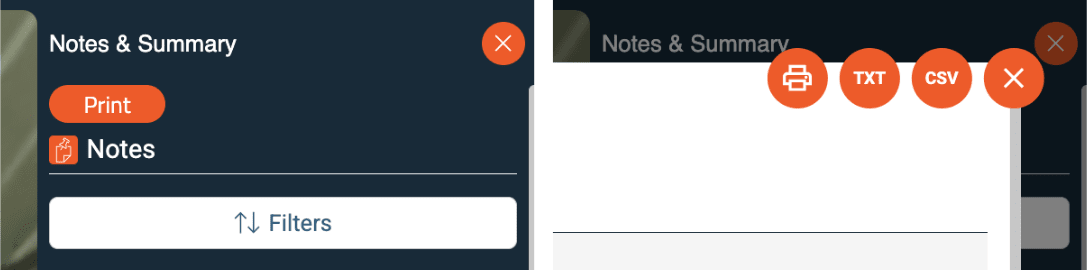
Menu di stampa/download del report delle risorse di Avatour
 Menu di selezione degli elementi del report sulle risorse di Avatour
- Condividi link – Condividi un link a una nota o a una scena specifica presente nella risorsa.
- Sottotitoli (CC) – Visualizza la trascrizione del testo sullo schermo durante la riproduzione del video.
Barra degli strumenti dell’asset (Area di lavoro)
Quando si esamina un asset in un’area di lavoro, la barra degli strumenti è simile ma ottimizzata per l’uso individuale:
 Menu Avatour durante la presentazione di una risorsa in un’area di lavoro
- Timeline video / Barra di avanzamento – Mostra l’avanzamento del video con note e argomenti chiave estratti dalla traccia audio. Clicca in un punto qualsiasi della timeline per scorrere il video. Clicca su una nota o su un argomento per passare a quel momento e aprire la nota. Include i controlli Riproduci / Pausa.
- Istantanea, Note, Pannello delle note e del riepilogo, Condividi link, Sottotitoli
- Non disponibili: Spotlight, POV (queste funzioni richiedono la presenza di partecipanti in diretta)
- Comandi aggiuntivi:
- Intervalli di 10 secondi – Avanzamento/riavvolgimento
- Velocità di riproduzione – Regola la velocità (0,5×–2×)
- Ritaglia video – Ritaglia l’inizio o la fine del contenuto
4. Per gli utenti Host e Admin - Console web di Avatour
Una volta effettuato l'accesso al proprio account utente Avatour, si accederà alla Console Web.
4.1 Console Web - Panoramica del menu principale
Sul lato sinistro sono visibili le seguenti voci di menu:
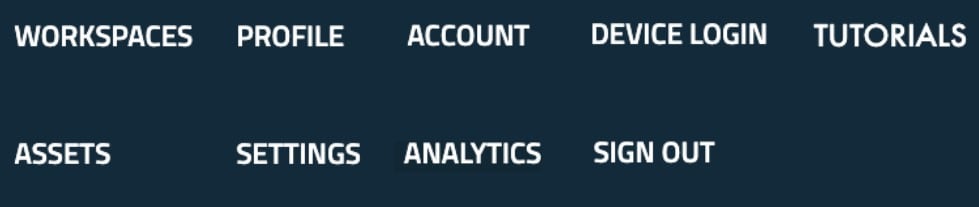 Console Web di Avatour - Menu principale
- Aree di lavoro – Organizza i tuoi contenuti in modo efficiente. Ogni area di lavoro contiene Risorse, Collaboratori, Riunioni e Impostazioni.
- Risorse – Accedi e gestisci tutte le tue risorse (video, immagini, PDF). Gli amministratori possono visualizzare tutte le risorse dell’account, mentre quelle condivise sono visibili a tutti gli utenti.
- Profilo – Gestisci la lingua e la password.
- Analisi – Tieni traccia dell’attività delle sessioni, dell’utilizzo degli spazi di lavoro e delle metriche di ROI.
- Impostazioni (solo amministratori) – Configura le impostazioni predefinite per spazi di lavoro, riunioni e risorse a livello dell’organizzazione. Gli amministratori possono anche personalizzare il branding (logo, colori, sfondi).
- Account (solo amministratori) – Gestisci gli utenti registrati e le telecamere a 360°.
- Accesso dal dispositivo – Inserisci il codice visualizzato sulla tua telecamera a 360° per associarla al tuo account.
- Tutorial – Accedi ai tutorial guidati.
- Esci – Esci dalla console.
Sezioni come Profilo, Accesso dispositivo, Tutorial e Esci sono intuitive e non presentano sottosezioni dettagliate.
4.2 Console web - Dettagli per voce di menu (con immagini)
4.2.1 Spazi di lavoro
Gli spazi di lavoro sono unità organizzative flessibili che consentono di gestire risorse, collaboratori e riunioni in un unico posto. È possibile creare un nuovo spazio di lavoro tramite il pulsante Nuovo spazio di lavoro nell’angolo in alto a destra.
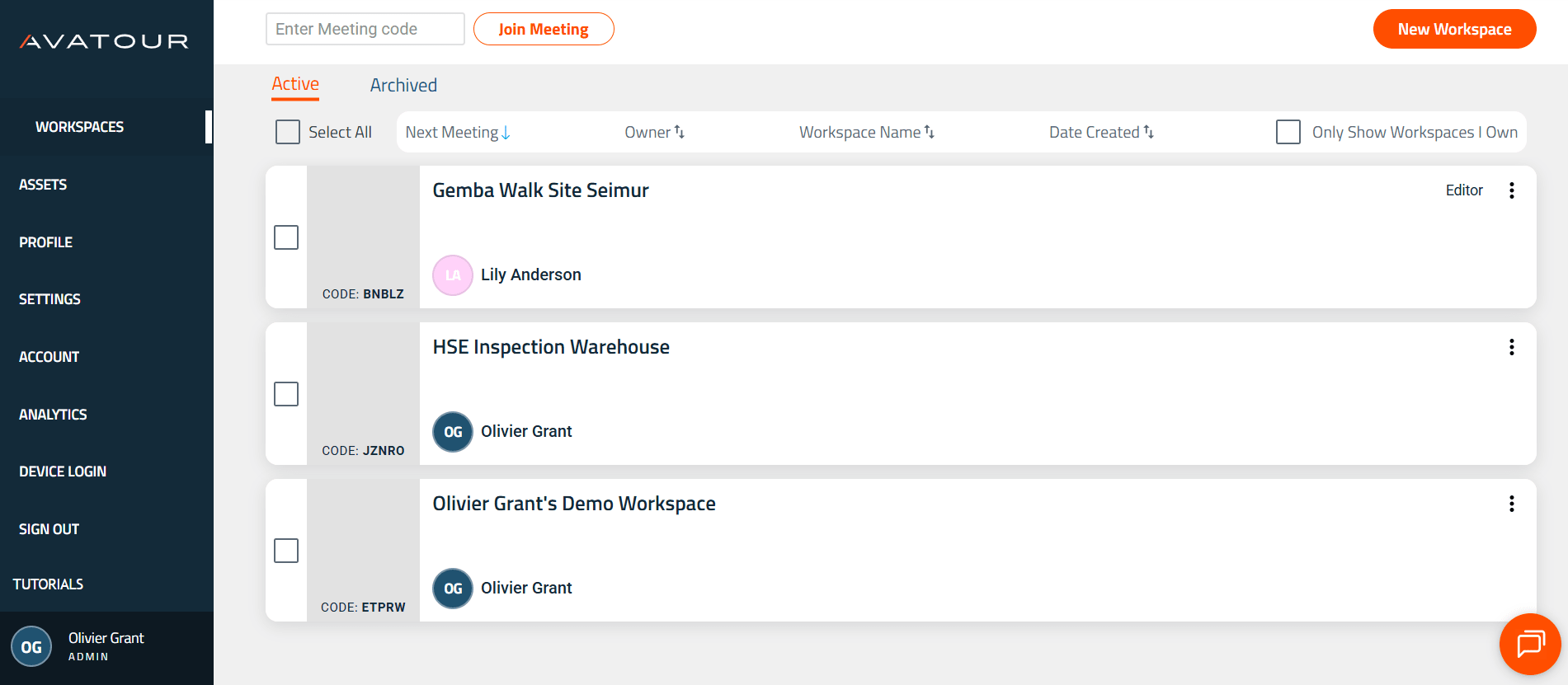 Console web di Avatour - Voce di menu principale “Spazi di lavoro”
Fai clic sull’icona a forma di campana per visualizzare un riepilogo delle attività dell’area di lavoro degli ultimi 7 giorni.
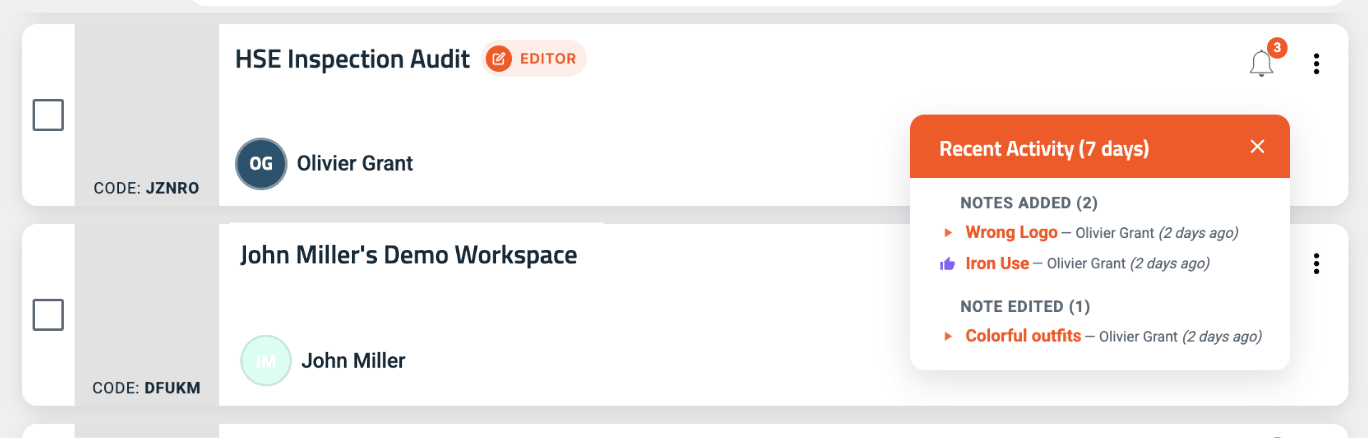 Attività recenti dell’area di lavoro
All’interno di un’area di lavoro:
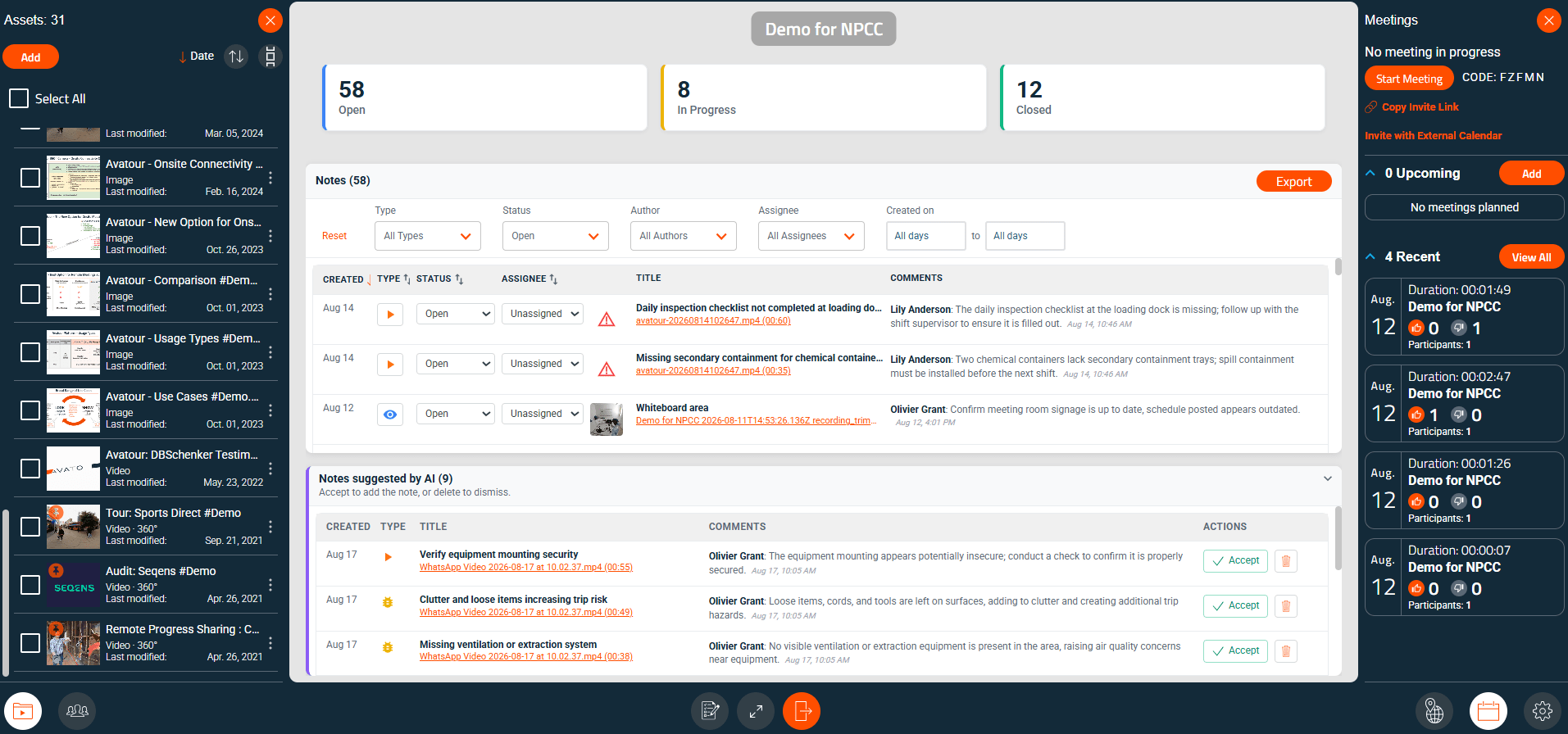 Area di lavoro con Risorse (a sinistra), dashboard dell’area di lavoro (al centro), Riunioni (a destra)
Al centro è visibile la dashboard dell’area di lavoro, che offre una panoramica di tutte le note presenti nelle risorse assegnate a quell’area di lavoro, con diversi menu a tendina per la selezione in base a vari attributi delle note. Qui è anche possibile accettare o eliminare le note suggerite dall’IA. È inoltre possibile esportare tutte le note da questa vista.
Nei menu in basso troverete:
- Risorse – Gestione dei file assegnati a questo spazio di lavoro.
- Collaboratori – Controlla l’accesso agli spazi di lavoro tramite
- Visualizzatore – Può visualizzare le risorse. L’invito crea un utente Ospite, se necessario.
- Editore – Controllo completo dello spazio di lavoro, stessi diritti dell’Host. L’invito promuove l’utente a Host, se necessario.
Più utenti possono accedere contemporaneamente a uno spazio di lavoro senza una riunione. Gli spazi di lavoro pubblici e le impostazioni di accesso alle riunioni offrono modalità di accesso alternative.
- Report – Genera un report utilizzando un modello di ispezione sulle risorse selezionate dello spazio di lavoro. Le risposte vengono generate dall’IA sulla base delle tracce audio presenti nei video selezionati.
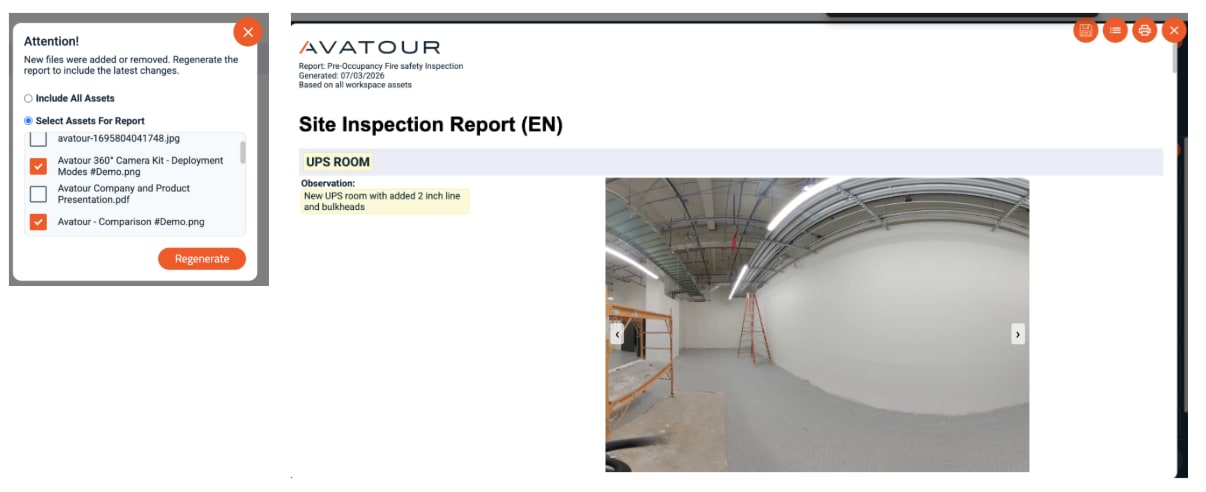 Rapporto sull’area di lavoro e selezione delle risorse
- Mappa – Visualizza su una mappa le posizioni degli asset con dati GPS, come descritto sopra per le riunioni.
- Riunioni – Organizza riunioni nell’area di lavoro.
- Impostazioni – Configura le impostazioni predefinite dell’area di lavoro e delle riunioni:
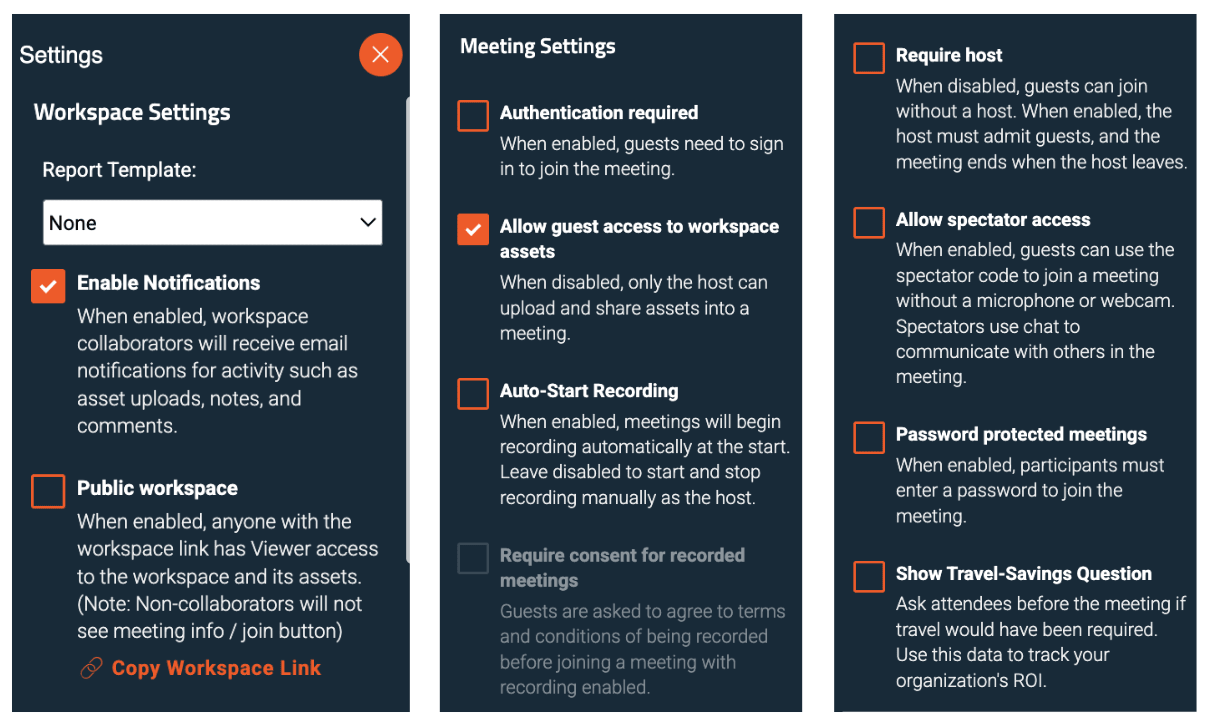 Impostazioni dell’area di lavoro
Impostazioni dell’area di lavoro
- Modello di report – Selezionare un modello di ispezione per la generazione automatica di report tramite IA. È possibile caricarli dall’account (vedi sotto).
- Abilita notifiche – Email di riepilogo giornaliere relative alle modifiche dello stato delle note.
 Esempio di notifiche via e-mail
- Area di lavoro pubblica – Chiunque disponga del link può visualizzare direttamente le risorse.
Impostazioni della riunione
- Autenticazione richiesta – I partecipanti devono effettuare l’accesso.
- Consenti accesso come ospite – Consente agli utenti non registrati di visualizzare i contenuti.
- Avvio automatico della registrazione / Avvio manuale – Scegli se le riunioni vengano registrate automaticamente o avviate manualmente.
- Richiedi organizzatore – L’organizzatore deve ammettere i partecipanti; la riunione termina quando l’organizzatore esce.
- Consenti accesso come spettatore – Partecipa senza microfono o videocamera; comunica tramite chat.
- Riunioni protette da password – Richiedi una password per partecipare.
- Mostra domanda sul risparmio sui viaggi – Chiedi ai partecipanti se la riunione ha ridotto i viaggi.
Le impostazioni possono essere combinate (ad es., nessun organizzatore richiesto ma protezione con password).
4.2.2 Risorse
Gestisci tutti i video a 360°/2D, le immagini e i PDF. Carica/scarica risorse, assegnale agli spazi di lavoro, condividile con altri utenti, rinominalle, stampa/scarica report, attiva la sfocatura dei volti e la sintesi tramite IA.
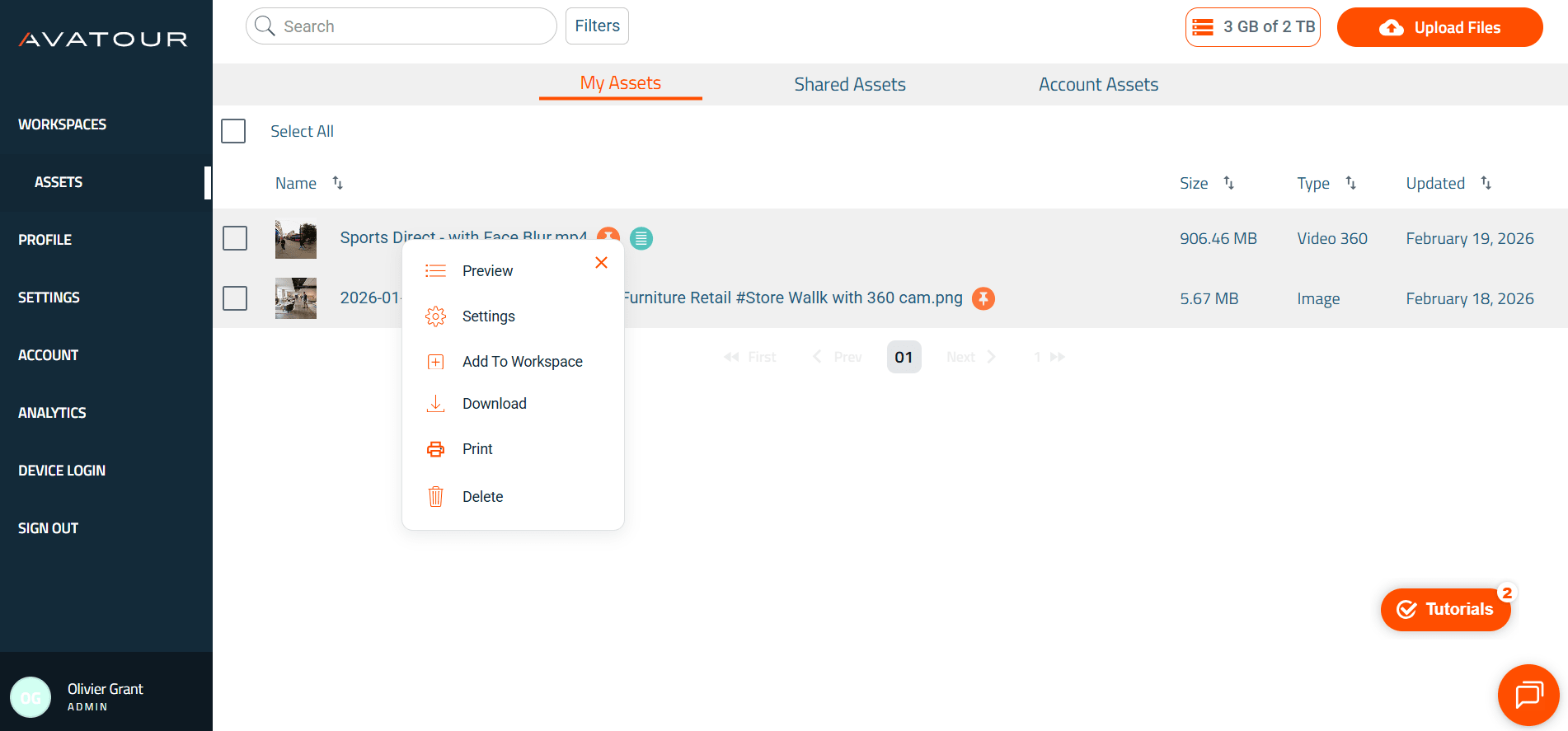 Voce del menu principale “Risorse”
È inoltre possibile generare il codice HTML per abilitare l’incorporamento pubblico di una risorsa, ad esempio sul proprio sito web. È sufficiente selezionare la casella di controllo “Abilita incorporamento pubblico” e quindi fare clic su Salva per ottenere il codice.
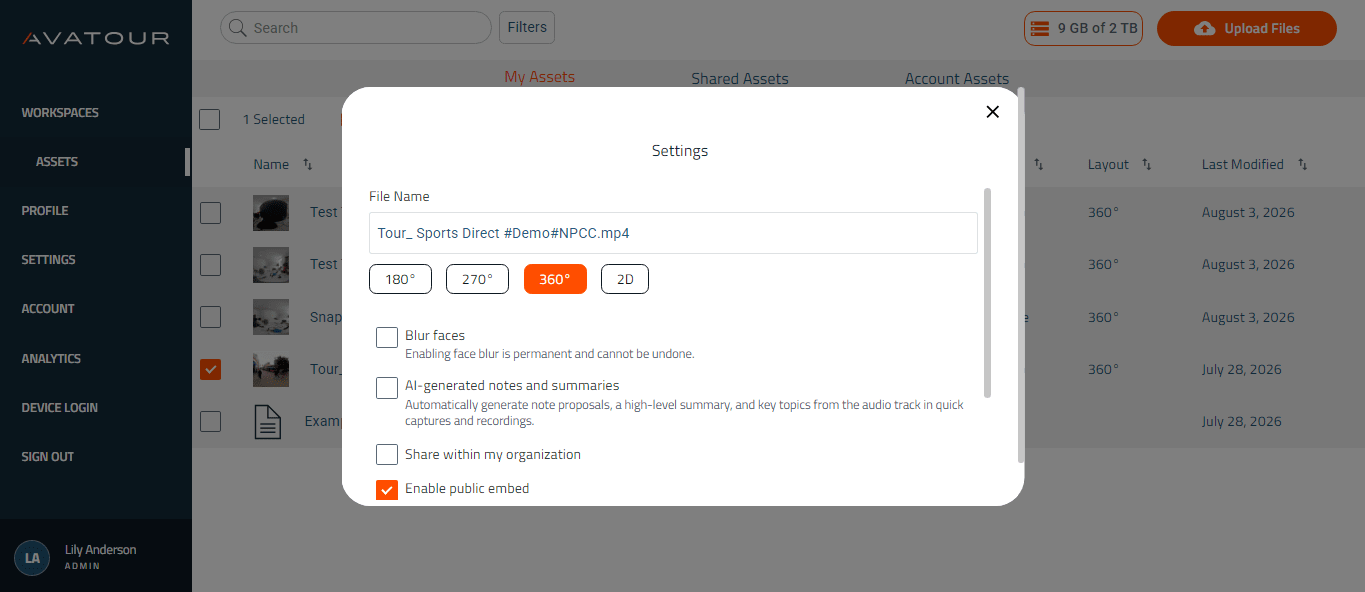 Risorse delle voci del menu principale
4.2.3 Impostazioni
Gli utenti amministratori hanno accesso a questo menu per gestire centralmente le impostazioni dell’intera piattaforma Avatour. È possibile selezionare o deselezionare ciascuna impostazione per renderla predefinita su tutta la piattaforma. Ogni impostazione può anche essere bloccata, il che significa che l’impostazione predefinita non può essere modificata dagli altri utenti della piattaforma. Qui è anche possibile effettuare personalizzazioni di marketing relative al proprio marchio (logo, colori, ecc.).
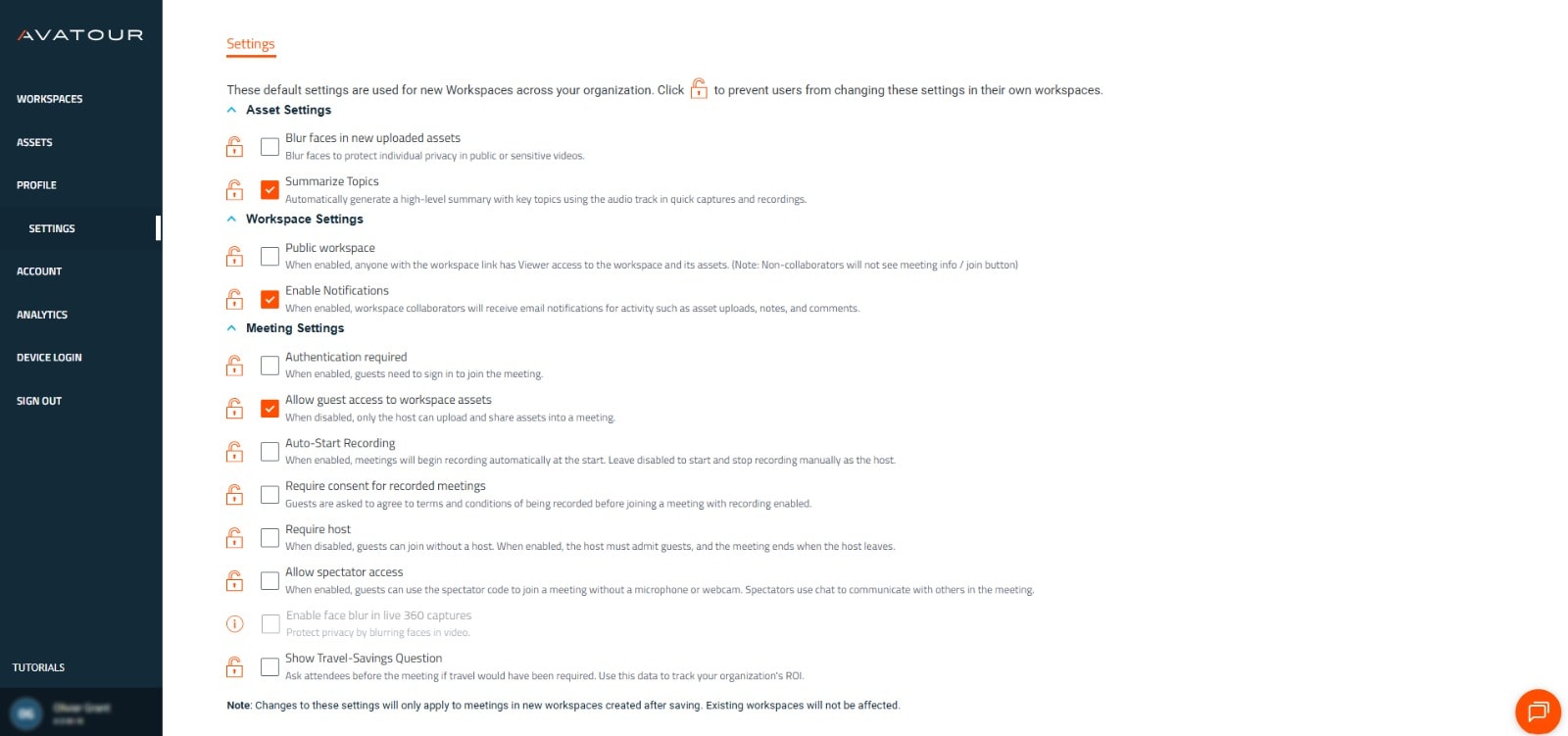 Sezione Impostazioni
4.2.4 Account
Qui è possibile visualizzare i dettagli del proprio account e gestire gli account degli utenti registrati (Host, Admin, Ospite), compreso il loro accesso all’area di lavoro, nonché caricare modelli di ispezione per generare report sull’area di lavoro (vedi sopra).
 Panoramica dell’account - Sezioni superiori
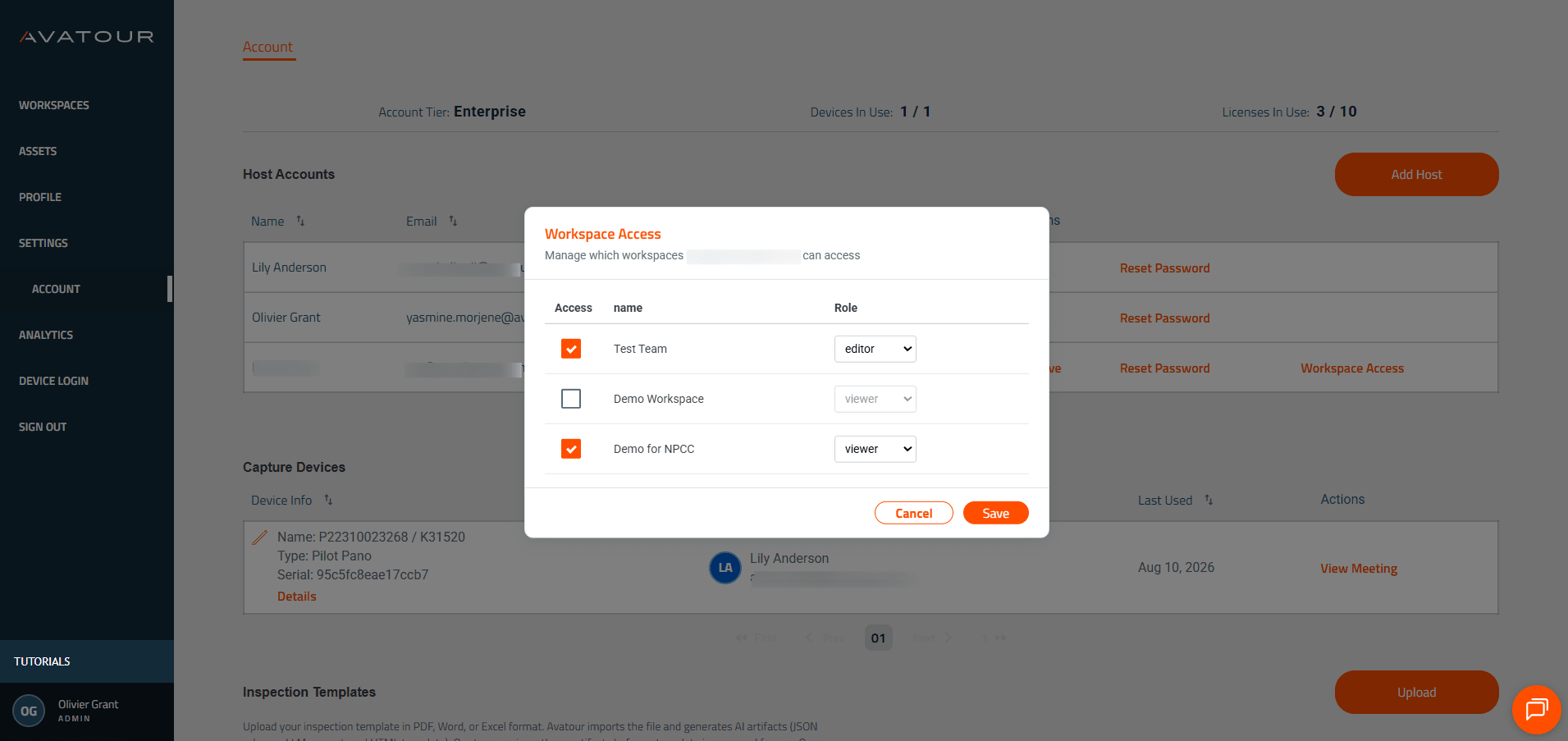 Panoramica dell'account - Gestione dell'accesso all'area di lavoro
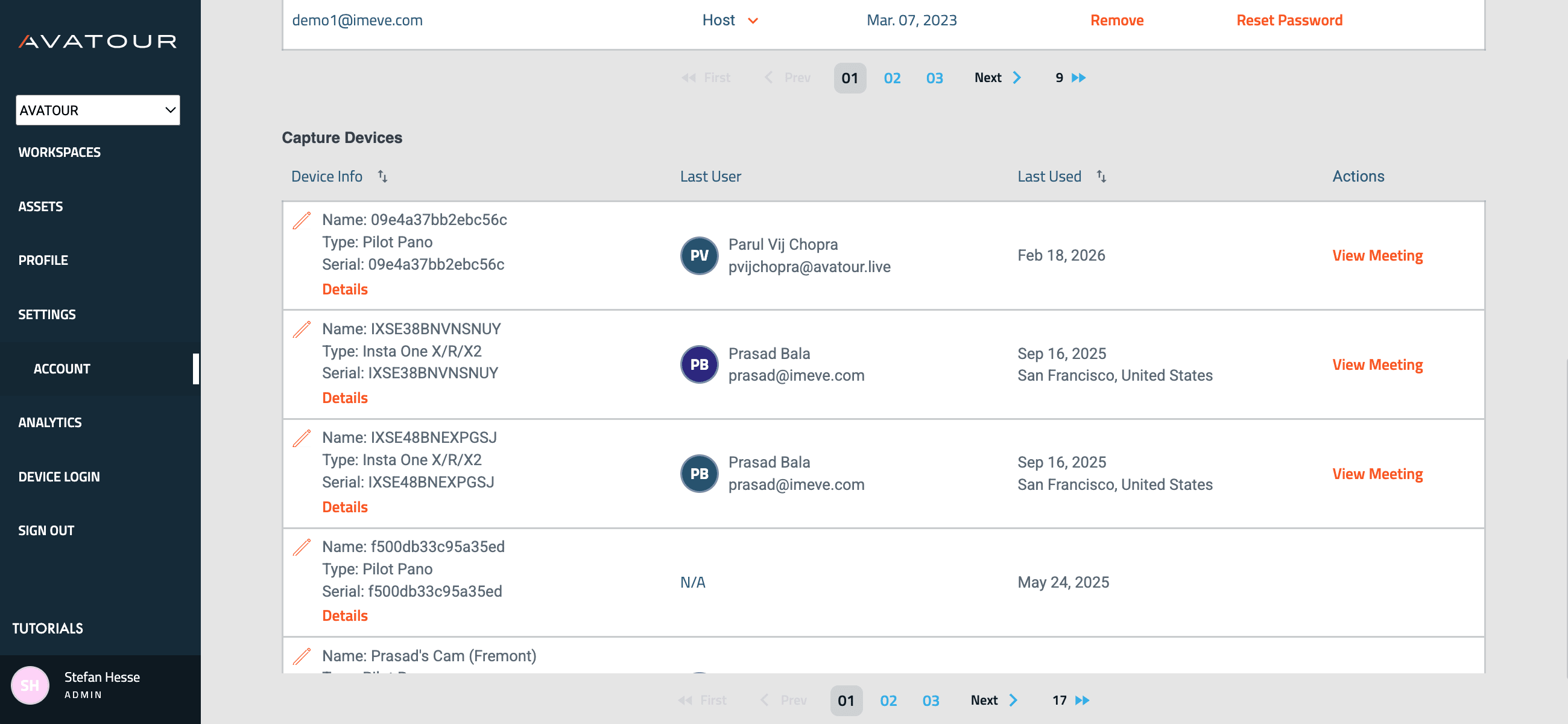 Panoramica dell’account - Sezioni inferiori
4.2.5 Analisi
Fornisce approfondimenti su riunioni, utilizzo dello spazio di lavoro e metriche relative al ROI.
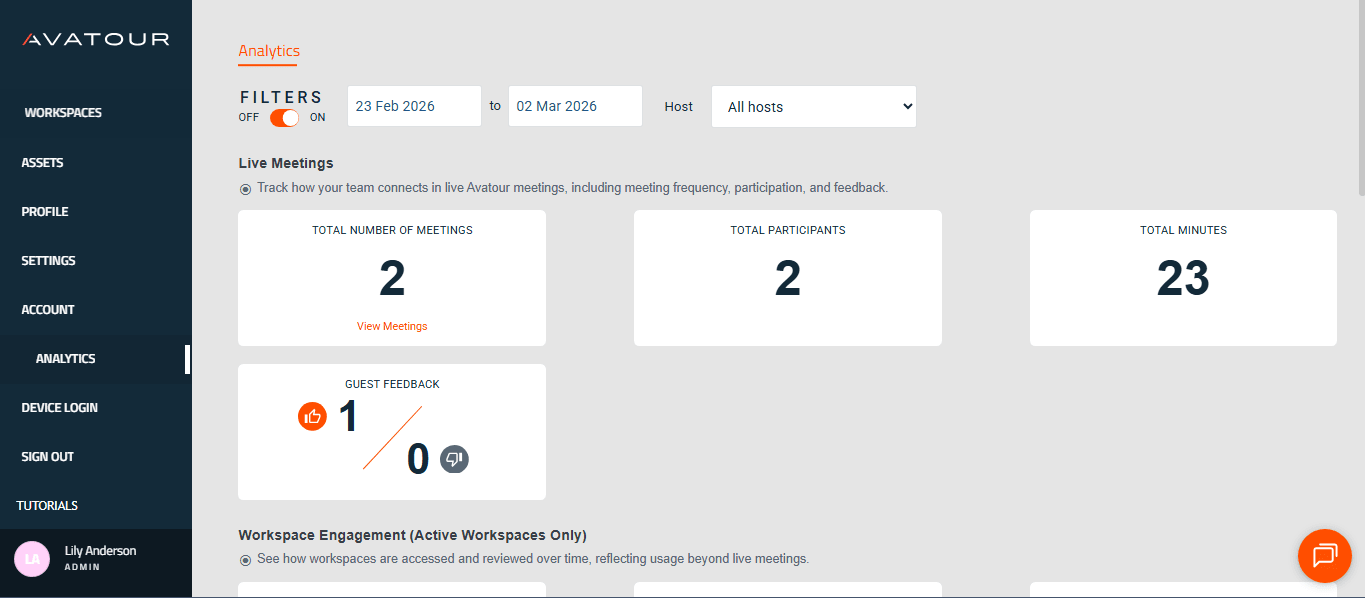 Panoramica delle analisi
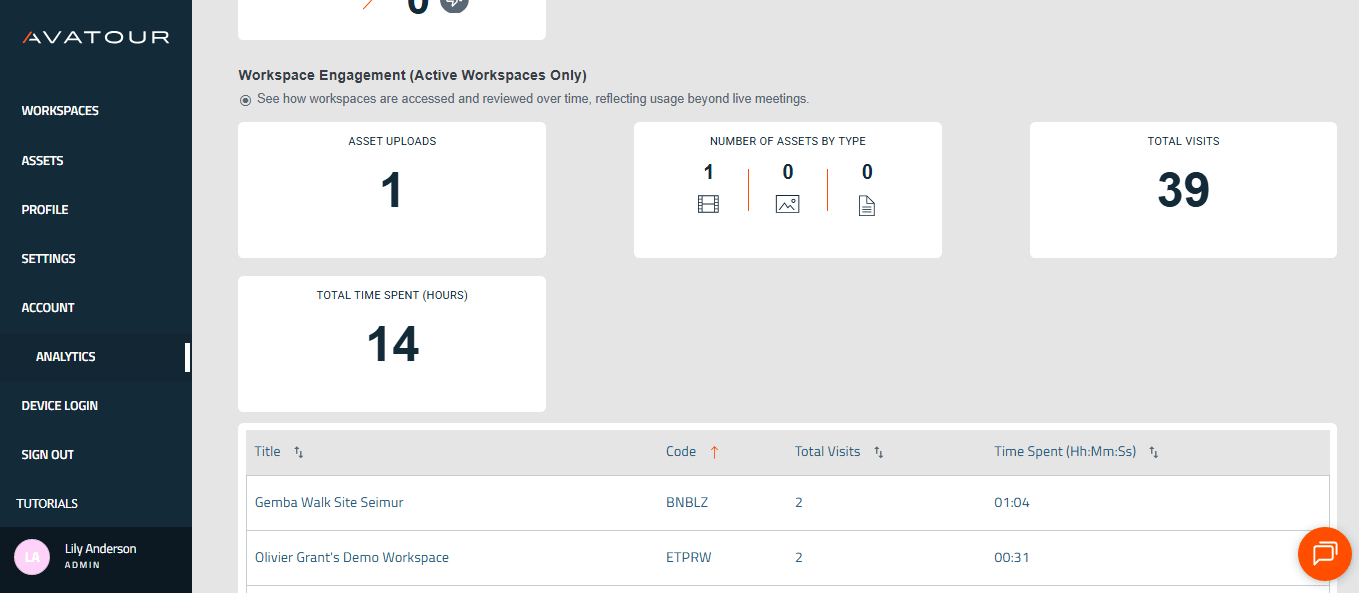 Attività delle riunioni e utilizzo dell’area di lavoro
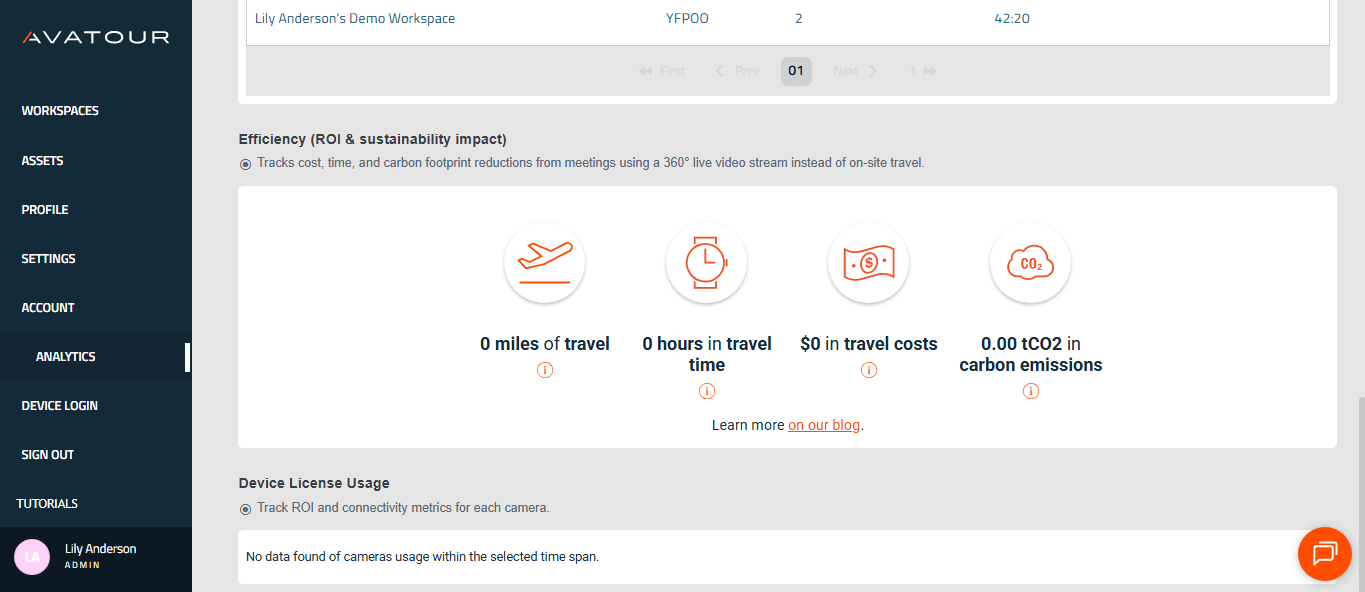 Risparmi e utilizzo delle licenze dei dispositivi
5. In loco - Come utilizzare il kit chiavi in mano Avatour
5.1 Per iniziare
Qui troverai una guida online molto completa per i tuoi primi passi con il kit Avatour Turnkey: Guida rapida – Configurazione del Kit Avatour Turnkey 3.1 (Pilot PanoX V2)
Ecco inoltre l’immagine con le istruzioni che troverai all’interno del coperchio della valigetta del kit 3.1.
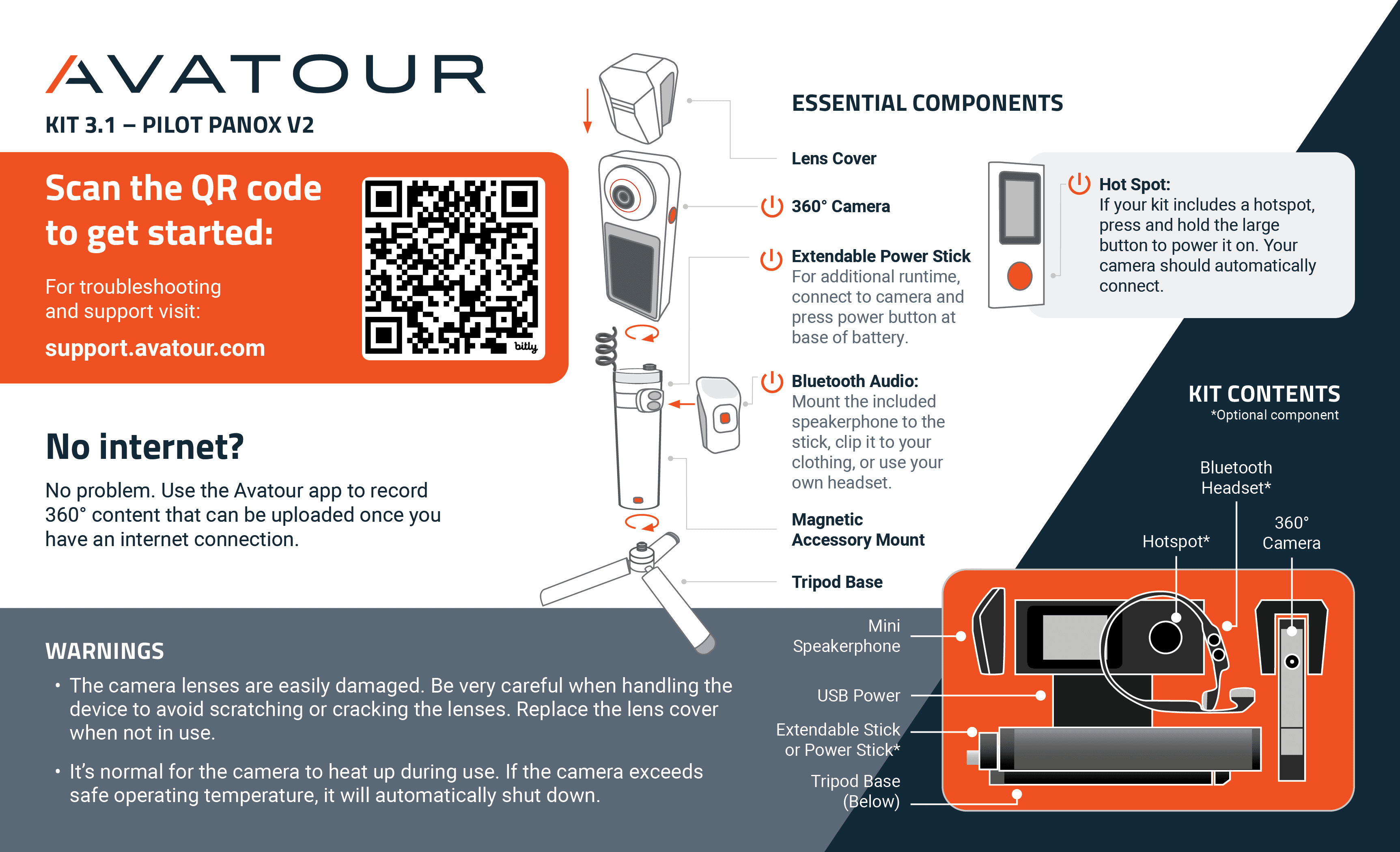 Immagine all’interno del coperchio della custodia del kit Avatour
Seguite la guida e le istruzioni per disimballare, assemblare e accendere la vostra videocamera.
5.2 Suggerimenti utili
Batteria esterna – Incontri più lunghi e migliori prestazioni termiche
La batteria interna della videocamera dura circa 30-45 minuti. Quando la batteria sta per esaurirsi, verrà visualizzato un avviso. Con una batteria esterna è possibile prolungare l’autonomia e renderla addirittura illimitata, poiché è possibile sostituire le batterie durante il funzionamento.
-
Se il kit include una batteria Ulanzi: fissarla tra la base del treppiede e l’asta estensibile, quindi collegare la batteria alla videocamera tramite USB-C.
-
Se il kit include un'asta con batteria Telesin: montare la videocamera direttamente sull'asta estensibile con batteria Telesin e collegarla tramite USB-C.
Utilizzo della batteria esterna:
- Estende la durata totale della batteria da circa 40 minuti (solo batteria della videocamera) a circa 3 ore.
- Aggiunge stabilità alla configurazione della videocamera.
- Aiuta a prevenire un potenziale surriscaldamento.
Si consiglia di utilizzare sempre la batteria esterna fin dall’inizio, specialmente per le riunioni in diretta.
Considerazioni sull’audio per riunioni in diretta e registrazioni
- Ambienti rumorosi: Utilizza le cuffie Shokz incluse nel kit per una registrazione audio chiara.
- Accensione/Spegnimento: Tieni premuto il pulsante “+” per 3 secondi (LED blu = acceso, LED rosso = spento).
- Modalità di accoppiamento Bluetooth: A cuffie spente, tieni premuto il pulsante “+” per 5 secondi (il LED lampeggia in blu/rosso).
-
Volume: Utilizza i pulsanti “+” e “-”.
-
Ambienti più silenziosi / più partecipanti vicini alla videocamera: Utilizza l’altoparlante a clip NoxGear. Non offre la stessa fedeltà audio degli altoparlanti da conferenza (ad es. Jabra Speak), ma è facile da agganciare alla camicia e cattura efficacemente le voci nelle vicinanze.
- Accensione/Spegnimento: Tieni premuto il pulsante Riproduci/Pausa per 2 secondi.
- Modalità di accoppiamento Bluetooth: Entra automaticamente in modalità di accoppiamento all’accensione (il LED lampeggia in blu/rosso; rimane blu fisso una volta accoppiato).
-
Volume: Utilizza i pulsanti “+” e “-”.
-
Utilizzo del proprio dispositivo: se si preferisce un’alternativa (ad es. un altoparlante da conferenza o una cuffia personale), è possibile accoppiarla tramite la videocamera: Impostazioni → Bluetooth.
Connettività
Prima di iniziare: assicurarsi di disporre di una connessione a Internet tramite:
- Wi-Fi locale (preferibile)
- Rete mobile (se fuori dalla portata del Wi-Fi)
Larghezza di banda consigliata: 10 Mbps in upload/download per lo streaming completo a 360° (~5 Mbps). Una larghezza di banda inferiore (1–2 Mbps) funziona solo quando si rimane fermi.
Verifica della velocità di rete
- Test in un’unica posizione: Utilizza qualsiasi strumento di verifica della velocità che usi normalmente (ad es. Speedtest) per verificare sia la velocità di upload che quella di download.
- Test camminando all’interno della struttura: Dalla videocamera: Impostazioni → Rete → Test di connessione. Percorri l’intero spazio per verificare la copertura e la larghezza di banda.
Wi-Fi locale
- Altamente consigliato per connessioni stabili.
- Se il reparto IT richiede l’inserimento in whitelist, individua l’indirizzo MAC: Impostazioni → Informazioni → Indirizzo Wi-Fi.
Rete mobile
Opzione A: hotspot e SIM forniti con il kit
- Fissare l’hotspot GlocalMe alla batteria portatile Telesin (magnete).
- Assicura l’assenza di interferenze e mantiene la connessione anche allontanandosi dalla telecamera.
- Risoluzione dei problemi:
- Verificare la presenza della SIM preinstallata (non della Cloud SIM).
- Abilita il 5G in Gestione scheda SIM.
- Verifica che l’APN sia corretto per la tua regione (Guida alla configurazione APN).
Opzione B: Hotspot personale / SIM - Utilizza il tuo smartphone o un hotspot dedicato.
Nota importante:
Tieni l’hotspot disattivato mentre sei connesso al Wi-Fi; attivalo solo quando sei fuori copertura. Il sistema operativo della fotocamera passa dinamicamente da una rete Wi-Fi all’altra in base alla potenza del segnale e potrebbe passare inavvertitamente all’hotspot anche quando il Wi-Fi è disponibile.
Le reti mobili potrebbero limitare la larghezza di banda in modo imprevisto. Verifica con il tuo operatore i limiti del piano dati oppure contatta l’assistenza Avatour se utilizzi il nostro hotspot e la nostra SIM.
Situazioni con bassa larghezza di banda
- Registra in anticipo i video della posizione per riprodurli in un secondo momento (guida alla registrazione).
- Condividi lo streaming della fotocamera dello smartphone per ovviare alle aree con larghezza di banda ridotta (0,1–0,3 Mbps in upload).
Assenza di connettività
- È possibile utilizzare solo video preregistrati (guida alla registrazione).
Altri partecipanti in loco – Linee guida
Quando più partecipanti si uniscono a una riunione Avatour in diretta dalla stessa posizione della videocamera a 360°, è fondamentale gestire con attenzione l’audio e la larghezza di banda:
- Ogni smartphone, tablet o laptop connesso in loco consuma larghezza di banda di rete e può influire negativamente sul flusso video della telecamera a 360°.
- La presenza di più microfoni e altoparlanti nello stesso spazio può causare feedback audio, rendendo l’esperienza della riunione sgradevole per tutti i partecipanti.
Altri partecipanti in loco – Best practice
Quando più partecipanti si collegano a una riunione Avatour in diretta dalla stessa postazione in cui si trova la telecamera a 360°, è fondamentale gestire con attenzione l’audio e la larghezza di banda:
- Ogni smartphone, tablet o laptop connesso in loco consuma larghezza di banda di rete e può influire negativamente sul flusso video della telecamera a 360°.
- La presenza di più microfoni e altoparlanti nello stesso spazio può causare un feedback audio, rendendo l’esperienza della riunione sgradevole per tutti i partecipanti.
Per affrontare queste sfide, segui queste migliori pratiche:
- Usa cuffie con cavo o wireless: preferibilmente con cancellazione del rumore per prevenire eco e feedback.
- Modalità “In loco”: Partecipate alla riunione in modalità “In loco” quando siete fisicamente presenti vicino alla telecamera a 360°, poiché questa modalità è ottimizzata per l’uso in loco:
- Disattiva per impostazione predefinita il microfono e l’altoparlante del partecipante.
- Non trasmette il feed della telecamera del partecipante.
- Non visualizza il feed della telecamera a 360° nel browser del partecipante.
- Risparmia la larghezza di banda della rete, garantendo che la telecamera a 360° disponga della massima larghezza di banda in upload disponibile per lo streaming live.
- Utile quando un utente desidera condividere dettagli specifici; è possibile condividere a sua volta il proprio video per offrire una visione mirata.
- Disattiva l’audio quando non stai parlando attivamente: previene il feedback audio indesiderato e le distrazioni.
- Se possibile, utilizza una rete separata: collega il tuo smartphone a una rete diversa da quella della telecamera per ridurre le interferenze.
Seguire queste linee guida garantisce un tour in diretta fluido e di alta qualità sia per i partecipanti in loco che per quelli remoti.
5.3 App Avatour Camera
Ecco i menu (1) Livello superiore, (2) Impostazioni e (3) Impostazioni di rete.
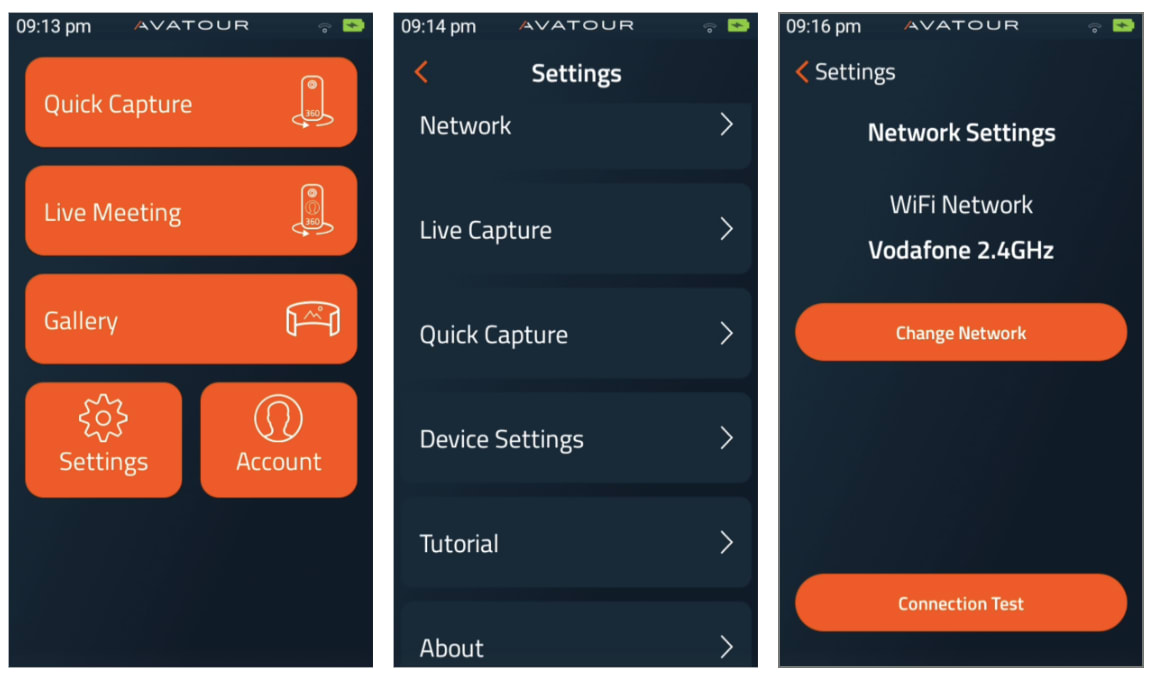 App Avatour 360° Camera - 3 menu
Acquisizione rapida - Per la registrazione offline di video a 360° sulla scheda di memoria SD inserita nella videocamera a 360°. - Per una descrizione dettagliata, consulta Come si registrano e si caricano video a 360° con l’app Avatour?. Si consiglia di utilizzare un dispositivo audio esterno (collegato tramite Bluetooth). N.B. È anche possibile modificare l’angolo di ripresa da 360° a 270°, 180° e a video e immagini 2D standard, ad esempio per mettere a fuoco o oscurare aree riservate: basta cambiare le modalità nell’angolo in basso a destra una volta nella schermata QC (possibile tuttavia solo se nelle Impostazioni per Quick Capture è stata selezionata una risoluzione 4K – vedi sotto)
Riunione in diretta - Per videoconferenze in diretta a 360°. Vedrete i vostri spazi di lavoro e, cliccando su uno di essi, avvierete lo streaming video in diretta dalla telecamera a 360°. Prima di poter partecipare alla riunione con la vostra telecamera a 360°, è necessario collegare un dispositivo audio tramite Bluetooth. Per una descrizione dettagliata, consulta Come avviare una riunione Live Capture con la tua telecamera Pilot?
Quando si ospita una riunione Live Capture con la propria telecamera a 360°, si avranno a disposizione strumenti di riunione simili a quelli dell’esperienza web. Ecco un link al nostro articolo della Knowledge Base che spiega questi strumenti in modo più dettagliato: Strumenti dell’app per operatori
Galleria - Qui troverai tutti i tuoi video e le tue immagini a 360° da caricare sulla console web di Avatour. Puoi caricare ed eliminare risorse in blocco: tocca “Seleziona” nella parte superiore dello schermo. Prima del caricamento puoi scegliere diverse operazioni di elaborazione come “Sfocare i volti”, generare un “Riassunto AI” e ottimizzare il segnale audio con “Migliora il parlato”. Puoi anche scegliere uno spazio di lavoro a cui assegnare il file: ovviamente sarà presente anche nella sezione generale dei file nella Web Console.
Impostazioni - All’interno delle Impostazioni, sono disponibili le seguenti opzioni:
- Rete: questa opzione consente di modificare la rete Wi-Fi a cui è connessa la telecamera o di eseguire un test di connessione di rete per visualizzare la velocità di streaming
-
Acquisizione live: regola le impostazioni di acquisizione live in base alla larghezza di banda disponibile, alla sensibilità VR dell’ospite o alla presenza o meno delle lenti protettive installate sulla telecamera:
- Frequenza fotogrammi target (opzionale): regola la frequenza fotogrammi del video in acquisizione live tra 15 fps, 24 fps e 30 fps. Frequenze fotogrammi più elevate producono un video più fluido, ma richiedono una maggiore larghezza di banda in upload. Impostazione predefinita: 15 fps
- Bitrate target: consente di aumentare o diminuire il bitrate massimo di streaming per la Live Capture. È possibile impostare il bitrate target tra 1 Mbps e 10 Mbps. Bitrate più elevati comportano una risoluzione video più alta, ma richiedono una maggiore larghezza di banda in upload. Impostazione predefinita: 5 Mbps
- Ottimizza il movimento: questa opzione riduce la frequenza dei fotogrammi del video, generando un carico minore sulla larghezza di banda in upload della rete e aumentando il bitrate di streaming. Inoltre, questa opzione aiuta a ridurre la cinetosi per i partecipanti in realtà virtuale. Impostazione predefinita: Disattivato
- Blocco direzione: questa opzione “bloccherà” la visione a 360°, indipendentemente da come si muova la videocamera a 360°. Se desideri che il video a 360° si muova seguendo il movimento della videocamera, ad esempio se vuoi «puntare» con l’obiettivo anteriore verso qualcosa, imposta il Blocco direzione su No. In questo modo la videocamera si comporterà come una videocamera tradizionale e potrebbe risultare più utile per le visite guidate. Impostazione predefinita: Sì
- Orientamento iniziale: Quando imposti il Blocco direzione su No, puoi scegliere quale obiettivo (anteriore o posteriore) debba essere l’orientamento iniziale all’avvio del video in diretta. Impostazione predefinita: In direzione dell’operatore, poiché questo è il modo più naturale per avviare una riunione in diretta (= obiettivo posteriore). La funzione “Acquisizione rapida” funziona in modo diverso (l’obiettivo anteriore è l’orientamento iniziale per impostazione predefinita – vedi sotto).
-
Acquisizione rapida: Regola le impostazioni di “Acquisizione rapida” in base alla frequenza dei fotogrammi video preferita, alla larghezza di banda disponibile per il caricamento dei video registrati e ad altre preferenze. Le funzionalità relative alla mappa, come spiegato sopra (ad es. vista mappa, note sulla mappa), sono disponibili quando viene ricevuto un segnale GPS e l’impostazione della posizione nelle impostazioni native della fotocamera è abilitata (dovrebbe esserlo per impostazione predefinita). L’icona della posizione/GPS nell’angolo in alto a destra di “Acquisizione rapida” dovrebbe essere verde. Potrebbero essere necessari alcuni istanti per ricevere il segnale GPS e stabilire la connessione.
- Risoluzione: Qui è possibile modificare la risoluzione. (Le risoluzioni 6k sono sperimentali e richiedono una fase di unione manuale nella Galleria prima del caricamento sulla console web di Avatour.)
- 4k - È la risoluzione standard e garantisce un buon equilibrio tra qualità video e dimensione del file.
- Risoluzione: Qui è possibile modificare la risoluzione. (Le risoluzioni 6k sono sperimentali e richiedono una fase di unione manuale nella Galleria prima del caricamento sulla console web di Avatour.)
- 6k a 30 fps (richiede un’ulteriore operazione di unione nella Galleria)
- 6k a 10 fps (richiede un’ulteriore fase di unione delle immagini nella Galleria) - È utile se si desidera mantenere le dimensioni del file inferiori rispetto a quelle a 30 fps, quando la fluidità del movimento è meno importante.
- Per altre risoluzioni è possibile utilizzare anche le app native della fotocamera, anche su PanoX V2; per i dettagli, consultare Come si registrano e si caricano video a 360° con l’app Avatour?
- Frequenza fotogrammi target (disponibile solo per la risoluzione 4K) - Regola la frequenza fotogrammi per le tue registrazioni video in modalità Quick Capture tra 15 fps, 24 fps e 30 fps. Frequenze fotogrammi più elevate producono un video più fluido, ma aumentano le dimensioni del file video e il tempo di caricamento. Consigliato: 30 fps
- Bitrate target (disponibile solo per la risoluzione 4K) Imposta il bitrate target per i caricamenti in modalità Quick Capture tra 5 Mbps e 20 Mbps. Bitrate più bassi aumentano la velocità di caricamento, ma riducono la qualità del video. Consigliato: 20 Mbps
- Blocco orientamento: come indicato sopra nella sezione “Live Capture”. L’orientamento iniziale predefinito per Quick Capture è sempre quello dell’obiettivo anteriore.
Consulta anche il nostro Calcolatore delle dimensioni dei file video Avatour a 360° per ulteriori consigli sulle impostazioni sopra indicate e sulle dimensioni dei file video. Per evitare di esaurire lo spazio di archiviazione, verrà visualizzato un avviso che ti consentirà di interrompere la registrazione e liberare spazio (ad esempio caricando i video dalla Galleria nella sezione “Risorse” della console web di Avatour).
- Informazioni: Visualizza il numero di serie del dispositivo e la versione del software
Account - Per effettuare l’accesso con il tuo account host o amministratore Avatour.
6. Consigli sulle migliori pratiche
6.1 Primi utilizzi (informali) e familiarizzazione
Per i primi utilizzi e per familiarizzare con la console web di Avatour e con il kit Avatour Turnkey, consigliamo di seguire questi passaggi:
- Portate il kit a casa e provatelo con familiari e amici utilizzando la vostra connessione Internet domestica.
- Portate il kit in ufficio e collegatelo alla rete aziendale (potrebbero presentarsi alcune problematiche aziendali, ad esempio i firewall aziendali, ma sapete già dal primo passo che Avatour funziona e che si tratta di un aspetto che il vostro team IT dovrà risolvere con l’aiuto di Avatour).
- Iniziate a utilizzare Avatour in loco (fuori dal vostro ufficio) presso la sede della riunione verso cui i partecipanti remoti dovrebbero normalmente recarsi. Potrebbero emergere ulteriori questioni relative alla connettività; Avatour vi aiuterà in collaborazione con il vostro team IT.
- Iniziate a utilizzarlo con partecipanti remoti interni ed esterni.
6.2 Prima di una riunione live con video a 360°
-
Se il tempo lo consente, vi consigliamo di realizzare un tour video a 360° registrato prima di qualsiasi tour live, per tre motivi: (1) Disporre di una soluzione di riserva per il tour in diretta, (2) avere materiale di documentazione e per una revisione successiva (oltre al tour in diretta registrato) e (3) iniziare a creare una libreria di video a 360° di tutte le vostre sedi, che potrà rivelarsi utile in molti casi d’uso.
-
Caricare tutti i componenti del kit per almeno 90 minuti prima della riunione in diretta. Si consiglia di tenere tutti i dispositivi in ricarica continua quando non sono in uso. In questo modo tutti i dispositivi saranno sempre pronti, anche per riunioni ad hoc non programmate.
-
Assicurarsi che il kit sia completamente assemblato (1. base del treppiede + 2. batteria Ulanzi + 3. asta estensibile + 4. videocamera a 360°).
-
Verificare che sia stato creato uno spazio di lavoro per ospitare una riunione in diretta e includere tutte le risorse pertinenti.
-
Invita tutti i partecipanti alla riunione tramite il tuo Workspace. In questo modo verrà creato un invito sui calendari di tutti i partecipanti, che includerà il link di invito alla riunione.
-
Accoppia e collega alla videocamera le cuffie Bluetooth o l’altoparlante che intendi utilizzare per il tour.
-
Tutti gli utenti di smartphone presenti in loco dovrebbero connettersi da una rete diversa da quella della videocamera. Ciò ridurrà il carico sulla larghezza di banda della rete della telecamera.
-
Se sei l’unico operatore della telecamera, porta con te uno smartphone nel caso in cui desideri condividere lo schermo dello smartphone per mostrare i dettagli più minuti.
-
Verifica che la telecamera a 360° possa connettersi alla tua rete Wi-Fi locale.
-
Prima di una riunione Avatour, pianifica il percorso che seguirai all’interno della struttura. Effettua una riunione Avatour di prova con la telecamera e verifica che tutte le aree abbiano una larghezza di banda con bitrate superiore a 1 Mbps. Puoi controllare questo dato direttamente sullo schermo della telecamera oppure, se partecipi da remoto, andando su Impostazioni e attivando l’opzione “Mostra bitrate”.
-
Se noti che alcune aree hanno una larghezza di banda scarsa o assente, è meglio scattare delle foto o effettuare una registrazione. Queste potranno poi essere presentate durante la riunione affinché i partecipanti remoti possano esaminarle. Puoi seguire la guida sopra riportata che spiega la nostra funzione “Acquisizione rapida” per la registrazione offline e il caricamento di video/immagini.
-
Se alla riunione partecipano persone da remoto che non hanno mai utilizzato Avatour prima d’ora, fornite loro una breve panoramica della piattaforma, delle sue funzionalità (video live a 360°, risorse, istantanee, annotazioni, spotlight) e degli strumenti di riunione.
-
È possibile iniziare utilizzando un’altra soluzione di videoconferenza (ad es. Teams, Zoom, Google Meet), ma prima di passare ad Avatour è necessario chiudere completamente l’altra applicazione di videoconferenza. In alcuni casi, queste altre applicazioni daranno la priorità al microfono, agli altoparlanti o alla webcam del dispositivo, causandone la disattivazione per Avatour. Inoltre, NON eseguire Avatour E un’altra videoconferenza contemporaneamente, poiché ciò ridurrà la larghezza di banda disponibile.
-
Se si prevede di utilizzare la videocamera a 360° in un ambiente con temperature elevate, si consiglia di utilizzare il modulo di raffreddamento (solo Pilot Pano). Ciò contribuirà a ridurre il rischio che la videocamera si surriscaldi e si spenga automaticamente.
6.3 Quando si utilizza la fotocamera in loco per una riunione video live a 360°
-
Durante l’utilizzo della fotocamera, assicurati di camminare lentamente e di fermarti spesso per appoggiare la fotocamera sul treppiede. Ciò contribuisce a (1) migliorare la qualità video, poiché si generano meno dati video evitando di spostare inutilmente la fotocamera, e (2) ridurre eventuali interruzioni video quando la connessione di rete della fotocamera passa da un punto di accesso Wi-Fi all’altro.
-
Tenete la fotocamera davanti a voi, al di sopra dell’altezza degli occhi. In questo modo tutti i partecipanti in remoto potranno vedere la maggior parte dell’area circostante.
-
Nei casi in cui la videocamera debba rimanere stabile, utilizza il treppiede e regola l’altezza della videocamera all’altezza corretta, preferibilmente all’altezza degli occhi.
-
Collegare sempre la videocamera alla rete Wi-Fi locale, ove possibile. Nelle aree prive di accesso Wi-Fi, utilizzare l’hotspot in dotazione. L’hotspot è dotato di una scheda SIM che si connetterà a una rete cellulare affidabile nelle vicinanze. Tieni sempre spento l’hotspot quando non lo utilizzi in ambienti interni, poiché altrimenti la videocamera a 360° potrebbe connettersi all’hotspot, cosa che non è auspicabile in ambienti chiusi. Quando sei all’aperto, tieni l’hotspot vicino alla videocamera a 360°.
-
Quando la velocità di trasmissione della telecamera inizia a scendere al di sotto dei 2 Mbps, cammina più lentamente o fermati completamente finché il segnale non si stabilizza nuovamente. Questo di solito accade quando si passa da un punto di accesso Wi-Fi a un altro.
-
Se sai che la connessione e il video subiranno un calo quando ti sposterai in una posizione specifica (ad esempio: passando da un’area di produzione al chiuso a un’area all’aperto), avvisa in anticipo i partecipanti remoti.
-
Se è necessario mostrare qualcosa con un elevato livello di dettaglio o con caratteri piccoli, è possibile avvicinarsi molto con la telecamera a 360°; in alternativa, è possibile utilizzare il proprio smartphone o quello di un partecipante in loco per collegarsi alla riunione e mostrare l’immagine ripresa dalla fotocamera (posteriore) del proprio o del suo telefono.
-
Se possibile, consigliamo la presenza di una persona in più in loco per assistere nella condivisione della fotocamera dello smartphone descritta sopra, poiché spesso ciò si rivela utile o necessario.
-
Idealmente, gli utenti di smartphone presenti in loco dovrebbero partecipare alla riunione (1) in modalità in loco e (2) su una rete diversa da quella utilizzata dalla videocamera, per non sottrarre larghezza di banda di upload fondamentale alla videocamera a 360°.
-
Tutti i partecipanti in loco che si collegano dal proprio smartphone dovrebbero avere l’audio disattivato, a meno che non stiano parlando attivamente.
6.4 Quando si utilizza la telecamera in loco per una ripresa rapida (registrazione video a 360° offline)
-
I consigli sopra riportati, non relativi alla connettività, valgono in generale anche per la registrazione offline (ad es. procedere lentamente)
-
Utilizzare sempre un auricolare Bluetooth esterno.
-
Verificare che il GPS funzioni quando necessario.
-
Anticipare ciò che gli spettatori vorranno vedere, ad esempio i dettagli: avvicinarsi molto con la telecamera a 360° e attendere qualche istante.
-
Appoggia la videocamera e punta verso gli elementi che desideri mettere in evidenza. Se imposti il Blocco direzione su No, puoi persino puntare verso qualcosa con la videocamera a 360° (ad es. utilizzando l’obiettivo frontale).
-
Se stai registrando per ottenere un rapporto generato dall’IA e utilizzi anche i comandi vocali, parla ad alta voce e in modo chiaro. Per aiutare l’IA a identificare luoghi, misure, problemi e a compilare i modelli di ispezione, menzionateli esplicitamente e utilizzate la stessa terminologia impiegata nel modello.
N.B.: La maggior parte delle funzionalità di Avatour è disponibile anche per i video 2D.