Guía del Usuario y Mejores Prácticas de Avatour
1. Para todos los usuarios de Avatour
Si eres nuevo en Avatour, los siguientes recursos te ofrecen una introducción útil a la plataforma y sus funciones:
- Vídeo «Cómo funciona Avatour»
Una breve descripción general de las principales funciones de Avatour y de cómo la plataforma permite una colaboración remota inmersiva. - Preguntas frecuentes
Respuestas a las preguntas más habituales. - Glosario
Definiciones de los términos y conceptos clave de Avatour que se utilizan con frecuencia. - Sitio web
Echa un vistazo especialmente a Funciones de Avatour, junto con las secciones dedicadas a Casos de uso y Sectores, para descubrir cómo Avatour puede satisfacer tus necesidades específicas.
2. Tipos de usuarios de Avatour
2.1 Asistentes a la reunión (no se requiere cuenta)
Los usuarios pueden unirse a la reunión sin necesidad de registrarse para obtener una cuenta de Avatour. Excepción: Si el anfitrión ha marcado la opción de configuración de la reunión «Se requiere autenticación» (véase también 4.2.1 Configuración de espacios de trabajo y reuniones) —por ejemplo, para permitir que solo los empleados internos se unan mediante el inicio de sesión único (SSO)—, la invitación del calendario indicará que los participantes deben iniciar sesión para autenticarse.
Los usuarios acceden a la reunión de la siguiente manera:
- Reciben un enlace a la reunión del anfitrión.
- Introducen una contraseña de la reunión si el anfitrión ha habilitado una.
- Los participantes pueden unirse sin una cuenta de Avatour, a menos que la reunión esté restringida y requiera iniciar sesión para autenticarse.
2.1.1 Participante
- Puede unirse e interactuar plenamente (cámara web, micrófono, chat y función de presentación).
- Máximo de 20 participantes interactivos por reunión.
2.1.2 Espectador
- Puede ver la reunión y participar únicamente a través del chat.
- No puede compartir vídeo, utilizar el micrófono, realizar presentaciones, reproducir o pausar recursos, ni capturar instantáneas.
- Máximo de 10 espectadores por reunión.
- Junto con los participantes, una reunión puede acoger hasta 30 asistentes.
- Los espectadores necesitan un enlace de reunión para espectadores (véase también 4.2.1 Configuración de espacios de trabajo y reuniones)
2.2 Usuarios registrados
Los usuarios registrados tienen una cuenta de Avatour. Las cuentas se crean de una de las siguientes formas:
- Invitados por el administrador: Durante el proceso de incorporación, Avatour configura un tenant dedicado para la organización y crea una o más cuentas de administrador. A continuación, los administradores pueden invitar a usuarios de la organización y asignarlos a grupos, que definen su rol en la plataforma (invitado, anfitrión o administrador). Los usuarios invitados reciben un enlace de registro para completar la configuración de la cuenta y establecer una contraseña.
- Invitados por el anfitrión: Los anfitriones pueden añadir usuarios como colaboradores editores a un espacio de trabajo. Esto consume una licencia de anfitrión y garantiza que el usuario tenga acceso de nivel de anfitrión.
- Aprovisionamiento automático mediante SSO (solo en los planes Enterprise y Business): El IdP puede crear cuentas automáticamente. Por defecto, las cuentas aprovisionadas mediante SSO se añaden al grupo «Invitado», a menos que se anule mediante asignaciones de grupos SAML. Los administradores pueden seguir invitando a usuarios y asignándoles la pertenencia a grupos directamente, incluso cuando el SSO está habilitado.
Resumen:
Los usuarios registrados y su pertenencia a grupos se pueden gestionar de varias formas:
- Gestión por parte del administrador: un administrador en la consola de Avatour puede crear usuarios y asignarlos a grupos, lo que define su rol en la plataforma (Invitado, Anfitrión o Administrador).
- Aprovisionamiento mediante SSO: Para los clientes de los niveles «Enterprise» o «Business» con SSO habilitado, el IdP puede aprovisionar automáticamente cuentas y asignar la pertenencia a grupos, lo que define el rol del usuario en la plataforma.
- Usuarios invitados por un anfitrión: Los anfitriones pueden invitar a otros usuarios como colaboradores con rol de editor a espacios de trabajo específicos. La asignación del rol de colaborador con función de editor consume una licencia de anfitrión.
Práctica recomendada (clientes Enterprise):
Para las organizaciones que prevén un gran número de usuarios que necesiten acceder a Avatour, se recomienda integrar el inicio de sesión único (SSO) y gestionar los usuarios y las pertenencias a grupos desde el IdP. Este enfoque agiliza el aprovisionamiento de cuentas, la asignación a grupos y la gestión de licencias, lo que reduce la carga administrativa y garantiza un control de acceso coherente.
2.2.1 Usuarios invitados
- Se añaden al grupo Invitados.
- Pueden ver activos dentro de los espacios de trabajo en los que se les haya añadido como colaboradores con rol de visor.
- No pueden crear espacios de trabajo, organizar reuniones ni subir contenido.
- Las cuentas de invitado aprovisionadas mediante SSO se autentican a través del IdP; no se requiere ninguna contraseña gestionada por Avatour.
2.2.2 Usuarios con licencia (acceso a la consola web)
Usuarios anfitriones (grupo: Anfitrión)
- Pueden crear y gestionar espacios de trabajo, invitar a colaboradores a un espacio de trabajo, organizar reuniones en directo y subir capturas rápidas.
- Tienen acceso al panel de control del anfitrión y a la aplicación del operador en las cámaras de 360° compatibles.
Usuarios administradores (Grupo: Admin)
- Incluye todas las funciones de anfitrión, además de la administración completa de cuentas.
Los privilegios adicionales de administrador incluyen:
Gestión de cuentas
- Crear nuevos usuarios y asignarlos a grupos.
- Restablecer contraseñas cuando la gestión corre a cargo de Avatour (no aplicable cuando el SSO está habilitado).
- Ascender a los usuarios invitados a la categoría de anfitrión.
- Desactivar usuarios (las cuentas de administrador deben convertirse primero en de anfitrión antes de su eliminación).
- Transferir activos de un usuario anfitrión a otro durante la eliminación.
Configuración
- Configurar los ajustes de seguridad para toda la organización relativos a los activos, los espacios de trabajo y las reuniones alojadas en la plataforma (por ejemplo, si un «Host» debe estar presente para iniciar una reunión o si se deben difuminar los rostros en todos los vídeos subidos a la plataforma).
- Activar o desactivar las funciones de IA o la grabación.
- Aplicar la imagen de marca de la empresa de forma coherente en toda la plataforma si se ha configurado un dominio personalizado.
Recursos y análisis
- Ver todos los recursos subidos por cualquier usuario de la organización.
- Revisar el uso de la plataforma en toda la organización.
2.2.3 Permisos de los colaboradores del espacio de trabajo
Los permisos del espacio de trabajo definen lo que un usuario puede hacer dentro de un espacio de trabajo específico. Estos son independientes de la pertenencia a grupos a nivel de la plataforma (Invitado, Anfitrión, Administrador).
- Colaborador editor: Los usuarios con este permiso pueden:
- Gestionar recursos (subir, eliminar, difuminar rostros, generar resúmenes)
- Gestionar la configuración de las reuniones (activar/desactivar la grabación, admitir o eliminar participantes)
- Programar y organizar reuniones en directo
- Generar informes basados en plantillas predefinidas
-
Añadir o eliminar colaboradores del espacio de trabajo
-
Colaborador «visor»: Los usuarios con este permiso tienen acceso de solo lectura a los activos del espacio de trabajo. No pueden modificar activos, gestionar reuniones ni gestionar colaboradores, pero pueden crear notas sobre los activos.
3. Para los participantes en reuniones a distancia y los visitantes del espacio de trabajo
Avatour permite a los usuarios colaborar de dos formas principales:
-
Unirse a una reunión de Avatour (colaboración sincrónica):
Es posible que recibas una invitación de calendario para unirte a una reunión de Avatour. Durante la reunión, los participantes pueden realizar una visita remota en directo o revisar activos de forma sincrónica entre todos. -
Visitar un espacio de trabajo (colaboración asíncrona):
También puedes recibir una invitación como colaborador de un espacio de trabajo para revisar activos de forma asíncrona (según tu propio horario).
3.1 Cómo unirse a una reunión de Avatour y visitar un espacio de trabajo de Avatour
3.1.1 Cualquier dispositivo de «pantalla plana» con un navegador web
Puedes unirte a una reunión de Avatour desde cualquier ordenador de sobremesa o portátil, smartphone o tableta utilizando un navegador web.
Unirse a una reunión de Avatour
Nota: Para unirte a una reunión de Avatour es necesario que concedas permisos al micrófono. Por favor, acepta cualquier solicitud de permiso que te muestre tu navegador.
- A través de una invitación de calendario (recomendado):
- Normalmente recibirás una invitación de calendario con un enlace directo para unirte (por ejemplo:
https://avatour.live/join?s=xxxxx).
- Normalmente recibirás una invitación de calendario con un enlace directo para unirte (por ejemplo:
-
Al hacer clic en el enlace, se completará automáticamente el código de la reunión de 5 caracteres y se te redirigirá a la reunión.
- Se requiere autenticación: Algunas reuniones están restringidas a usuarios registrados. En este caso, la invitación indicará que debes iniciar sesión para acceder a la reunión.
- Reuniones protegidas con contraseña: Algunas reuniones pueden requerir una contraseña. En ese caso, la invitación incluirá la contraseña que debes introducir para unirte.
-
A través del código de reunión:
- Si el anfitrión comparte por separado un código de reunión de 5 caracteres, ve a https://avatour.live/join, introduce tu nombre y el código de reunión, y únete a la reunión.
- Si la reunión está protegida con contraseña, introduce la contraseña facilitada por el anfitrión.
- Si la reunión requiere autenticación, tendrás que iniciar sesión con tu cuenta de Avatour antes de unirte.
Consejo 1: Si tu cámara o micrófono no funcionan, es posible que los esté utilizando otra aplicación (por ejemplo, Microsoft Teams o Zoom). Cierra cualquier aplicación que pueda estar utilizando tu cámara o micrófono y, a continuación, sal de la reunión de Avatour y vuelve a unirte a ella.
Consejo 2: Si sigues sin poder unirte a la reunión, realiza esta prueba: https://avatour.live/test.
La prueba puede determinar si tu cortafuegos corporativo o tu red están bloqueando el acceso, y te proporcionará información que te servirá de guía para hablar con tu equipo de TI.Consejo 3: No utilices las aplicaciones de Avatour para iOS o Android para unirte a las reuniones. Estas aplicaciones solo son necesarias cuando se retransmite una reunión en directo desde una cámara Insta360, ya que dichas cámaras no pueden ejecutar directamente el software Avatour 360° y requieren un smartphone como dispositivo auxiliar.
Visitar un espacio de trabajo de Avatour (sin unirte a una reunión de Avatour)
Puedes acceder a un espacio de trabajo de las siguientes maneras:
-
Espacio de trabajo público:
Si el espacio de trabajo es público, se puede acceder directamente al enlace, sin necesidad de iniciar sesión. -
Espacio de trabajo restringido:
Si el espacio de trabajo es restringido, debes ser añadido como colaborador con permisos de editor o de visor.- Cuando te añadan como colaborador, recibirás una notificación por correo electrónico con un enlace al espacio de trabajo.
- Haz clic en el enlace del correo electrónico para abrir el espacio de trabajo. Si aún no has iniciado sesión, se te pedirá que inicies sesión o completes el registro.
- Una vez que hayas iniciado sesión, el espacio de trabajo se abrirá automáticamente.
También puedes iniciar sesión en https://avatour.live/login y acceder al espacio de trabajo desde tu lista de espacios de trabajo.
3.1.2 Casco de realidad virtual
Puedes unirte a una reunión y visitar un espacio de trabajo desde una amplia gama de cascos compatibles de Meta y Pico. Para ello:
- Instala nuestra aplicación Avatour desde la tienda de aplicaciones de realidad virtual correspondiente: Cómo instalar la aplicación Avatour VR
- Abre nuestra aplicación e introduce el código de la reunión o selecciona un espacio de trabajo para unirte a una reunión. Para obtener más información sobre cómo utilizar nuestra aplicación de RV, consulta nuestro artículo de la Base de conocimientos aquí.
3.2 Herramientas de colaboración en reuniones y espacios de trabajo
Avatour permite la colaboración en dos contextos principales:
- Reuniones (sincrónicas): Colabora en tiempo real con otros participantes, incluyendo visitas in situ en directo o la revisión conjunta de contenidos grabados.
- Espacios de trabajo (asíncronos): revisa e interactúa con los activos según tu propio horario, las 24 horas del día, los 7 días de la semana.
Las herramientas de colaboración son en su mayoría similares entre las reuniones y los espacios de trabajo, con algunas diferencias debidas al contexto síncrono frente al asíncrono.
3.2.1 Diseño de la interfaz
La interfaz de Avatour se organiza en torno a tres áreas principales:
- Panel izquierdo: recursos del espacio de trabajo y herramientas de apoyo
- Área central: área principal de visualización para el vídeo en directo, los recursos y el panel de control del espacio de trabajo
- Panel derecho: información contextual, como participantes, reuniones o chat
La mayoría de las interacciones se inician desde el menú inferior.
Al hacer clic en una opción del menú, se abre un panel lateral a la izquierda o a la derecha de la pantalla, mientras que el lienzo central sigue siendo el área de visualización principal.
3.2.2 Ejemplo de vista de una reunión
A continuación se muestra un ejemplo de una vista en una reunión de Avatour:
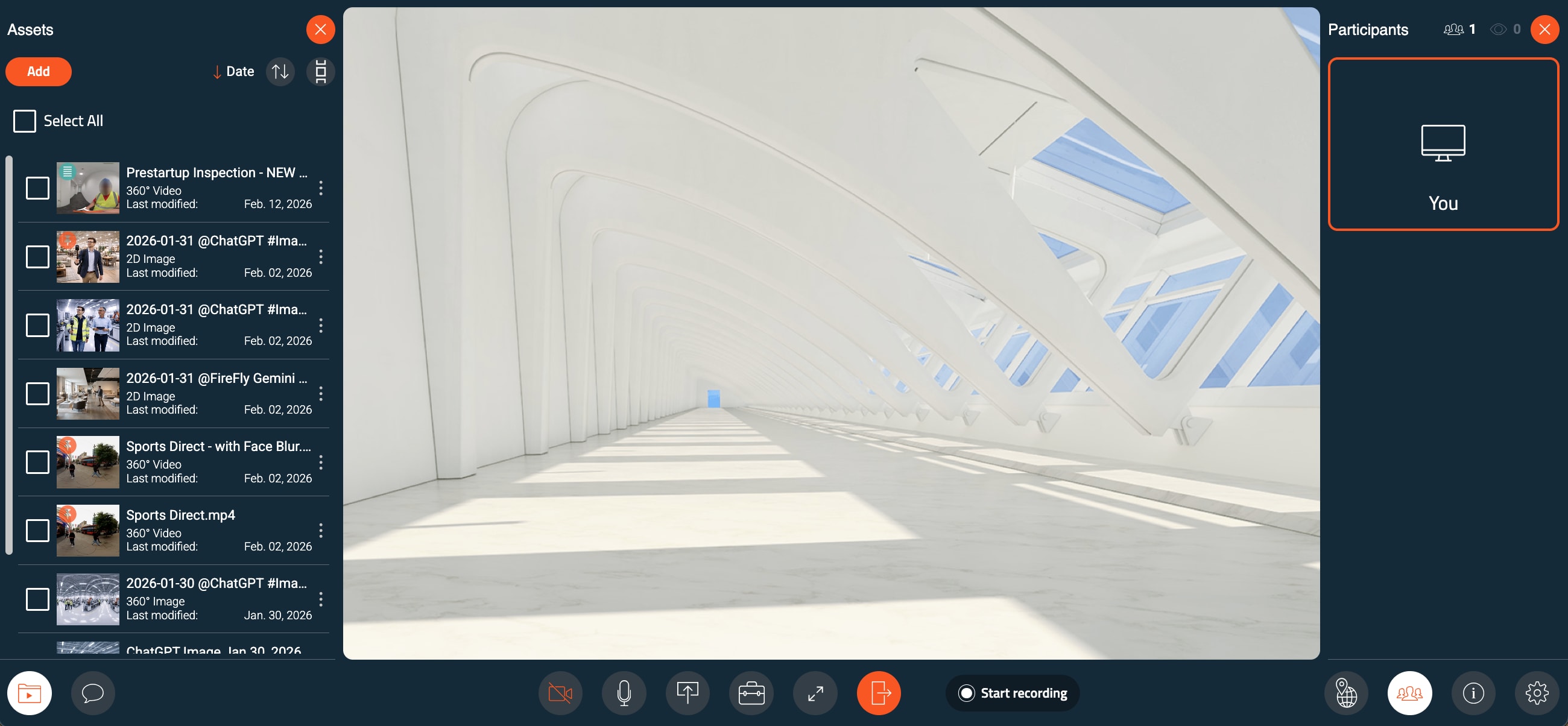
Reunión de Avatour con el panel de recursos (izquierda), el lienzo (centro) y el panel de participantes (derecha)
3.2.3 Ejemplo de vista del espacio de trabajo
A continuación se muestra un ejemplo de una vista del espacio de trabajo:
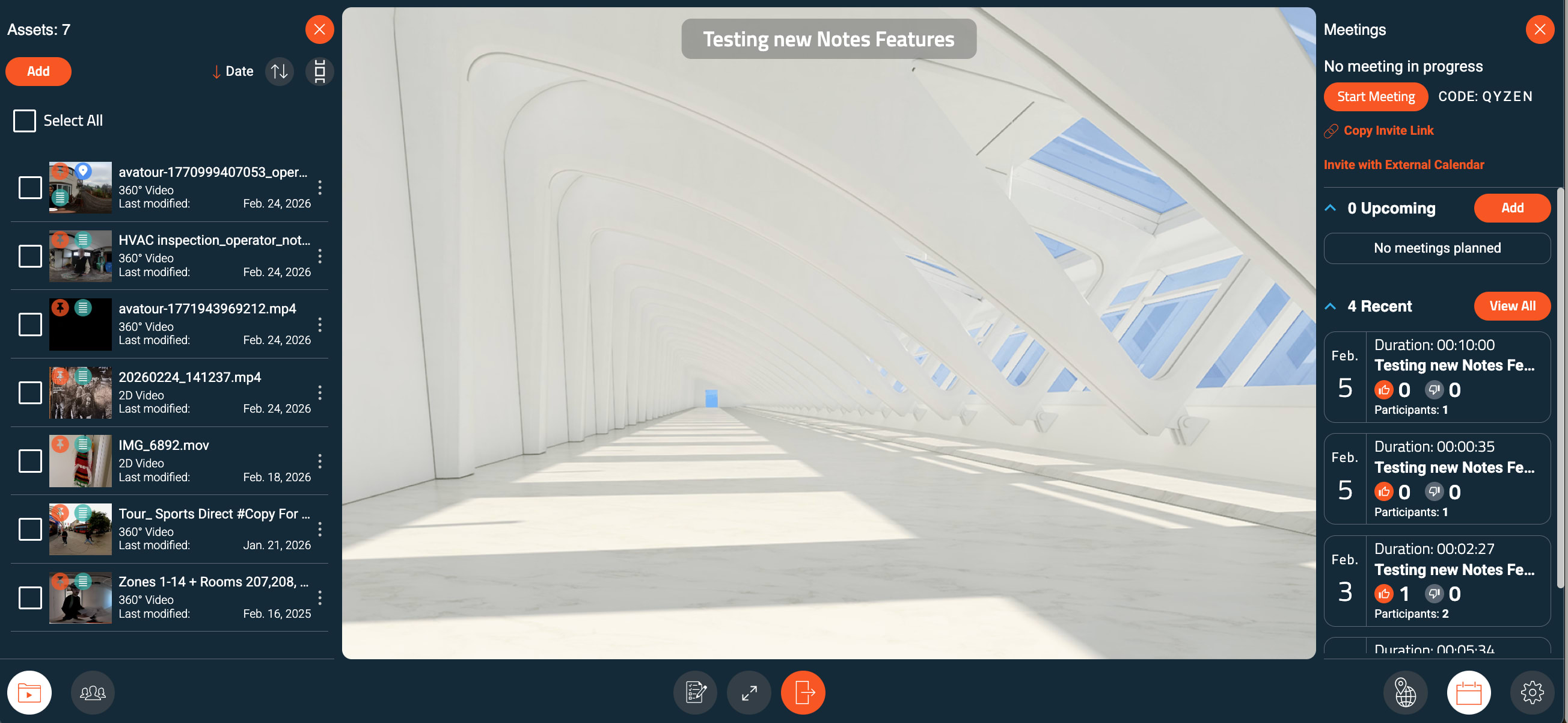
Espacio de trabajo de Avatour con el panel de recursos (izquierda), el lienzo (centro) y el panel de reuniones (derecha)
3.2.4 Descripción general del menú inferior
El menú inferior permite acceder a los controles y paneles principales de la interfaz:
Menú inferior de la reunión

Menú inferior de la reunión de Avatour
- Recursos: revisa los archivos del espacio de trabajo, incluidos vídeos grabados, imágenes, capturas de pantalla y archivos PDF.
- Chat: envía mensajes a todos los participantes de la reunión.
- Cámara – Activa o desactiva tu cámara web.
- Micrófono – Silencia o desactiva el silencio de tu micrófono.
- Presentar – Presenta un recurso, el escritorio o la imagen de la cámara web (consulta la sección «Presentar» más abajo).
- Herramientas del anfitrión (solo para anfitriones):
- Bloquear enfoque: bloquea la vista para todos los participantes.
- Silenciar a todos: silencia a todos los participantes.
- Activar pantalla completa: muestra la pestaña de la reunión a pantalla completa.
- Salir de la reunión: abandona la reunión.
- Iniciar grabación – Utiliza este botón para iniciar y detener la grabación manualmente durante una reunión. Como alternativa, las reuniones se pueden grabar automáticamente si se ha activado la opción inicio automático de grabación en la configuración del espacio de trabajo. En ambos casos, las grabaciones se guardan en los recursos del espacio de trabajo.
- Mapa: abre o cierra el panel del mapa para ver el movimiento de la cámara en los recursos que cuentan con un registro GPS. Al hacer clic en una ubicación, se salta al punto exacto del vídeo. El mapa se actualiza en tiempo real a medida que se reproduce el vídeo. También se muestran notas en el mapa.
- Participantes: abre o cierra el panel de participantes.
- Información de la reunión: consulta el código de la reunión, el enlace a la reunión y accede a tutoriales relacionados.
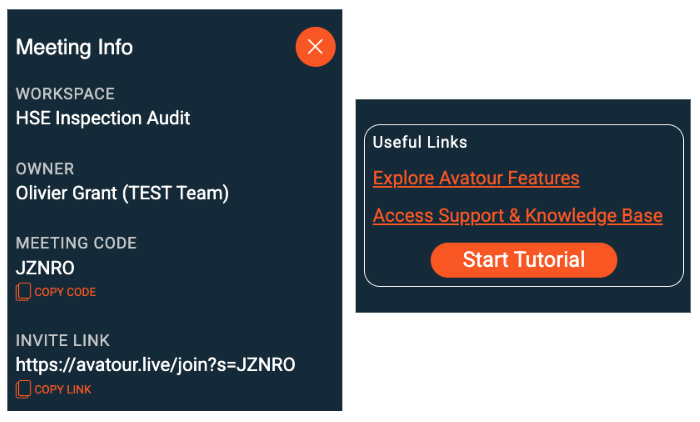
Panel lateral de información de la reunión de Avatour
- Configuración: ajusta la configuración de idioma, audio y vídeo. Para reuniones con vídeo en 360° en directo, utiliza Mostrar velocidad de bits para supervisar las estadísticas de conectividad.
Consejo: envía el enlace de la reunión o añádelo a una entrada del calendario para invitar a los participantes.
Menú «Presentar»
La opción Presentar del menú inferior de la reunión te permite compartir contenido con todos los participantes.
- Cámara: comparte la cámara de tu dispositivo (portátil, smartphone, etc.). Esta función también se puede utilizar durante una reunión de vídeo en directo a 360° para superponer una vista secundaria con primeros planos o detalles específicos. Al compartir la cámara de un smartphone (delantera o trasera), los participantes remotos de la reunión pueden utilizar el zoom del smartphone y también encender y apagar la linterna.
- Escritorio: comparte la pantalla de tu escritorio con todos los participantes.
- Recurso: presenta un recurso desde el espacio de trabajo. Al seleccionar un recurso, se abre la barra de herramientas de recursos, que ofrece controles de reproducción y herramientas de colaboración específicas para el recurso que se está presentando.
Barras de herramientas de recursos y de 360° en directo en las reuniones
Al presentar un recurso en una reunión, la barra de herramientas de recursos aparece sobre el lienzo. Estas son las herramientas y los elementos del menú disponibles al presentar un recurso en una reunión —explicados de izquierda a derecha—.
 Menú de Avatour al presentar un activo en una reunión
Cuando se transmite un vídeo en 360° en directo en una reunión, este menú aparece en la parte inferior del lienzo.
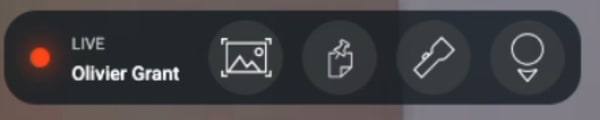 Menú de Avatour con vídeo en directo de 360° en una reunión
A continuación se ofrece una descripción de todos los elementos que aparecen en los menús anteriores.
- Línea de tiempo del vídeo / Barra de progreso: muestra el progreso del vídeo con notas y temas clave extraídos del audio. Haz clic en una nota o en un tema para saltar a ese momento y abrir la nota. Incluye controles de Reproducir / Pausa.
- Instantánea: captura una imagen de 360° o en 2D del recurso.
- Foco: resalta un área específica para todos los participantes durante las sesiones en directo.
- Mostrar/Ocultar punto de vista (POV): muestra hacia dónde mira cada participante en el vídeo de 360°.
- Notas: crea notas vinculadas a momentos específicos de un recurso o durante una retransmisión de vídeo en directo. (Nota: durante una retransmisión en directo, se creará automáticamente un recurso = instantánea para capturar la nota). Cada nota tiene un autor y se puede clasificar (Observación, Problema, Acción, Recomendación), realizar un seguimiento por estado (Abierta → En curso → Resuelta), asignarla a un responsable y compartirla mediante enlaces directos. Si el recurso cuenta con un registro GPS, las notas también muestran las coordenadas GPS. Las notas también se pueden desplazar a otra posición (arrastrar para cambiar la posición) y mover en la línea de tiempo (avanzar o retroceder en la línea de tiempo). También puedes adjuntar un archivo a una respuesta en una nota.
 Notas de Avatour y filtros de notas
- Notas de comando de voz: son marcadores de posición generados automáticamente cuando, en un vídeo grabado, se detectan expresiones como «insertar nota», «tomar una nota» o «hacer una nota». Estas notas aparecen en la línea de tiempo y el usuario debe colocarlas y finalizarlas.
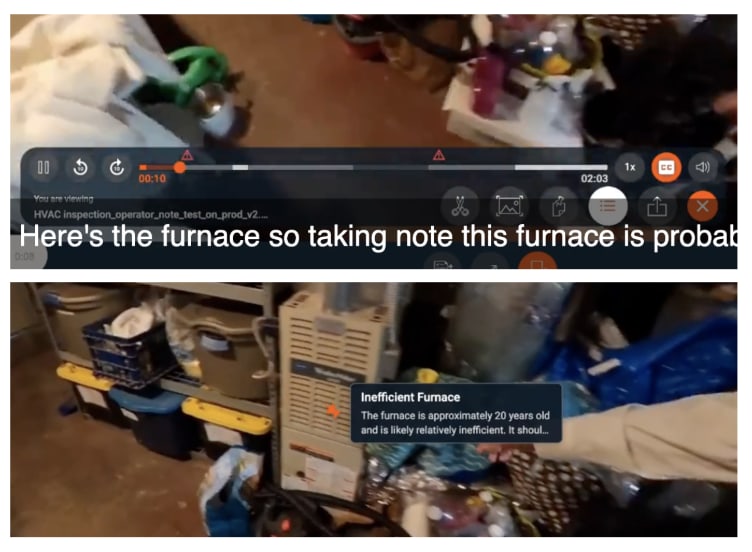 Notas de Avatour: generadas por comando de voz
-
Notas generadas por IA: se trata de marcadores de posición generados automáticamente cuando la grabación detecta menciones en la pista de audio del vídeo que parecen indicar problemas que deben registrarse para su seguimiento. Las notas generadas por IA deben ser aprobadas primero por el propietario de la nota (véase el panel de control del espacio de trabajo más abajo). Una vez aprobadas, son similares a las notas de comando de voz, ya que aparecen en la línea de tiempo y el usuario debe colocarlas y finalizarlas.
-
Panel de notas y resumen: abre un panel lateral que muestra todas las notas, los temas clave y un resumen ejecutivo del activo. Al hacer clic en un elemento, se accede a ese momento del vídeo.
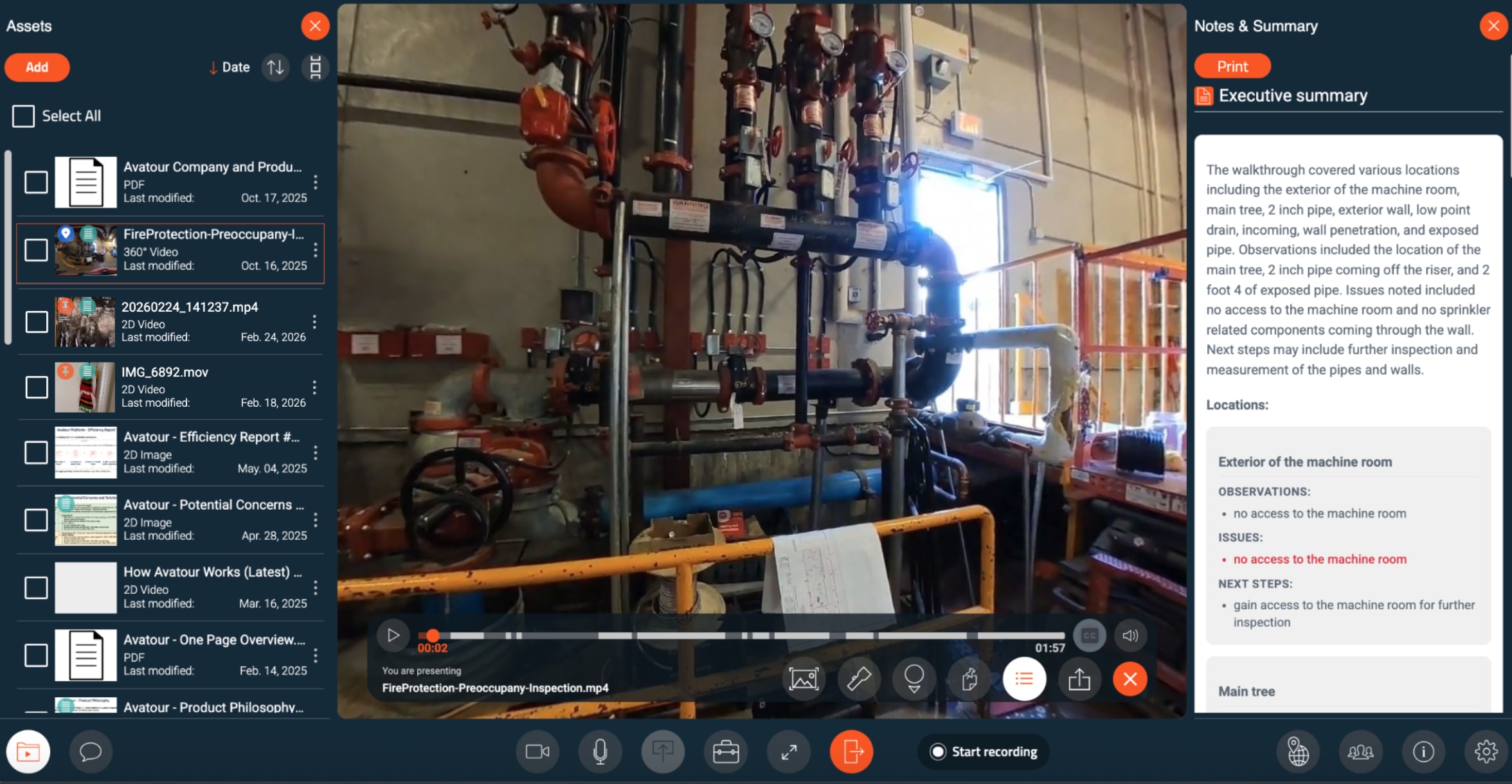 Resumen ejecutivo de Avatour al presentar un recurso en una reunión
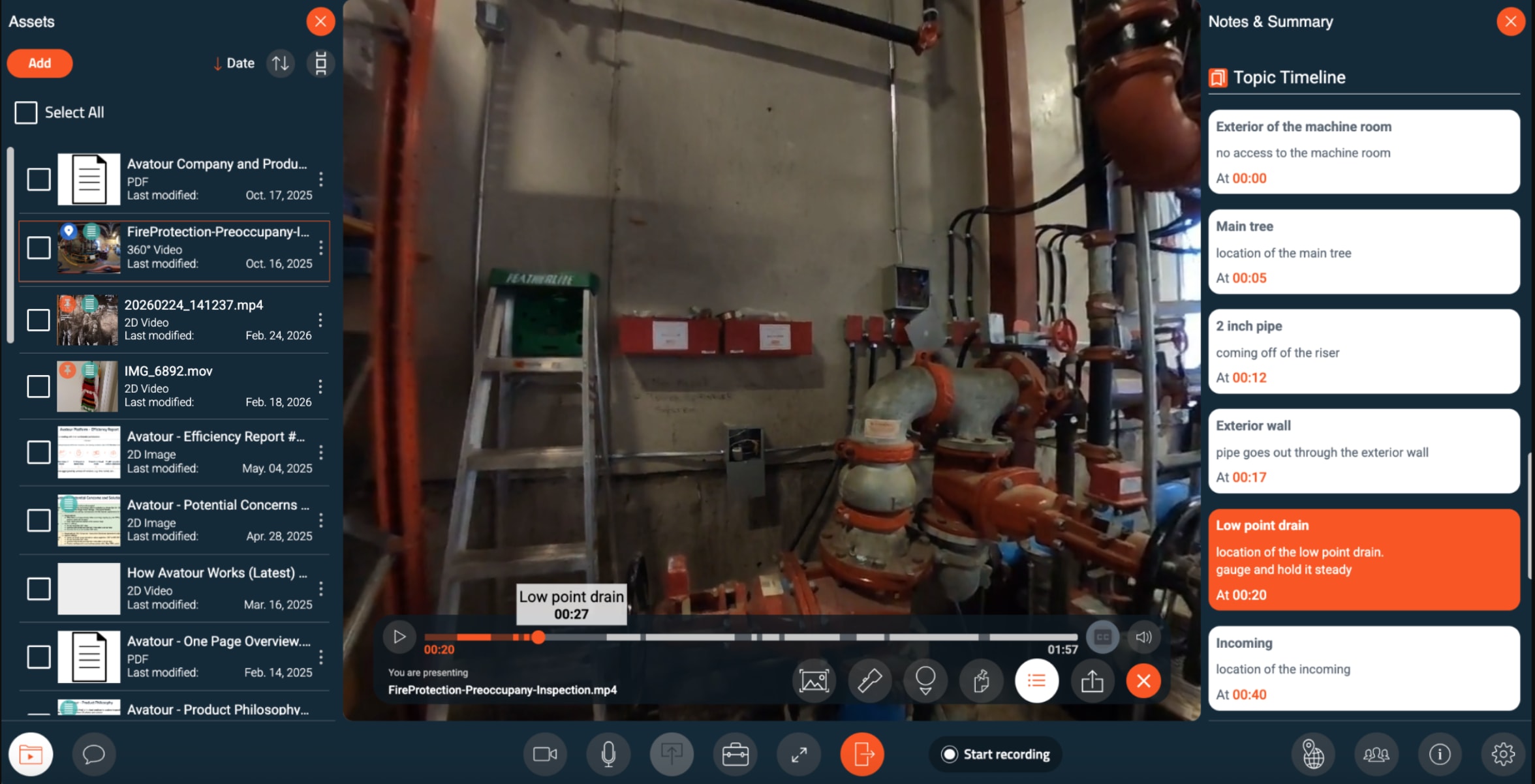 Temas de Avatour durante la presentación de un activo en una reunión
Desde el panel lateral, puedes imprimir un informe de activos o descargarlo como archivo TXT o CSV. Los informes pueden incluir varios elementos que puedes seleccionar antes de exportarlos.
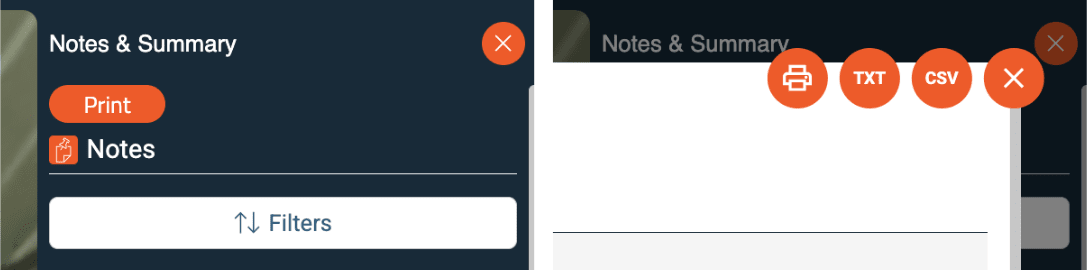
Menús de impresión y descarga del informe de recursos de Avatour
 Menú de selección de elementos del informe de activos de Avatour
- Compartir enlace: comparte un enlace a una nota o escena específica del activo.
- Subtítulos (CC): muestra la transcripción del texto en pantalla durante la reproducción del vídeo.
Barra de herramientas del recurso (espacio de trabajo)
Al revisar un recurso en un espacio de trabajo, la barra de herramientas es similar, pero está optimizada para el uso individual:
 Menú de Avatour al presentar un recurso en un espacio de trabajo
- Línea de tiempo del vídeo / Barra de progreso: muestra el progreso del vídeo con notas y temas clave extraídos de la pista de audio. Haz clic en cualquier punto de la línea de tiempo para desplazarte por el vídeo. Haz clic en una nota o en un tema para saltar a ese momento y abrir la nota. Incluye controles de Reproducir / Pausa.
- Instantánea, Notas, Panel de notas y resumen, Compartir enlace, Subtítulos
- No disponible: Spotlight, POV (estas funciones requieren participantes en directo)
- Controles adicionales:
- Intervalos de 10 segundos: avanzar o retroceder
- Velocidad de reproducción: ajustar la velocidad (0,5×–2×)
- Recortar vídeo: recortar el principio o el final del archivo
4. Para usuarios «Host» y «Admin»: consola web de Avatour
Cuando inicies sesión en tu cuenta de usuario de Avatour, accederás a la Consola web.
4.1 Consola web: descripción general del menú principal
En la parte izquierda, verás los siguientes elementos del menú:
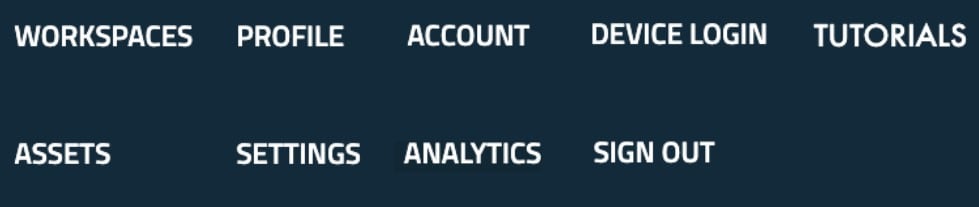 Consola web de Avatour - Menú principal
- Espacios de trabajo: organiza tu contenido de forma eficiente. Cada espacio de trabajo contiene Recursos, Colaboradores, Reuniones y Configuración.
- Recursos: accede y gestiona todos tus recursos (vídeos, imágenes, archivos PDF). Los administradores pueden ver todos los recursos de la cuenta, y los recursos compartidos son visibles para todos los usuarios.
- Perfil: gestiona tu idioma y contraseña.
- Análisis: realiza un seguimiento de la actividad de las sesiones, el uso de los espacios de trabajo y las métricas de ROI.
- Configuración (solo para administradores): configura los valores predeterminados de los espacios de trabajo, las reuniones y los recursos en toda la organización. Los administradores también pueden personalizar la imagen de marca (logotipo, colores, fondos).
- Cuenta (solo para administradores): gestiona los usuarios registrados y las cámaras de 360°.
- Inicio de sesión en el dispositivo: introduce el código que aparece en tu cámara de 360° para emparejarla con tu cuenta.
- Tutoriales – Accede a tutoriales guiados.
- Cerrar sesión – Cierra sesión en la consola.
Secciones como «Perfil», «Inicio de sesión en el dispositivo», «Tutoriales» y «Cerrar sesión» se explican por sí mismas y no tienen subsecciones detalladas.
4.2 Consola web: detalles por elemento del menú (con imágenes)
4.2.1 Espacios de trabajo
Los espacios de trabajo son unidades organizativas flexibles que te permiten gestionar recursos, colaboradores y reuniones en un solo lugar. Puedes crear un nuevo espacio de trabajo con el botón Nuevo espacio de trabajo situado en la esquina superior derecha.
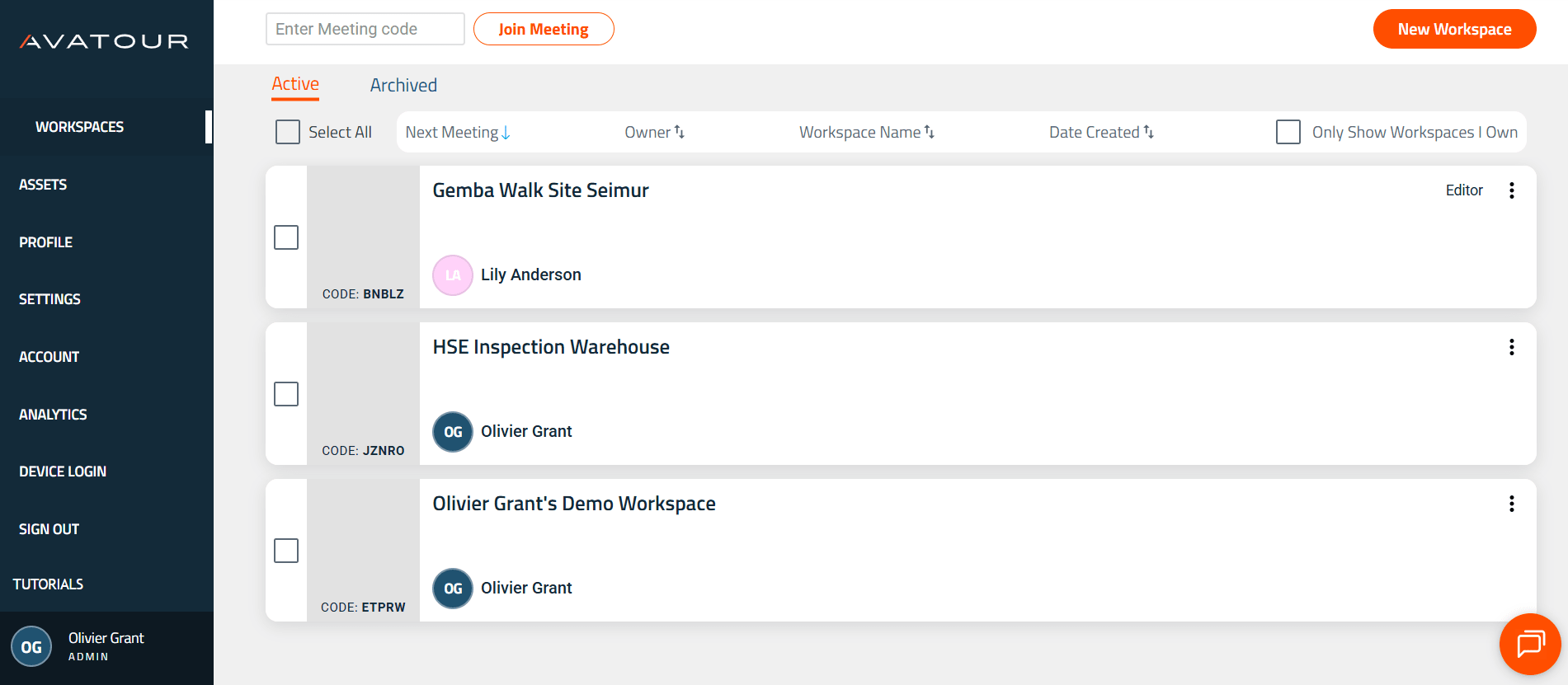 Consola web de Avatour - Elemento del menú principal «Espacios de trabajo»
Haz clic en el icono de la campana para ver un resumen de la actividad del espacio de trabajo durante los últimos 7 días.
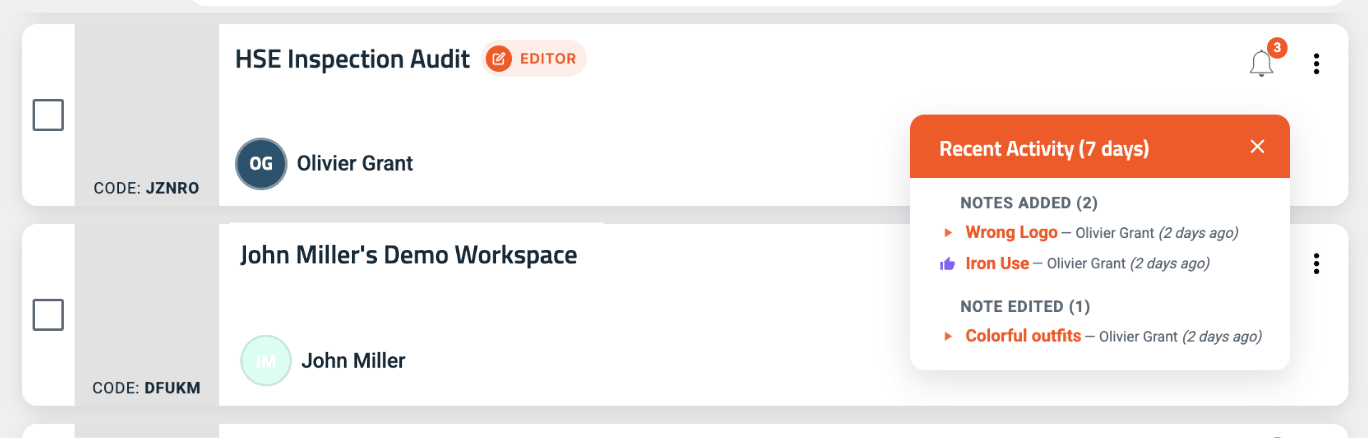 Actividades recientes del espacio de trabajo
Dentro de un espacio de trabajo:
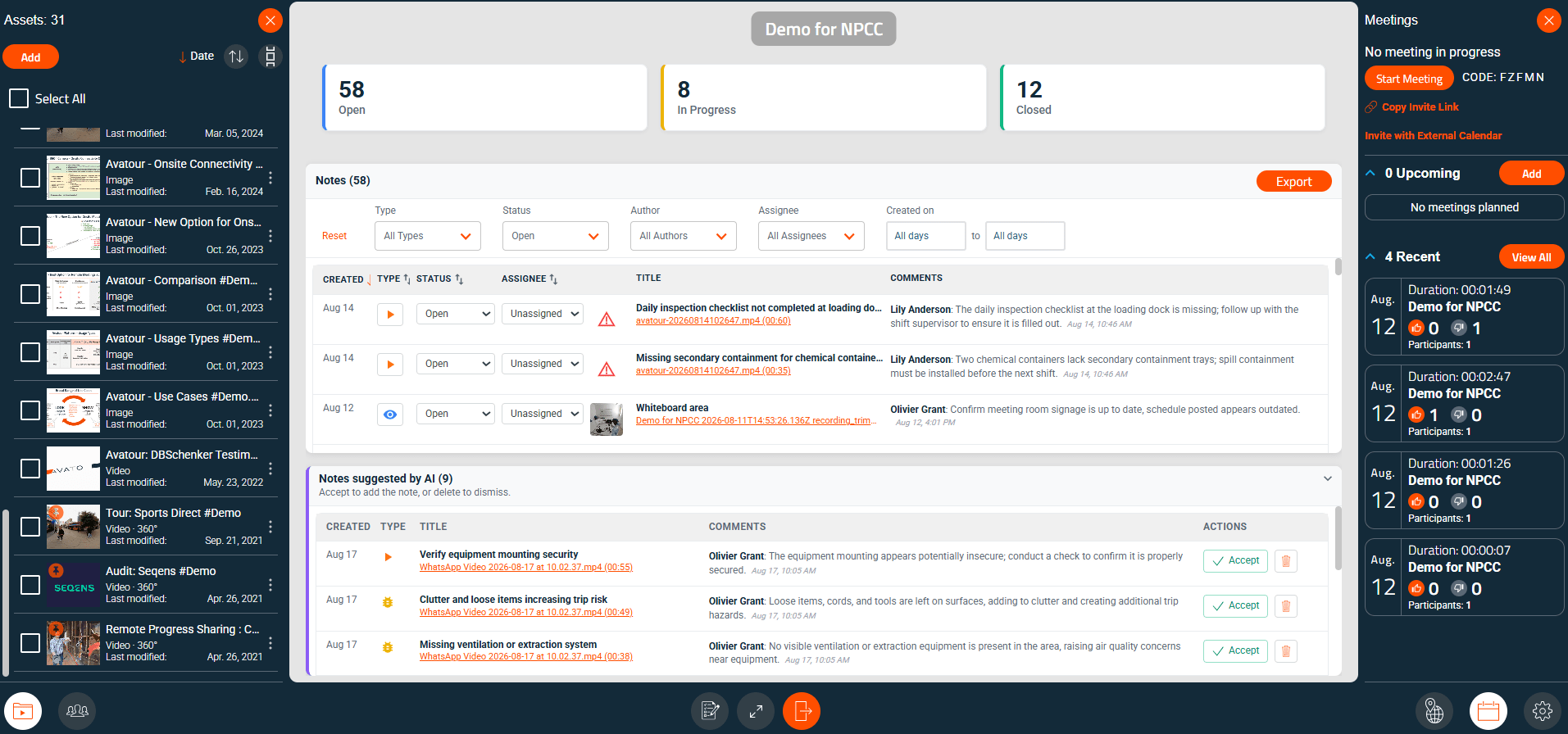 Espacio de trabajo con activos (izquierda), panel de control del espacio de trabajo (centro), reuniones (derecha)
En el centro se encuentra el panel de control del espacio de trabajo, que ofrece una visión general de todas las notas de los activos asignados a ese espacio de trabajo, con varios menús desplegables para filtrar según distintos atributos de las notas. Aquí también puedes aceptar o eliminar las notas sugeridas por la IA. Asimismo, puedes exportar todas las notas desde esta vista.
En los menús inferiores encontrarás:
- Recursos: gestiona los archivos asignados a este espacio de trabajo.
- Colaboradores: Controlar el acceso a los espacios de trabajo mediante
- Visor: puede ver los activos. La invitación crea un usuario invitado si es necesario.
- Editor: control total del espacio de trabajo, con los mismos derechos que el anfitrión. La invitación eleva al usuario a anfitrión si es necesario.
Varios usuarios pueden acceder a un espacio de trabajo simultáneamente sin necesidad de una reunión. Los espacios de trabajo públicos y la configuración de acceso a las reuniones ofrecen opciones de acceso alternativas.
- Informe: genera un informe utilizando una plantilla de inspección sobre los recursos seleccionados del espacio de trabajo. Las respuestas las genera la IA basándose en las pistas de audio de los vídeos seleccionados.
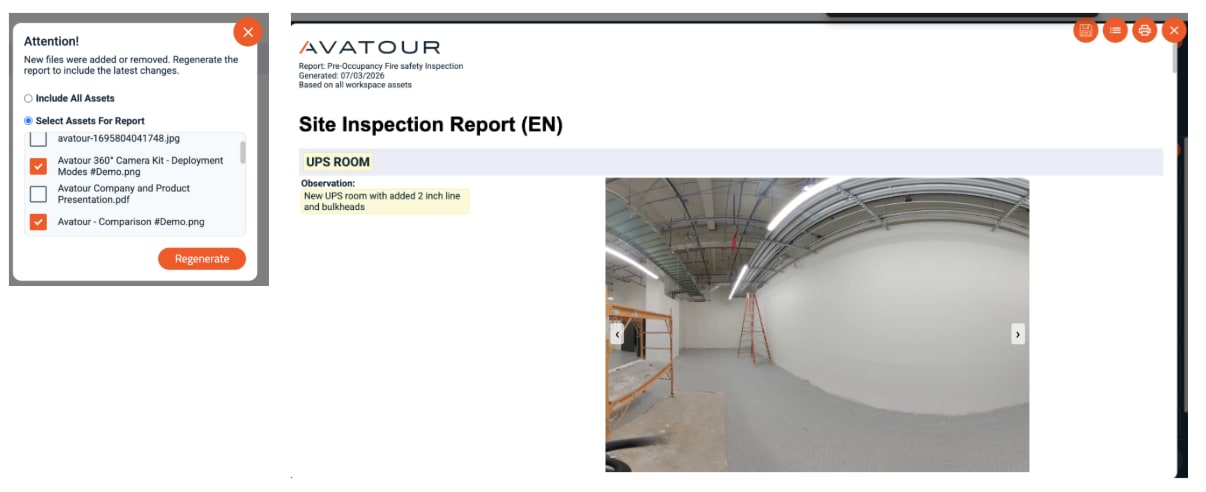 Informe del espacio de trabajo y selección de activos
- Mapa – Muestra en un mapa la ubicación de los activos con GPS, tal y como se ha descrito anteriormente para las reuniones.
- Reuniones – Organiza reuniones en el espacio de trabajo.
- Configuración – Configura los valores predeterminados del espacio de trabajo y de las reuniones:
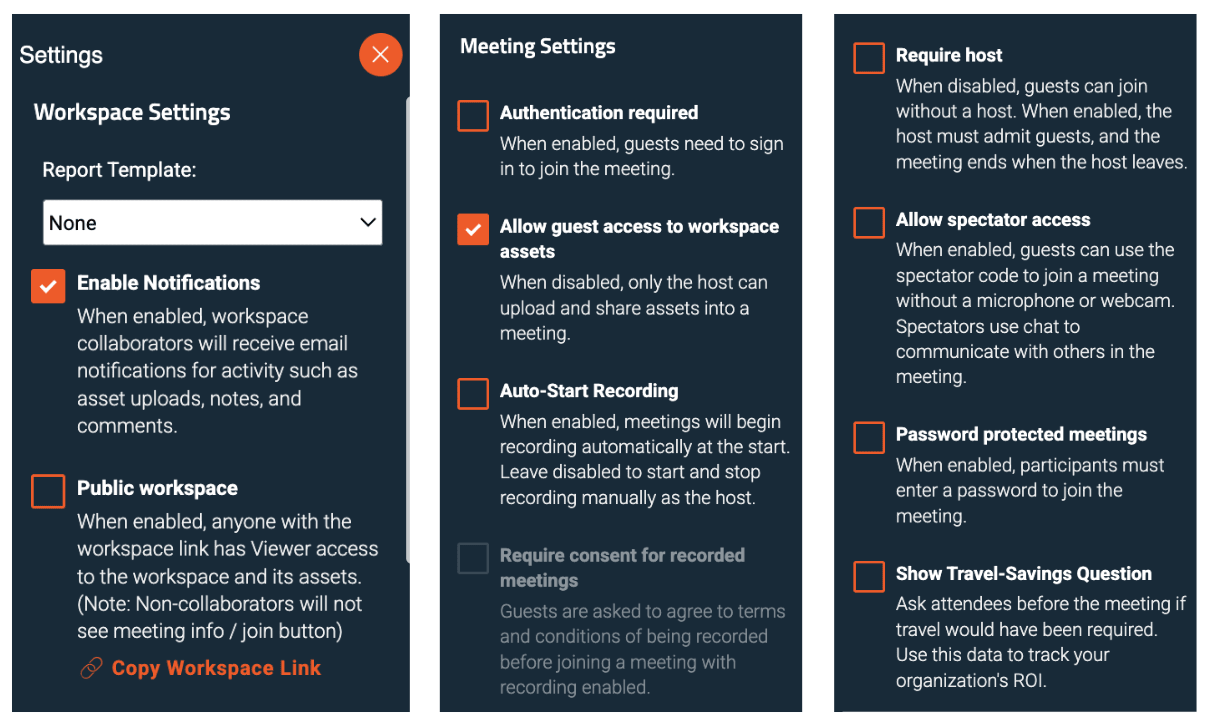 Configuración del espacio de trabajo
Configuración del espacio de trabajo
- Plantilla de informe – Selecciona una plantilla de inspección para los informes generados por IA. Puedes subirlas en «Cuenta» (véase más abajo).
- Habilitar notificaciones: correos electrónicos diarios con un resumen de los cambios en el estado de las notas.
 Ejemplo de notificaciones por correo electrónico
- Espacio de trabajo público: cualquier persona que tenga el enlace puede ver los activos directamente.
Configuración de reuniones
- Se requiere autenticación: los participantes deben iniciar sesión.
- Permitir acceso de invitados: permite a los usuarios no registrados ver los recursos.
- Inicio automático de la grabación / Inicio manual: elige si las reuniones se graban automáticamente o se inician manualmente.
- Se requiere anfitrión: el anfitrión debe admitir a los participantes; la reunión finaliza cuando el anfitrión se marcha.
- Permitir acceso como espectador: participar sin micrófono ni cámara; comunicarse a través del chat. Cuando está activada esta opción, se muestra un enlace de reunión para espectadores.
- Reuniones protegidas con contraseña: se requiere una contraseña para participar.
- Mostrar pregunta sobre ahorro en desplazamientos: pregunta a los participantes si la reunión ha reducido los desplazamientos.
Las opciones de configuración se pueden combinar (por ejemplo, no se requiere anfitrión pero sí protección con contraseña).
4.2.2 Recursos
Gestiona todos los vídeos de 360°/2D (MP4, MOV), imágenes (PNG, JPEG/JPG, HEIC) y archivos PDF. Sube y descarga recursos, asígnalos a espacios de trabajo, compártelos con otros usuarios, cámbiales el nombre, imprime o descarga informes, activa el desenfoque de rostros y el resumen mediante IA.
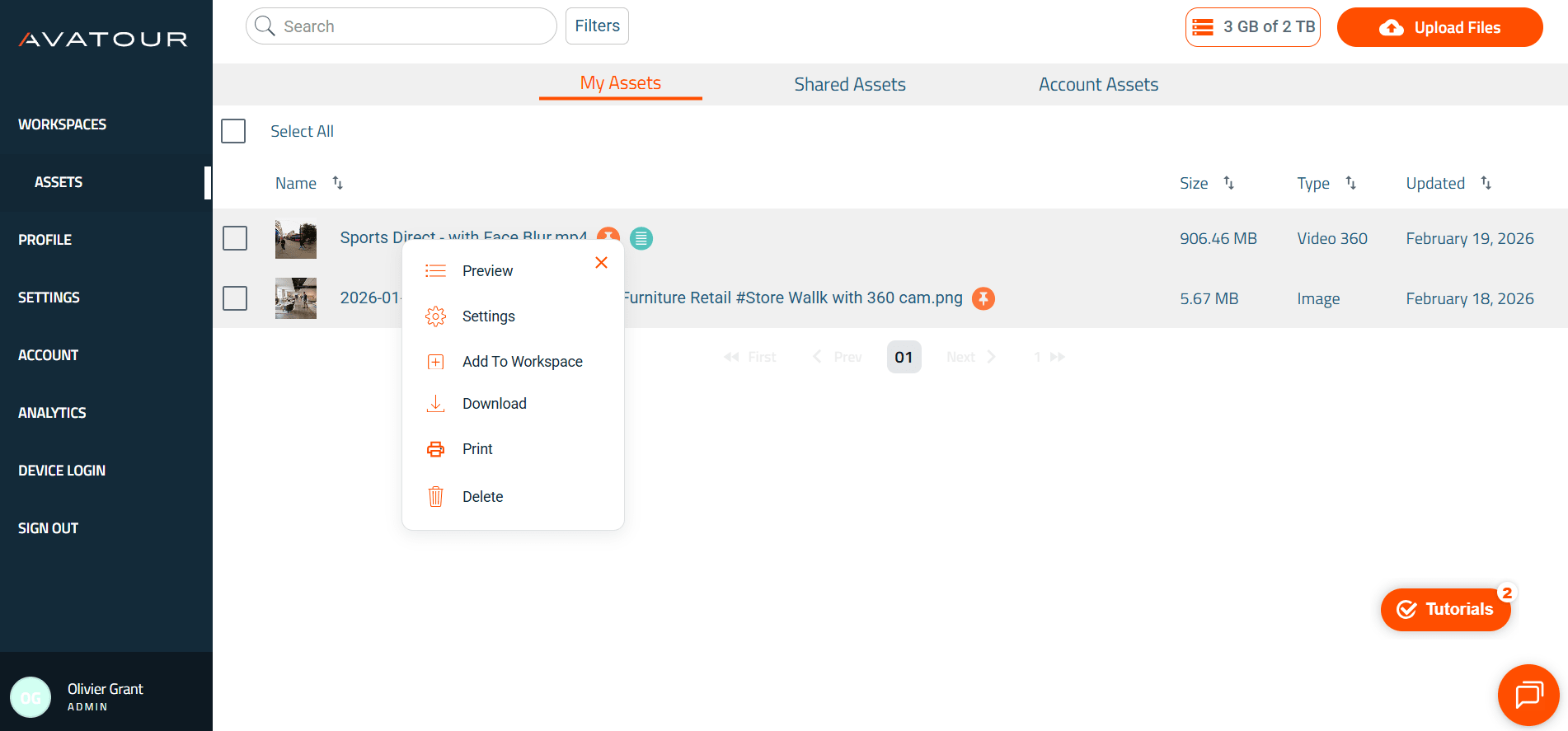 Elemento del menú principal «Recursos»
También puede generar el código HTML para habilitar la incrustación pública de un activo, por ejemplo, en su sitio web. Basta con marcar la casilla «Habilitar incrustación pública» y, a continuación, hacer clic en «Guardar» para obtener el código.
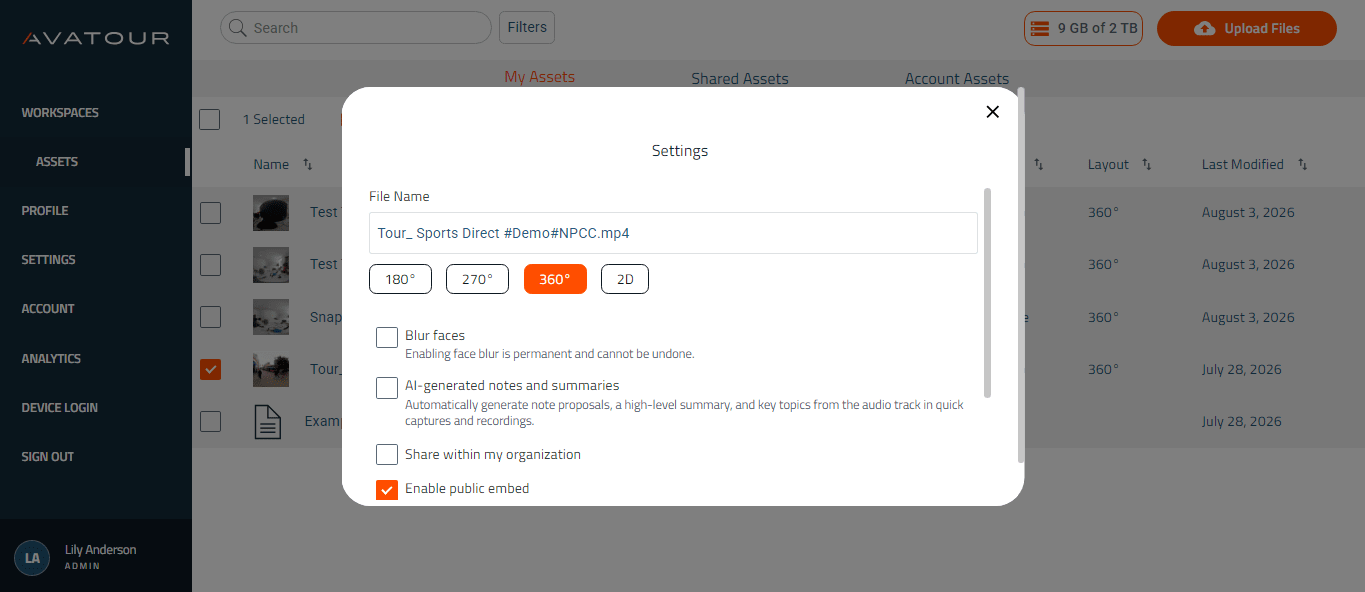 Elementos del menú principal: Recursos
4.2.3 Configuración
Los usuarios administradores tienen acceso a este menú para gestionar la configuración de forma centralizada para toda la plataforma Avatour y para TODOS los espacios de trabajo. Los cambios en dicha configuración se aplicarán a los espacios de trabajo de nueva creación (no a los ya existentes). Cada opción se puede marcar o desmarcar para que se convierta en la configuración predeterminada en toda la plataforma. Cada opción también se puede bloquear, lo que significa que otros usuarios de la plataforma no podrán modificar la configuración predeterminada. Aquí también puedes realizar personalizaciones de marketing relacionadas con tu imagen de marca (logotipo, colores, etc.).
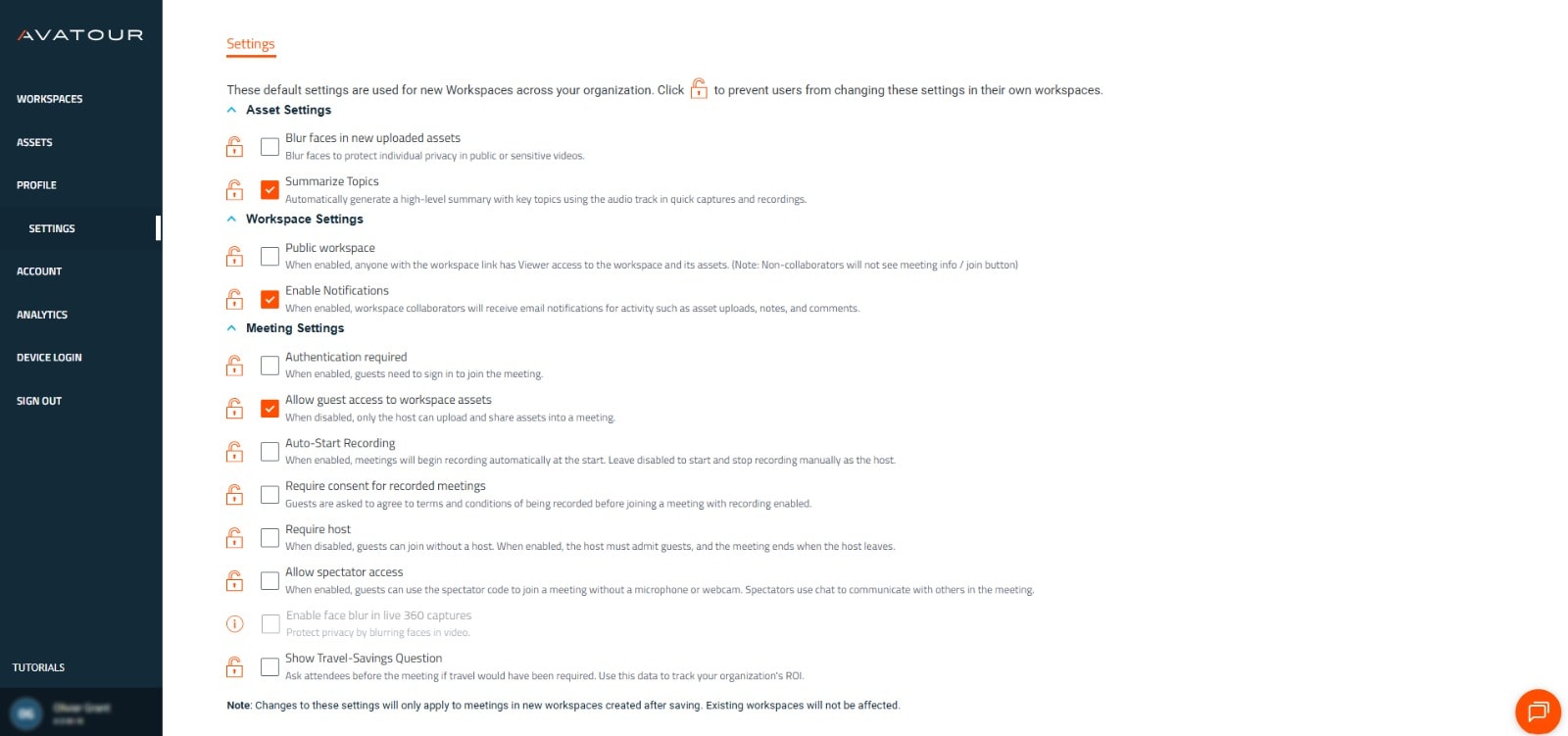 Sección de configuración
4.2.4 Cuenta
Aquí puedes consultar los detalles de tu cuenta y gestionar las cuentas de usuario registradas (Anfitrión, Administrador, Invitado), incluido su acceso al espacio de trabajo, así como cargar plantillas de inspección para generar informes del espacio de trabajo (véase más arriba).
 Resumen de la cuenta - Secciones superiores
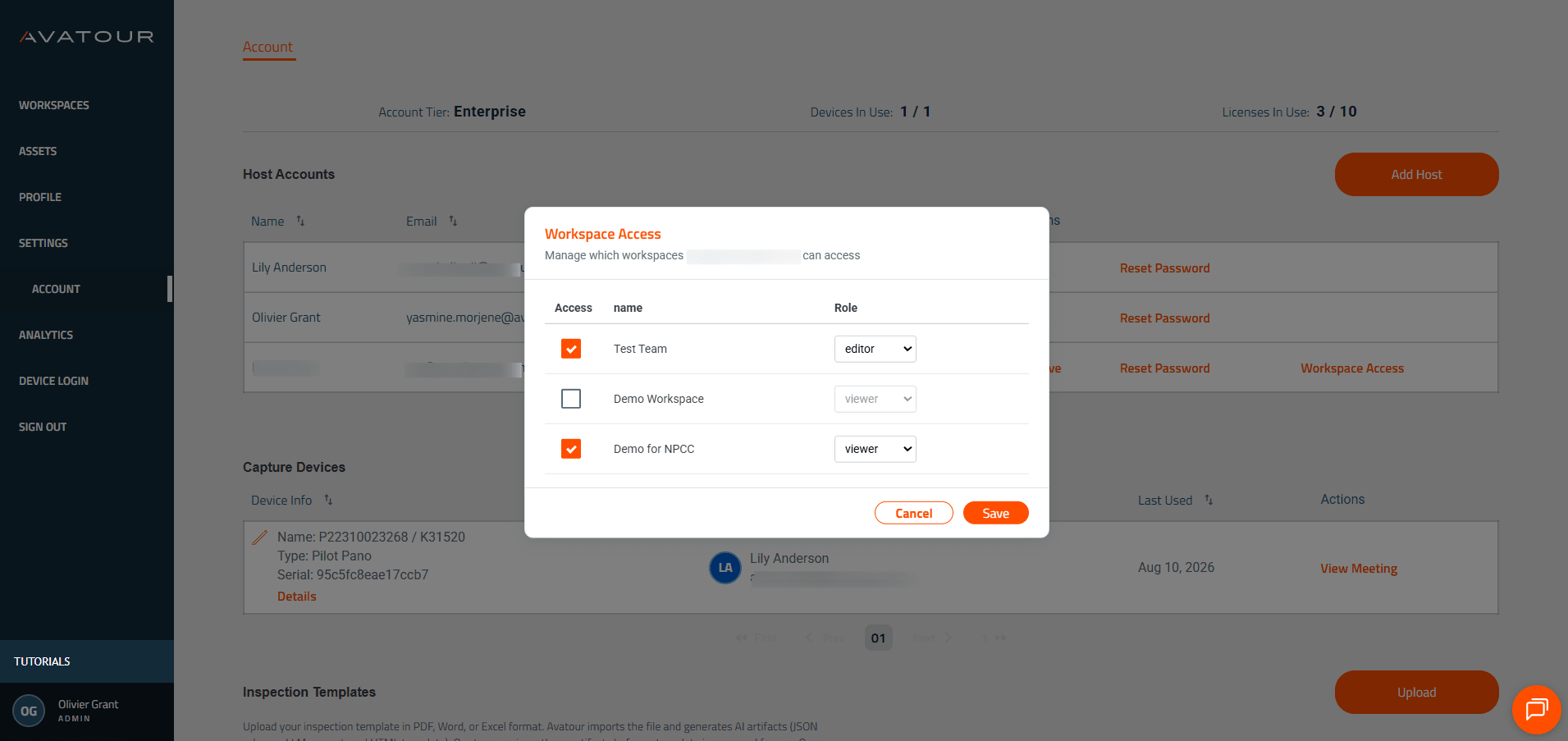 Resumen de la cuenta - Gestión del acceso al espacio de trabajo
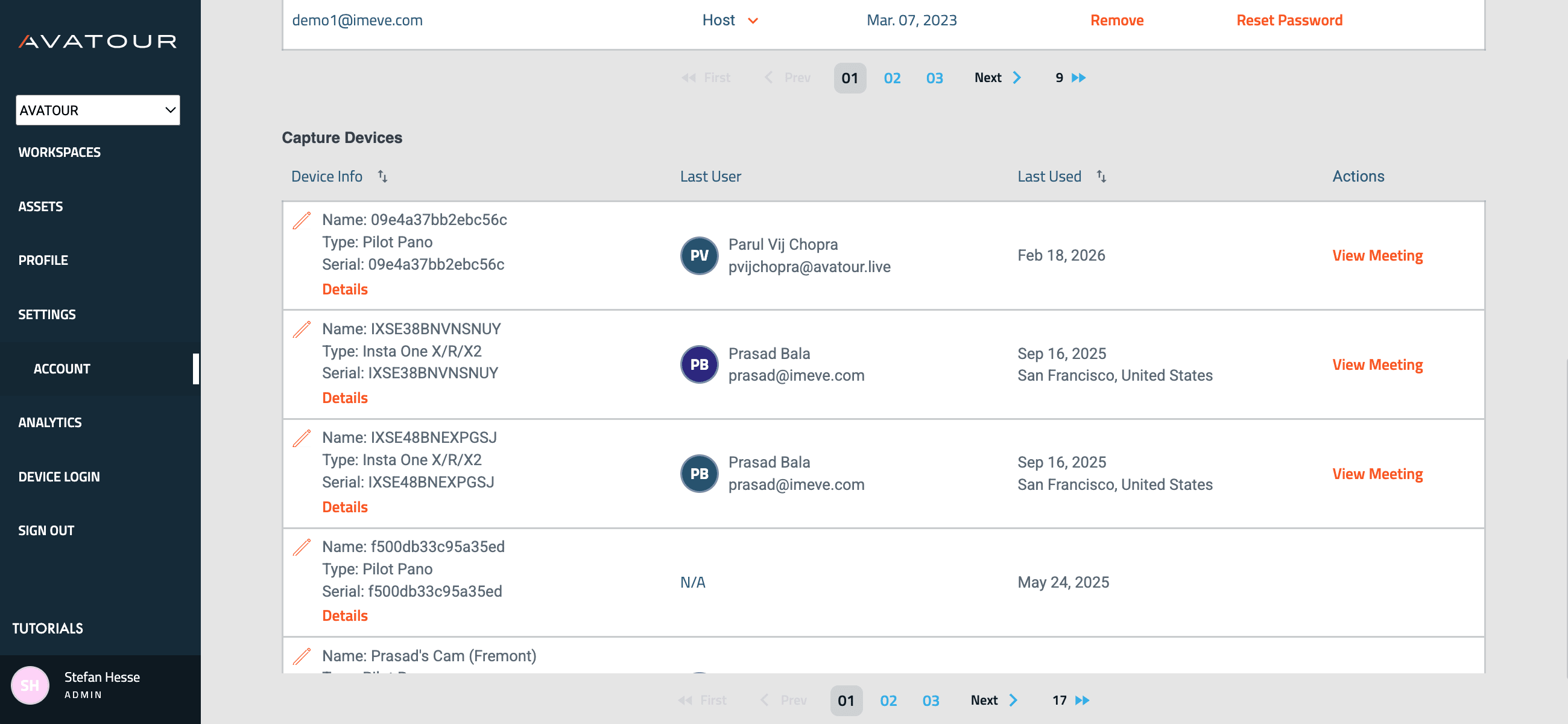 Resumen de la cuenta - Secciones inferiores
4.2.5 Análisis
Ofrece información detallada sobre las reuniones, el uso del espacio de trabajo y las métricas de retorno de la inversión.
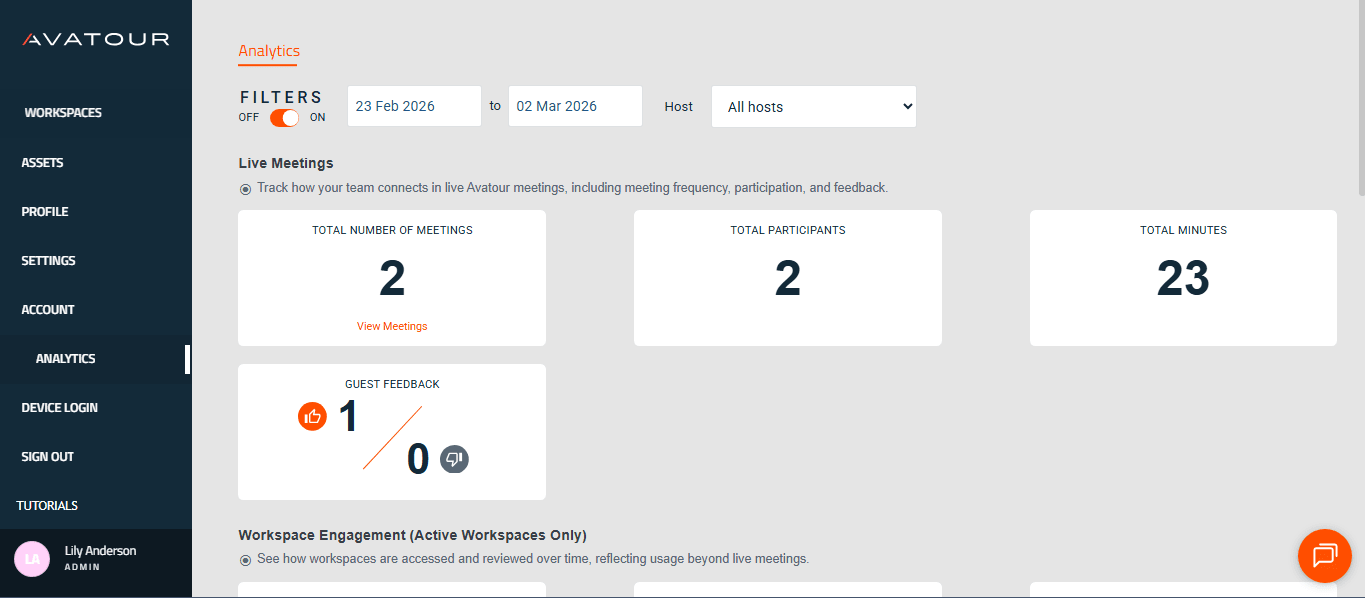 Resumen de análisis
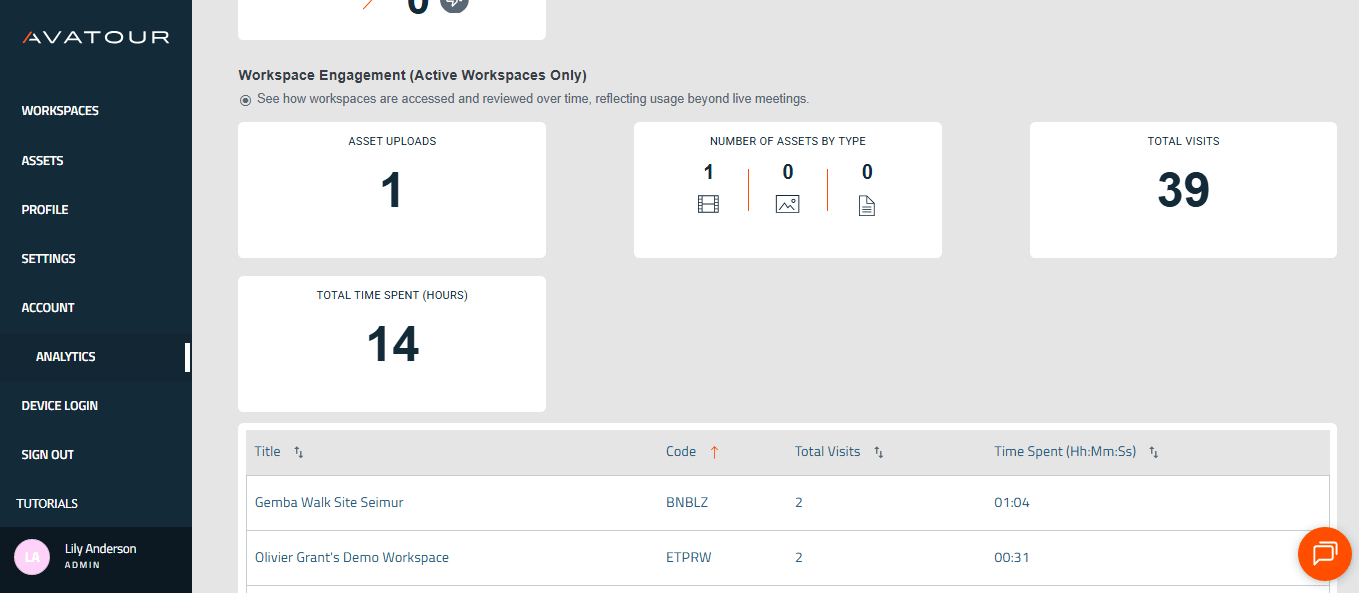 Actividad de las reuniones y uso del espacio de trabajo
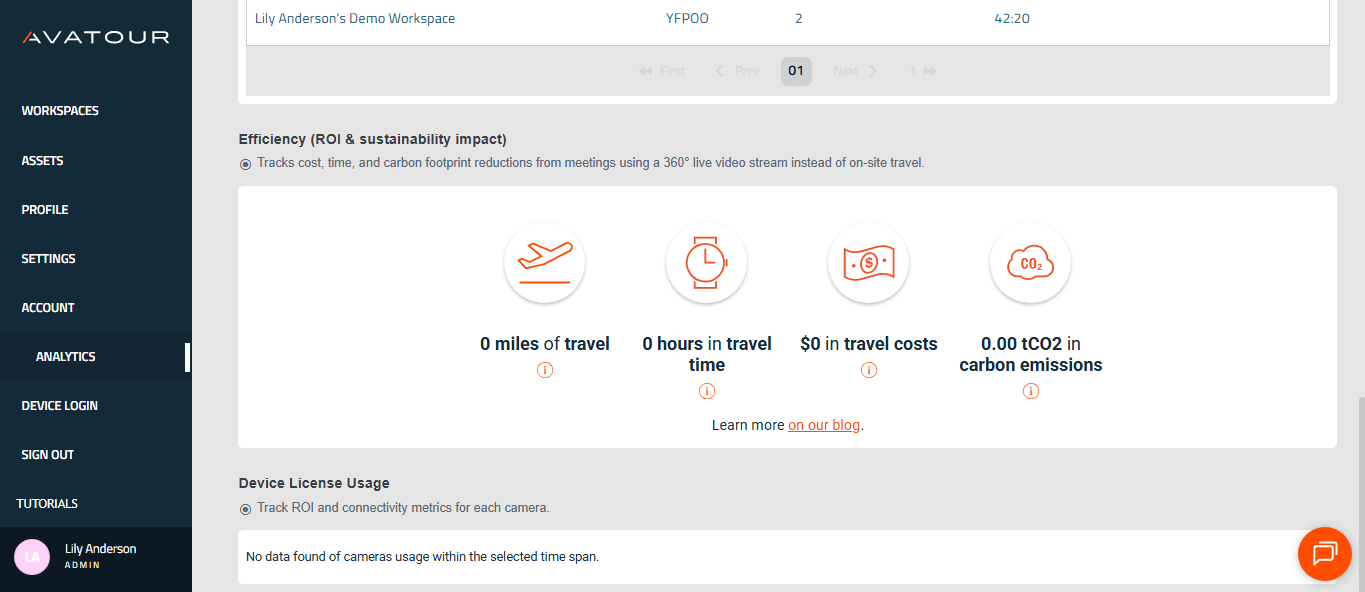 Ahorro y uso de licencias de dispositivos
5. In situ: cómo utilizar el kit «llave en mano» de Avatour
5.1 Primeros pasos
Aquí encontrarás una guía en línea muy completa para dar tus primeros pasos con el kit llave en mano de Avatour: Guía de inicio rápido – Kit llave en mano de Avatour 3.1 (configuración de Pilot PanoX V2)
Y aquí también tienes la imagen con las instrucciones que encontrarás en el interior de la tapa del estuche del kit 3.1.
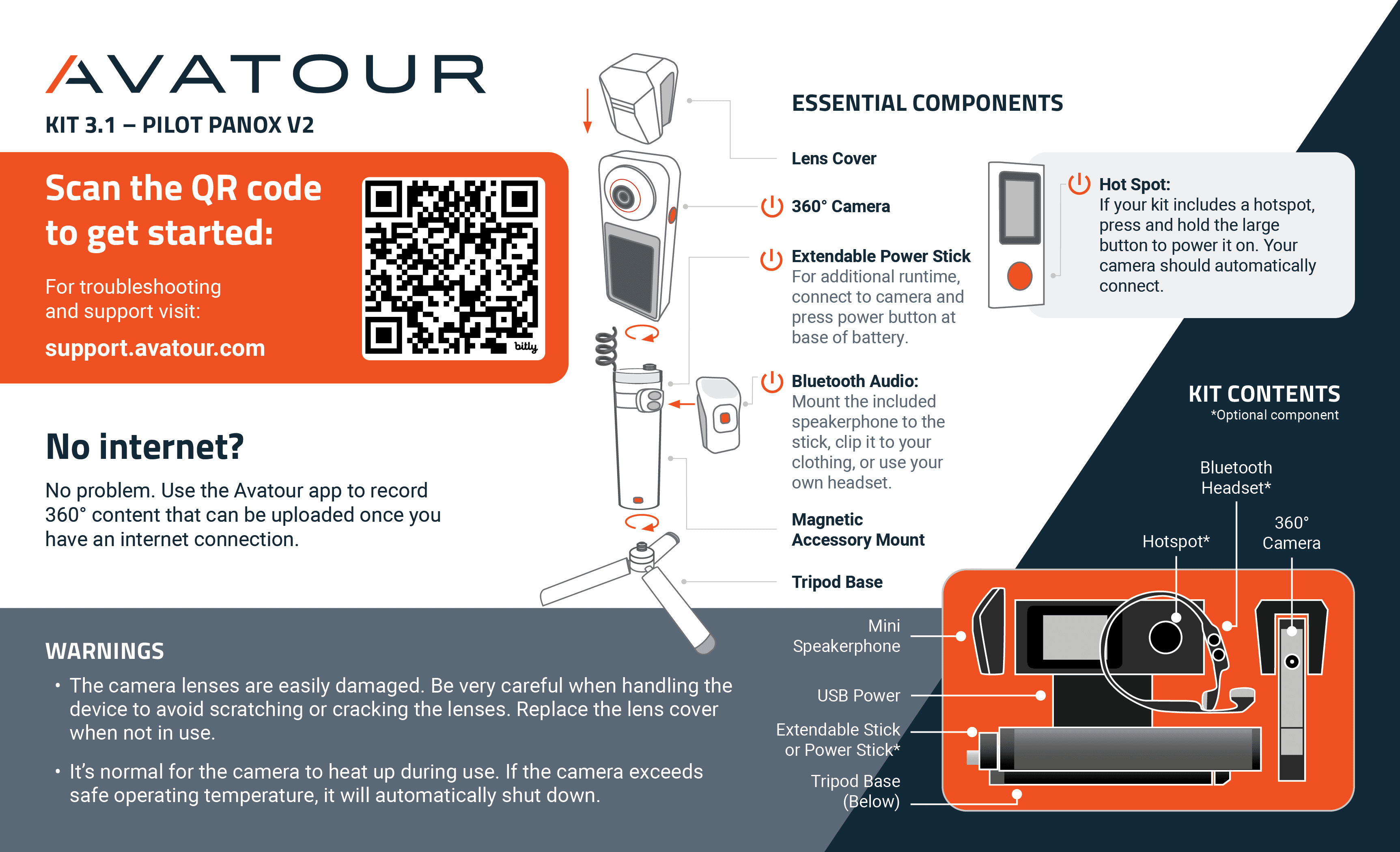 Imagen en el interior de la tapa del estuche del kit Avatour
Sigue la guía y las instrucciones para desembalar, montar y encender tu cámara.
5.2 Consejos útiles
Batería externa: reuniones en directo más largas y mejor gestión térmica
La batería interna de la cámara dura entre 30 y 45 minutos aproximadamente. Se activará una alerta cuando la batería se esté agotando. Con una batería externa, puedes ampliar el tiempo de funcionamiento e incluso hacerlo infinito, ya que puedes cambiar de batería durante el uso.
-
Si tu kit incluye una batería Ulanzi: Colócala entre la base del trípode y el palo extensible y, a continuación, conecta la batería a la cámara mediante USB-C.
-
Si tu kit incluye un palo con batería de Telesin: monta la cámara directamente en el palo extensible con batería de Telesin y conéctala mediante USB-C.
Uso de la batería externa:
- Aumenta la duración total de la batería de unos 40 minutos (solo con la batería de la cámara) a unas 3 horas.
- Aporta estabilidad a la configuración de la cámara.
- Ayuda a evitar un posible sobrecalentamiento.
Recomendamos utilizar siempre la batería externa desde el principio, especialmente para reuniones en directo.
Consideraciones sobre el audio para reuniones en directo y grabaciones
- Entornos ruidosos: Utiliza los auriculares Shokz incluidos en el kit para una captura de audio nítida.
- Encendido/apagado: Mantén pulsado el botón «+» durante 3 segundos (LED azul = encendido, LED rojo = apagado).
- Modo de emparejamiento por Bluetooth: Con los auriculares apagados, mantén pulsado el botón «+» durante 5 segundos (el LED parpadea en azul/rojo).
-
Volumen: Utiliza los botones «+» y «-».
-
Entornos más silenciosos / varios participantes cerca de la cámara: Utiliza el altavoz acoplable NoxGear. No ofrece una calidad de sonido tan alta como los altavoces de conferencia (por ejemplo, Jabra Speak), pero es fácil de enganchar a la camisa y capta eficazmente las voces cercanas.
- Encendido/apagado: Mantén pulsado el botón de reproducción/pausa durante 2 segundos.
-
Modo de emparejamiento por Bluetooth: Entra automáticamente en modo de emparejamiento al encenderse (el LED parpadea en azul/rojo; permanece azul fijo cuando está emparejado).
- Volumen: Utiliza los botones «+» y «-».
-
Uso de tu propio dispositivo: Si prefieres una alternativa (por ejemplo, un altavoz de conferencia o unos auriculares personales), puedes emparejarlo a través de la cámara: Ajustes → Bluetooth.
Conectividad
Antes de empezar: Asegúrate de tener conexión a Internet a través de:
- WiFi local (preferible)
- Red móvil (si estás fuera del alcance de la red WiFi)
Ancho de banda recomendado: 10 Mbps de subida/descarga para una transmisión completa en 360° (~5 Mbps). Un ancho de banda inferior (1-2 Mbps) solo funciona si te mantienes quieto.
Comprobar la velocidad de la red
- Prueba en una sola ubicación: Utiliza cualquier herramienta de comprobación de velocidad que utilices habitualmente (por ejemplo, Speedtest) para verificar tanto el ancho de banda de subida como el de bajada.
- Prueba caminando por las instalaciones: Desde la cámara: Ajustes → Red → Prueba de conexión. Recorre todo el espacio para confirmar la cobertura y el ancho de banda.
Wi-Fi local
- Muy recomendable para conexiones estables.
- Si el departamento de TI exige incluirlo en la lista blanca, busca la dirección MAC: Ajustes → Acerca de → Dirección Wi-Fi.
Red móvil
Opción A: punto de acceso y tarjeta SIM incluidos en el kit
- Conecta el punto de acceso GlocalMe al stick de batería Telesin (imán).
- Garantiza que no haya interferencias y mantiene la conexión si te alejas de la cámara.
- Solución de problemas:
- Comprueba que la tarjeta SIM esté preinstalada (no es una Cloud SIM).
- Activa el 5G en el gestor de tarjetas SIM.
- Comprueba que el APN sea el correcto para tu región (Guía de configuración del APN).
Opción B: Punto de acceso personal / tarjeta SIM - Utiliza tu propio smartphone o un punto de acceso dedicado.
Notas importantes:
Mantén el punto de acceso desactivado mientras estés conectado a una red Wi-Fi; actívalo solo cuando estés fuera de cobertura. El sistema operativo de la cámara cambia dinámicamente entre redes Wi-Fi en función de la intensidad de la señal y puede cambiar inadvertidamente al punto de acceso incluso cuando haya Wi-Fi disponible.
Mantén siempre el punto de acceso en línea recta con la cámara de 360°, por ejemplo, no lo guardes en el bolsillo trasero de tus pantalones, ya que tu propio cuerpo se interpondrá en la señal.
Las redes móviles pueden limitar el ancho de banda de forma inesperada. Consulta con tu operador los límites de tu plan de datos o ponte en contacto con el servicio de asistencia de Avatour si utilizas nuestro punto de acceso y nuestra tarjeta SIM.
En algunos casos, las redes 4G/LTE pueden ofrecer una mejor señal que las redes 5G. Prueba siempre ambas.
Situaciones de bajo ancho de banda
- Graba con antelación vídeos de la ubicación para reproducirlos más tarde (guía de grabación).
- Comparte la transmisión de la cámara de un smartphone para complementar las zonas con bajo ancho de banda (0,1-0,3 Mbps de subida).
Sin conexión
- Solo se pueden utilizar vídeos pregrabados (guía de grabación).
Otros participantes presenciales: prácticas recomendadas
Cuando varios participantes se unen a una reunión en directo de Avatour desde la misma ubicación que la cámara de 360°, es fundamental gestionar cuidadosamente el audio y el ancho de banda:
- Cada smartphone, tableta u ordenador portátil conectado in situ consume ancho de banda de la red y puede afectar negativamente a la transmisión de la cámara de 360°.
- La presencia de varios micrófonos y altavoces en el mismo espacio puede provocar retroalimentación de audio, lo que hace que la experiencia de la reunión resulte desagradable para todos los participantes.
Otros participantes in situ: prácticas recomendadas
Cuando varios participantes se unen a una reunión en directo de Avatour desde la misma ubicación que la cámara de 360°, es fundamental gestionar cuidadosamente el audio y el ancho de banda:
- Cada smartphone, tableta u ordenador portátil conectado in situ consume ancho de banda de la red y puede afectar negativamente a la transmisión de la cámara de 360°.
- La presencia de varios micrófonos y altavoces en el mismo espacio puede provocar retroalimentación de audio, lo que hace que la experiencia de la reunión resulte desagradable para todos los participantes.
Para hacer frente a estos retos, sigue estas prácticas recomendadas:
- Utiliza auriculares con cable o inalámbricos: preferiblemente con cancelación de ruido para evitar el eco y la retroalimentación.
- Modo «In situ»: Únete a la reunión en modo «In situ» cuando estés físicamente cerca de la cámara de 360°, ya que este modo está optimizado para su uso in situ:
- Silencia el micrófono y el altavoz del participante de forma predeterminada.
- No transmite la señal de la cámara del participante.
- No muestra la imagen de la cámara de 360° en el navegador del participante.
- Ahorra ancho de banda de red, lo que garantiza que la cámara de 360° disponga del máximo ancho de banda de subida disponible para la retransmisión en directo.
- Resulta útil cuando un usuario desea compartir detalles específicos; puedes volver a compartir la imagen de tu cámara para ofrecer vistas específicas.
- Silencia el micrófono cuando no estés hablando activamente: evita la retroalimentación de audio no deseada y las distracciones.
- Utiliza una red independiente si es posible: conecta tu smartphone a una red diferente a la de la cámara para reducir las interferencias.
Seguir estas pautas garantiza un recorrido en directo fluido y de alta calidad tanto para los participantes presenciales como para los remotos.
5.3 Aplicación de la cámara Avatour
Aquí se muestran (1) el menú principal, (2) el menú de ajustes y (3) el menú de configuración de red.
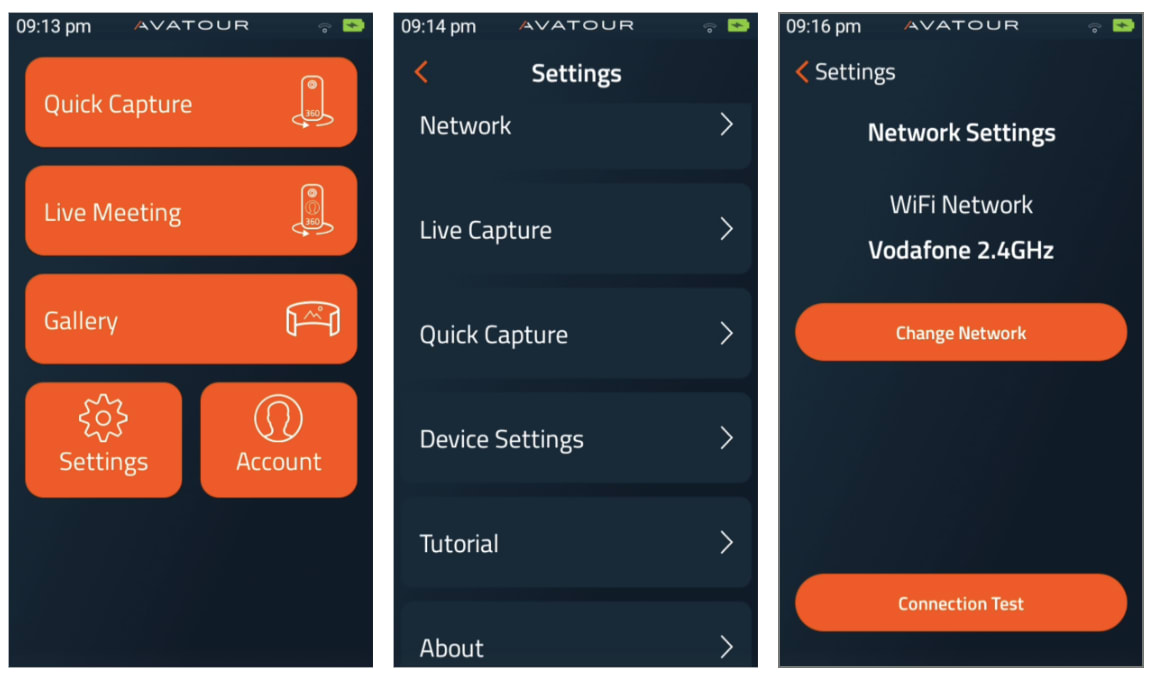 Aplicación de cámara Avatour 360° - 3 menús
Captura rápida: para grabar vídeos de 360° sin conexión en la tarjeta de memoria SD de la cámara 360. - Para obtener una descripción detallada, consulta ¿Cómo se graban y se suben vídeos de 360° con la aplicación Avatour?. Recomendamos utilizar un dispositivo de audio externo (conectado por Bluetooth). Nota: También puedes cambiar el ángulo de vídeo de 360° a 270°, 180° y a vídeos y fotos 2D estándar, por ejemplo, para enfocar o ocultar zonas confidenciales; basta con cambiar los modos en la esquina inferior derecha una vez en la pantalla de QC (aunque esto solo es posible si se ha seleccionado una resolución 4K en los Ajustes de Captura Rápida; véase más abajo).
Reunión en directo: para videoconferencias en directo a 360°. Verás tus espacios de trabajo y, al hacer clic en uno de ellos, se iniciará la transmisión de vídeo en directo desde la cámara de 360°. Antes de poder unirte a la reunión con tu cámara de 360°, debes conectar un dispositivo de audio mediante Bluetooth. Para obtener una descripción detallada, consulta ¿Cómo iniciar una reunión de Live Capture con tu cámara Pilot?
Al organizar una reunión de Live Capture con tu cámara de 360°, tendrás a tu disposición herramientas de reunión similares a las de la experiencia web. Aquí tienes un enlace a nuestro artículo de la Base de conocimientos que explica estas herramientas con más detalle: Herramientas de la aplicación del operador
Galería: aquí encontrarás todos tus vídeos e imágenes en 360° para subirlos a la consola web de Avatour. Puedes subir y eliminar recursos de forma masiva: pulsa «Seleccionar» en la parte superior de la pantalla. Antes de subirlos, puedes elegir varios pasos de procesamiento, como «Desenfocar rostros», generar un «Resumen con IA» y optimizar la señal de audio con «Mejorar voz». Incluso puedes elegir un espacio de trabajo al que asignar el recurso; por supuesto, también aparecerá en la sección general de recursos de la consola web.
Configuración: en «Configuración» dispones de las siguientes opciones:
- Red: esta opción te permite cambiar la red Wi-Fi a la que está conectada la cámara o realizar una prueba de conexión de red para ver el rendimiento de la transmisión
-
Captura en directo: Ajusta la configuración de tu «Captura en directo» en función del ancho de banda disponible, la sensibilidad a la realidad virtual del invitado o si las lentes protectoras de tu cámara están instaladas:
-
Frecuencia de fotogramas objetivo (opcional): Ajusta la frecuencia de fotogramas de tu vídeo de «Captura en directo» entre 15 fps, 24 fps y 30 fps. Las velocidades de fotogramas más altas producen un vídeo más fluido, pero requerirán más ancho de banda de subida. Por defecto: 15 fps
- Velocidad de bits objetivo: Te permite aumentar o disminuir la velocidad de bits máxima de transmisión para tu «Captura en directo». Puedes establecer la velocidad de bits objetivo entre 1 Mbps y 10 Mbps. Unas velocidades de bits más altas darán como resultado una mayor resolución de vídeo, pero requerirán más ancho de banda de subida. Valor predeterminado: 5 Mbps
- Optimizar movimiento: Esto reducirá la frecuencia de fotogramas del vídeo, lo que generará menos carga en el ancho de banda de subida de tu red y aumentará tu velocidad de bits de transmisión. Además, esta opción ayuda a reducir el mareo por movimiento en los participantes de realidad virtual. Valor predeterminado: Desactivado
- Bloqueo de dirección: Esto «bloqueará» la visión de 360°, independientemente de cómo muevas la cámara de 360°. Si deseas que el vídeo de 360° se mueva con el movimiento de la cámara —por ejemplo, si quieres «apuntar» con la lente frontal hacia algo—, configura el bloqueo de dirección en «No». De este modo, la cámara se comportará como una cámara tradicional, lo que puede resultar más útil para visitas guiadas. Valor predeterminado: Sí
- Orientación inicial: Cuando configures el bloqueo de dirección en «No», podrás elegir qué lente (delantera o trasera) debe ser la orientación inicial al iniciar el vídeo en directo. Por defecto: mirando al operador, ya que es la forma más natural de comenzar una reunión en directo (= cámara trasera). La «Captura rápida» funciona de forma diferente (la cámara frontal es la orientación inicial por defecto; véase más abajo).
-
Captura rápida: Ajusta la configuración de la «Captura rápida» en función de la frecuencia de fotogramas de vídeo que prefieras, el ancho de banda disponible para la subida de los vídeos grabados y otras preferencias. Las funciones relacionadas con el mapa, tal y como se ha explicado anteriormente (por ejemplo, la vista de mapa o las notas en un mapa), están disponibles cuando se recibe una señal GPS y la configuración de ubicación en los ajustes nativos de la cámara está activada (debería estarlo por defecto). El icono de ubicación/GPS situado en la esquina superior derecha de la Captura rápida debería aparecer en verde. Puede tardar unos instantes en recibirse la señal GPS y establecerse la conexión.
- Resolución: Aquí puedes cambiar la resolución. (Las resoluciones de 6k son experimentales y requieren un paso de unión manual en la Galería antes de subirlas a la consola web de Avatour.)
- 4k: es la resolución estándar y ofrece un buen equilibrio entre la calidad del vídeo y el tamaño del archivo.
- Resolución: Aquí puedes cambiar la resolución. (Las resoluciones de 6k son experimentales y requieren un paso de unión manual en la Galería antes de subirlas a la consola web de Avatour.)
- 6k a 30 fps (requiere un paso adicional de unión de imágenes en la Galería)
- 6k a 10 fps (requiere un paso adicional de unión de imágenes en la Galería): esto resulta útil si deseas mantener un tamaño de archivo menor que con los 30 fps, cuando la fluidez del movimiento es menos importante.
- Para otras resoluciones, también puedes utilizar las aplicaciones nativas de la cámara, incluso en la PanoX V2; para más detalles, consulta ¿Cómo se graban y se suben vídeos de 360º con la aplicación Avatour?
- Velocidad de fotogramas objetivo (disponible solo para la resolución 4K): ajusta la velocidad de fotogramas de tus grabaciones de vídeo con «Captura rápida» entre 15 fps, 24 fps y 30 fps. Las velocidades de fotogramas más altas producen un vídeo más fluido, pero aumentarán el tamaño del archivo de vídeo y el tiempo de subida. Recomendado: 30 fps
- Velocidad de bits objetivo (solo disponible para resolución 4K) Establece la velocidad de bits objetivo para las subidas de «Captura rápida» entre 5 Mbps y 20 Mbps. Las velocidades de bits más bajas aumentan la velocidad de subida, pero reducen la calidad del vídeo. Recomendado: 20 Mbps
- Bloqueo de orientación: igual que en el apartado anterior sobre «Captura en directo». La orientación inicial predeterminada es siempre la lente frontal para «Captura rápida».
Consulta también nuestra Calculadora de tamaño de archivos de vídeo de 360° de Avatour para obtener más consejos sobre los ajustes anteriores y los tamaños de los archivos de vídeo. Para evitar quedarte sin espacio de almacenamiento, aparecerá una alerta para que puedas detener la grabación y liberar espacio (por ejemplo, subiendo vídeos desde la Galería a los recursos de la consola web de Avatour).
- Acerca de: Ver el número de serie del dispositivo y la versión del software
Cuenta: para iniciar sesión con tu cuenta de administrador o de host de Avatour.
6. Consejos sobre buenas prácticas
6.1 Primeros usos (informales) y familiarización
Para tus primeros usos y para familiarizarte con la consola web de Avatour y el kit llave en mano de Avatour, te recomendamos los siguientes pasos:
- Llévate el kit a casa y pruébalo con tu familia y amigos utilizando tu conexión a Internet doméstica.
- Llévate el kit a la oficina y conéctalo a la red corporativa (pueden surgir cuestiones relacionadas con la empresa, como los cortafuegos corporativos, pero ya sabes por el primer paso que Avatour funciona y que este es un tema que debe resolver tu equipo de TI con la ayuda de Avatour).
- Empieza a utilizar Avatour in situ (fuera de tu oficina), en el lugar de la reunión al que los participantes remotos tendrían que desplazarse normalmente. Es posible que surjan más cuestiones relacionadas con la conectividad; Avatour te ayudará en colaboración con tu equipo de TI.
- Empieza a utilizarlo con participantes remotos, tanto internos como externos.
6.2 Antes de una reunión en directo con vídeo de 360°
-
Recomendamos realizar un recorrido en vídeo de 360° grabado antes de cualquier recorrido en directo, si el tiempo lo permite, por tres razones: (1) Disponer de una solución alternativa para el recorrido en directo, (2) tener material para la documentación y su revisión posterior (además del recorrido en directo grabado) y (3) empezar a crear una biblioteca de vídeos de 360° de todas tus instalaciones, lo cual puede resultar útil para muchos casos de uso.
-
Carga todos los componentes del kit durante al menos 90 minutos antes de la reunión en directo. Recomendamos mantener todos los dispositivos en carga continua cuando no se utilicen. De este modo, todos los dispositivos estarán siempre listos, incluso para reuniones improvisadas no planificadas.
-
Asegúrate de que el kit esté completamente montado (1. base del trípode + 2. batería Ulanzi + 3. palo extensible + 4. cámara de 360°).
-
Confirma que se ha creado un Workspace para celebrar una reunión en directo e incluye todos los recursos relevantes.
-
Invita a todos los participantes a la reunión a través de tu espacio de trabajo. Esto genera una invitación en los calendarios de todos los participantes e incluye el enlace de invitación a la reunión.
-
Empareja y conecta a la cámara los auriculares o el altavoz Bluetooth que tengas previsto utilizar para la visita.
-
Todos los usuarios de smartphones presentes en el lugar deben conectarse desde una red diferente a la de la cámara. Esto reducirá la carga sobre el ancho de banda de la red de la cámara.
-
Si eres el único operador de cámara, llévate un smartphone por si quieres compartir la pantalla de tu móvil y mostrar detalles precisos.
-
Comprueba que la cámara de 360° pueda conectarse a tu red Wi-Fi local.
-
Antes de una reunión de Avatour, planifica la ruta que vas a seguir por las instalaciones. Realiza una reunión de prueba de Avatour con la cámara y comprueba que todas las zonas tengan velocidades de transmisión superiores a 1 Mbps de ancho de banda. Esto se puede ver en la propia pantalla de la cámara o, si eres un participante remoto, yendo a «Ajustes» y activando «Mostrar velocidad de transmisión».
-
Si observas que algunas zonas tienen poco o ningún ancho de banda, lo mejor es tomar imágenes o realizar una grabación. Estas se pueden presentar durante la reunión para que los participantes remotos las revisen. Puedes seguir la guía anterior que explica nuestra función «Captura rápida» para grabar y subir vídeos o imágenes sin conexión.
-
Si hay participantes remotos que se unen a la reunión y que no han utilizado Avatour anteriormente, ofréceles un breve resumen de la plataforma, sus funcionalidades (vídeo en directo en 360°, recursos, instantáneas, anotaciones, foco de atención) y las herramientas de la reunión.
-
Puedes comenzar en otra solución de videoconferencia (por ejemplo, Teams, Zoom o Google Meet), pero antes de pasar a Avatour, cierra completamente la otra aplicación de videoconferencia. En algunos casos, estas otras aplicaciones darán prioridad al micrófono, los altavoces o la cámara web de tu dispositivo, lo que provocará que queden desactivados para Avatour. Además, NO ejecutes Avatour Y otra videoconferencia al mismo tiempo, ya que esto reducirá el ancho de banda disponible.
-
Si tiene previsto utilizar la cámara de 360° en un entorno con temperaturas elevadas, se recomienda utilizar el módulo de refrigeración (solo Pilot Pano). Esto ayudará a reducir las posibilidades de que la cámara se sobrecaliente y se apague automáticamente.
6.3 Al manejar la cámara in situ para una reunión en directo con vídeo de 360°
-
Al manejar la cámara, asegúrate de caminar despacio y de detenerte con frecuencia para colocar la cámara sobre su trípode. Esto contribuye a (1) mejorar la calidad del vídeo, ya que se generan menos datos de vídeo al no mover la cámara innecesariamente, y (2) reducir cualquier posible interrupción del vídeo cuando la conexión de red de la cámara cambia entre puntos de acceso Wi-Fi.
-
Sostén la cámara delante de ti, por encima del nivel de los ojos. Esto permite que todos los participantes remotos vean la mayor parte del entorno que te rodea.
-
En los casos en que la cámara deba permanecer estable, utiliza el trípode y ajusta la altura de la cámara a la altura adecuada, preferiblemente a la altura de los ojos.
-
Conecta siempre la cámara a tu red Wi-Fi local siempre que sea posible. En zonas sin acceso a Wi-Fi, utiliza el punto de acceso proporcionado o el tuyo propio. Mantén siempre el punto de acceso apagado cuando no lo utilices en interiores, ya que, de lo contrario, la cámara de 360° podría conectarse a él, algo que no queremos que ocurra en interiores. Mantén siempre el punto de acceso en línea recta con la cámara de 360°, por ejemplo, no lo guardes en el bolsillo trasero de tus pantalones, ya que tu propio cuerpo se interpondrá en la señal.
-
Cuando la tasa de bits de la cámara empiece a caer por debajo de los 2 Mbps, camina más despacio o detente por completo hasta que la señal se estabilice de nuevo. Esto suele ocurrir al cambiar de un punto de acceso Wi-Fi a otro.
-
Si sabes que la conexión y el vídeo se interrumpirán al desplazarte a una ubicación concreta (por ejemplo, al pasar de una zona de producción interior a una zona exterior), avisa de ello con antelación a los participantes remotos.
-
Si necesitas mostrar algo con gran detalle o con letra pequeña, puedes acercarte mucho con la cámara de 360° y también puedes utilizar tu propio smartphone o el de un participante presente en el lugar para unirte a la reunión y mostrar la cámara (trasera) de tu teléfono o del suyo.
-
Si es posible, recomendamos que haya una persona más presente en el lugar para ayudar con el uso compartido de la cámara del smartphone descrito anteriormente, ya que a menudo resulta útil o necesario.
-
Lo ideal es que los usuarios de smartphones presentes en el lugar se unan a la reunión (1) en modo presencial y (2) a través de una red diferente a la que utiliza la cámara, para no restar ancho de banda de subida esencial a la cámara de 360°.
-
Todos los participantes presentes en el lugar que se unan desde su smartphone deben tener el micrófono silenciado, a menos que estén hablando activamente.
6.4 Al manejar la cámara in situ para una captura rápida (grabación de vídeo de 360° sin conexión)
-
Los consejos anteriores no relacionados con la conectividad también se aplican, en general, a la grabación sin conexión (por ejemplo, muévete despacio).
-
Utiliza siempre unos auriculares externos con Bluetooth.
-
Comprueba que el GPS funcione cuando sea necesario.
-
Anticipa lo que los espectadores querrán ver; por ejemplo, si se trata de detalles, acércate mucho con la cámara de 360° y espera unos instantes.
-
Coloca la cámara en el suelo y apúntala hacia los elementos que quieras destacar. Si configuras el «Bloqueo de dirección» en «No», incluso puedes señalar algo con la cámara de 360° (por ejemplo, utilizando la lente frontal).
-
Si estás grabando para obtener un informe generado por IA y también utilizas comandos de voz, habla alto y claro. Para ayudar a la IA a identificar ubicaciones, medidas y problemas, así como a completar tus plantillas de inspección, menciónalos explícitamente y utiliza la misma terminología que se emplea en tu plantilla.
Nota: La mayoría de las funciones de Avatour también están disponibles para vídeos en 2D.